
The fastest path to lower Azure VM spend runs through four levers: Advisor-driven rightsizing and shutdown, commitment discounts through Reserved Instances or Savings Plans, Spot VMs paired with scale set autoscaling, and operational controls like deallocation and Hybrid Benefit. Microsoft’s own Advisor tutorial frames these as the starting point, but every recommendation needs verification against your actual committed coverage before you act. Teams that want this running continuously, rather than reviewed once a quarter, often turn to managed FinOps platforms to keep the savings compounding.
TL;DR:
- Validate Advisor recommendations against at least 30 days of CPU, memory, and network trends, peak usage, and dependencies before resizing or scheduling shutdowns.
- Use 30 to 60 days of hourly usage to find baseline demand; reservations suit stable VM families, while Savings Plans fit changing families or regions.
- Spot VMs can cut costs by up to 90%, but use them only for interruptible workloads with checkpointing or stateless designs and configure fallback capacity.
- Guest OS shutdown keeps compute billing active; cloud deallocation stops the charge, so schedule nonproduction VMs and verify savings against invoice data monthly.
Table of Contents
- 1. Rightsizing and Azure Advisor recommendations
- 2. Commitment discounts: Reserved Instances and Savings Plans
- 3. Spot VMs, scale sets, and autoscaling patterns
- 4. Operational controls: deallocate, disks, scheduling, and Hybrid Benefit
- 5. Monitoring, cost allocation, and measurement
- 6. Practical FinOps implementation: managed vs DIY
- 7. Author perspective: tactical sequence and governance for FinOps teams
- How EverythingCloud accelerates Azure VM cost optimization
- FAQ
- Sources
1. Rightsizing and Azure Advisor recommendations
Azure Advisor flags virtual machines as rightsizing or shutdown candidates when utilization sits well below what you’re paying for. That conservatism matters: Advisor would rather under-flag than push you toward downtime.
Before you act on a recommendation, run it through a short validation pass:
- Pull CPU, memory, and network data across at least a 30-day window, not a single bad day.
- Check P95 and P99 peaks, not just averages, so you don’t resize away your headroom.
- Confirm no dependent service or batch job spikes usage outside the sampled window.
- Resize first where safe, then schedule a shutdown test for genuinely idle VMs.
- Recheck the recommendation after seven to fourteen days to confirm the pattern held.
Advisor’s potential savings figures use retail pay-as-you-go rates, so a VM already covered by a reservation or savings plan will show an inflated opportunity. Cross-check against your commitment coverage before promising a number to finance. For a step-by-step walkthrough, our Advisor rightsizing playbook covers how to realize savings inside a single billing cycle.
Pro Tip: Resize during a scheduled maintenance window even when Advisor says it’s safe. A resize still triggers a reboot, and surprising a production workload erodes trust in the whole optimization program.
2. Commitment discounts: Reserved Instances and Savings Plans
Reserved VM Instances and Azure Savings Plans both trade a term commitment for a lower rate, but they fit different workload shapes. Reserved Instances lock in a specific VM family or size, with instance size flexibility letting the discount apply across related sizes in the same group. Savings Plans commit to an hourly spend amount instead, which flexes across VM families, regions, and even some other compute services.
- Steady, predictable baseline workloads fit Reserved Instances better.
- Workloads that shift between VM series or regions fit Savings Plans better.
- A blended approach, reservations for the floor and savings plans for the variable layer, works for most mid-size fleets.
Before buying either, pull 30 to 60 days of hourly usage and look for your true floor, the usage level that rarely dips lower. Reservation sizing recommendations from Microsoft are built on similar historical windows, and the suggested quantity can take several days to update across scopes after a purchase, so don’t buy against day-one numbers.
Discounts can reach substantial levels compared with pay-as-you-go pricing, depending on VM type, term, and region, with Savings Plans reporting savings up to roughly 65% in Microsoft’s own example scenarios. That range only materializes when coverage is measured and maintained, which is why tracking committed versus on-demand spend matters as much as the purchase itself. Our RI versus Savings Plans guide walks through the decision in more depth for architects sizing a first commitment.
3. Spot VMs, scale sets, and autoscaling patterns
Spot VMs draw on Azure’s spare capacity at a steep discount, up to around 90% off in some scenarios, in exchange for the possibility of eviction when Azure needs that capacity back. Price and availability move with demand, so Spot is a trade you make deliberately, not a default setting.
- Choose the deallocate eviction policy when you want to resume the VM later without rebuilding it.
- Choose the delete eviction policy for ephemeral, fully stateless jobs you don’t need to preserve.
- Mix Spot and standard instances inside a single VM Scale Set to keep a reliable floor while Spot absorbs burst capacity.
- Reserve Spot for stateless web tiers, batch processing, dev and test environments, and machine learning training runs that can checkpoint and resume.
Combining autoscale rules with a Spot and standard VM mix inside scale sets is one of the patterns Microsoft’s FinOps best practices for compute recommends for batch and fault-tolerant workloads, since the standard instances hold the baseline while Spot captures the rest.
Pro Tip: Build an eviction fallback into your autoscale rules from day one, not after the first incident. A scale set that silently loses capacity during an eviction storm costs more in incident response than it ever saved on compute.
4. Operational controls: deallocate, disks, scheduling, and Hybrid Benefit
A VM that’s stopped inside the guest operating system still reserves compute capacity in Azure and keeps billing. Only a cloud-level deallocate action, triggered through the portal, CLI, or API, actually releases the compute and stops the charge. That distinction trips up more teams than any pricing complexity, so automation should always call deallocate, never an in-guest shutdown command.
- Automate deallocation for nonproduction VMs on a schedule tied to business hours or sprint cadence.
- Tag every VM with an environment and owner so scheduling policies can target the right fleet.
- Migrate remaining unmanaged disks to managed disks for reliability and to avoid future retirement issues.
- Review snapshot retention and storage tier regularly, since forgotten snapshots accumulate charges quietly.
- Check Azure Hybrid Benefit eligibility for every Windows Server or SQL Server VM with active Software Assurance or qualifying subscriptions.
Scheduling nonproduction instances alone often produces the fastest visible win in a new optimization program; our guide to scheduling nonprod VMs covers the automation patterns in detail. For licensing, our Azure Hybrid Benefit guide walks through eligibility and how the savings apply to Windows and SQL workloads specifically.
5. Monitoring, cost allocation, and measurement
None of the four levers stay effective without measurement. Start with budgets and alerts in Cost Management scoped to subscription or resource group, and schedule a daily export of usage data so you have invoice-level detail for analysis rather than relying on the portal’s rolling views.
Tagging is the backbone of allocation. A minimum standard, environment, owner, and cost center, lets you build chargeback or showback reports that finance can actually use. Microsoft’s FinOps compute guidance includes example Kusto queries for summing cost by pricing category, OnDemand, Spot, and Committed, which is the fastest way to calculate your real reservation coverage percentage rather than estimating it.
| Metric | What it tells you | Where to pull it |
|---|---|---|
| Reservation coverage % | Share of eligible usage covered by RIs or Savings Plans | Cost Management + Kusto export |
| On-demand spend by VM series | Where uncommitted spend concentrates | Cost Analysis, grouped by meter |
| Spot vs standard ratio in VMSS | Whether your Spot mix matches the autoscale design | Scale set usage export |
| Tag coverage rate | Percentage of VMs with required cost tags applied | Resource Graph query |
After any rightsizing change or reservation purchase, rerun the same query a billing cycle later to confirm the number moved, rather than trusting the projected savings figure alone. Our enterprise cost optimization framework goes deeper into governance structures for teams scaling this across multiple subscriptions.
Pro Tip: Treat reservation coverage as a weekly metric, not a quarterly one. Coverage drifts fast when teams spin up new VM families the reservation doesn’t match.
6. Practical FinOps implementation: managed vs DIY
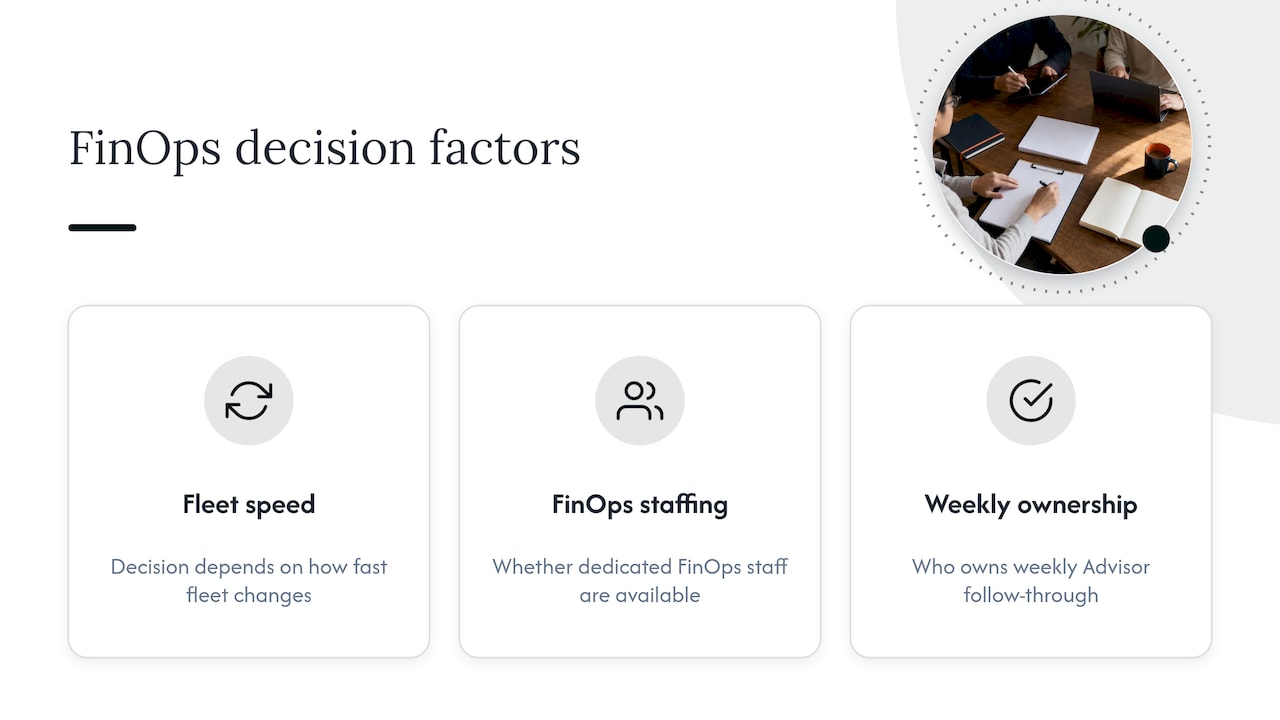
Running these four levers manually works at small scale, but the math changes once you’re managing dozens of subscriptions or a multi-tenant MSP book of business. The decision usually comes down to three things: how fast your fleet changes, whether you have dedicated FinOps staffing, and whether anyone owns the follow-through on Advisor recommendations every week.
Automated remediation, actions that actually execute rather than sit in a dashboard, cuts the time between an identified savings opportunity and a realized one. Our platform layers real-time visibility, automated rightsizing and scheduling actions, and managed FinOps expertise on top of Advisor and Cost Management data, with a “FinOps in a Box” model built specifically for MSPs who want to offer this without building it themselves. Engagements typically track coverage percentage, monthly savings realized, and time to remediation as the core KPIs.
7. Author perspective: tactical sequence and governance for FinOps teams
Sequence matters more than any single lever. In the first 30 days, run rightsizing and shutdown candidates through Advisor and clean up unmanaged disks, since these carry the least risk. Days 30 to 60 are for operationalizing deallocation schedules and a Spot pilot in a non-critical scale set. Days 60 to 90 are when you commit to reservations or savings plans, sized against verified usage, not projections.
Put an approval gate in front of every reservation purchase and a defined experiment window around new Spot adoption so a bad eviction week doesn’t become a permanent policy reversal. Verify savings weekly and report coverage monthly. Governance that skips this cadence tends to drift back to on-demand pricing within two quarters.
— Dan
How EverythingCloud accelerates Azure VM cost optimization
We built our platform to turn this playbook into something that runs continuously instead of a quarterly spreadsheet exercise. We pair real-time visibility across your Azure environment with automated remediation, so flagged rightsizing candidates and scheduling opportunities get acted on, not just logged.
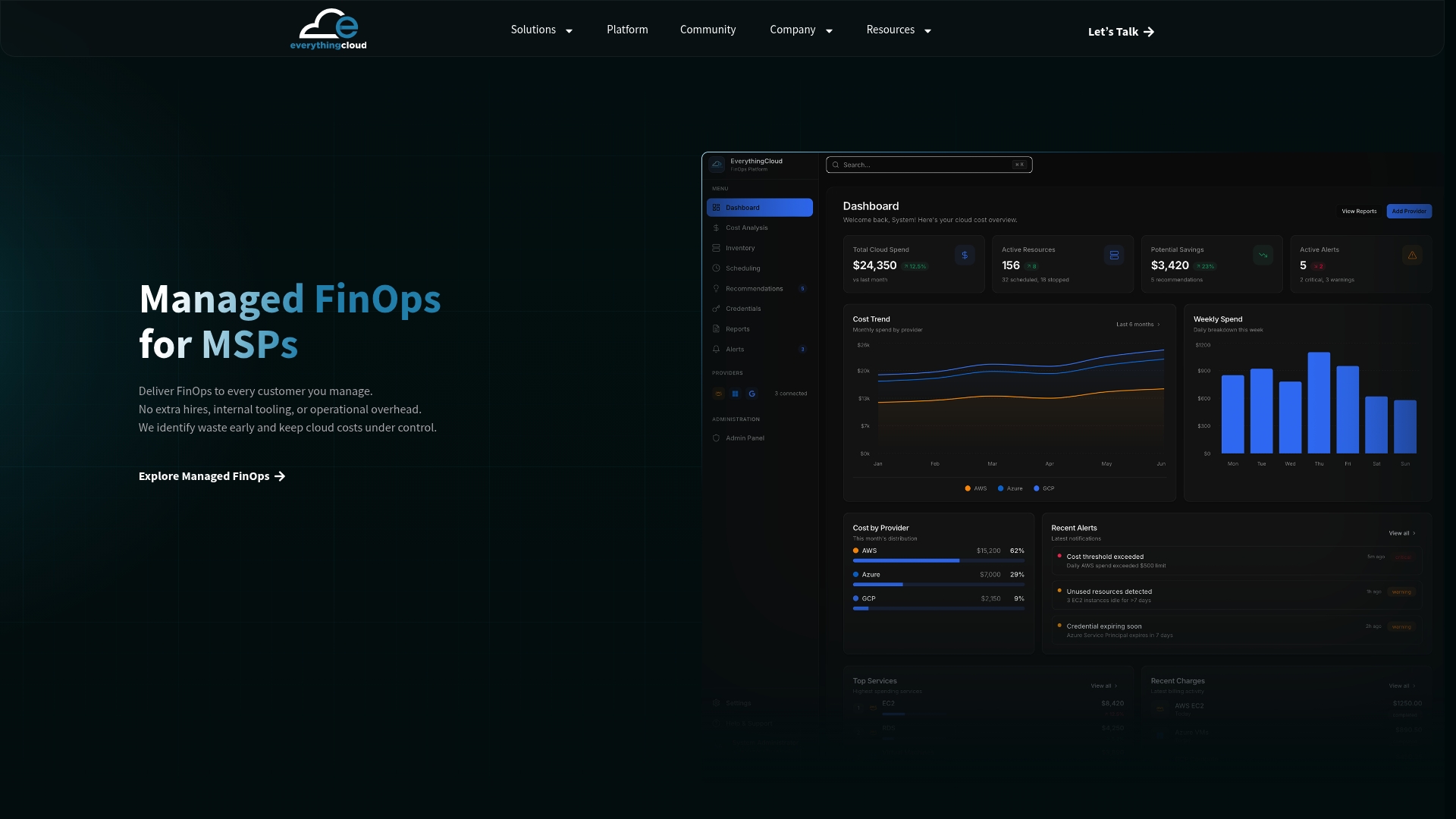
For MSPs and partners, we offer Managed FinOps as a turnkey way to deliver these optimizations without building the tooling internally, and our Continuous Cloud Optimization service brings the same discipline to enterprise environments managing commitments across multiple subscriptions. If you want to see how our managed FinOps service fits your fleet, we’re happy to walk through it.
FAQ
How do I reduce Azure VM costs quickly?
Start with Advisor’s rightsizing and shutdown recommendations, since they target the lowest-risk savings first, then move to scheduling nonproduction VMs and checking Hybrid Benefit eligibility. These steps come directly from Microsoft’s optimization guidance and typically produce visible savings within a single billing cycle.
How do I approach cost optimization in Azure overall?
Treat it as a cycle, not a project: measure usage, act on Advisor and commitment opportunities, then verify the savings showed up on the invoice. Microsoft’s FinOps best practices for compute frame this as combining rightsizing, commitment discounts, Spot usage, and continuous measurement rather than any single action.
How much does a VM cost in Azure?
Cost depends on VM size, series, region, operating system, and whether you’re paying on-demand, through a reservation, or a savings plan, so there’s no single price. Microsoft’s VM selector and pricing tools let you estimate cost for a specific configuration before deployment.
What tools help control Azure VM costs?
Azure Cost Management, Azure Advisor, and exported usage data queried through Kusto cover most measurement and recommendation needs natively. Teams managing larger or multi-tenant fleets often add a managed FinOps platform, such as our own, to automate the remediation step those native tools only recommend.
What’s the difference between stopping and deallocating a VM?
Stopping a VM inside the guest operating system leaves the compute resource reserved in Azure, so billing continues. Deallocating through the portal, CLI, or API releases the compute and is the only action that actually stops the charge.
Sources
- Tutorial: Optimize costs from recommendations – Microsoft Learn
- Azure Reserved Virtual Machine Instances | Microsoft Azure