
If you’re running Windows Server or SQL Server workloads on Azure and paying full pay-as-you-go rates, you’re likely leaving significant money on the table. The Azure Hybrid Benefit (AHB) lets organizations apply existing on-premises licenses, covered by active Software Assurance or a qualifying subscription, directly to Azure resources, eliminating the software cost component from your Azure bill. For Windows Server VMs, SQL Server, and qualifying Linux subscriptions, the savings can be substantial, especially when AHB is stacked with Azure Reservations or Savings Plans.
The three fastest wins: Windows Server VMs, SQL Server on Azure SQL Database or Managed Instance, and RHEL/SLES Linux subscriptions. The validation tool you need is Azure Advisor, which generates exportable cost recommendations and flags which resources are eligible. According to Microsoft’s public pricing pages, illustrative savings reach up to 76% for certain Linux scenarios when AHB is combined with other discounts, with meaningful reductions for SQL Server and Windows Server workloads as well.
Before you enable anything, two prerequisites apply: your licenses must carry active Software Assurance (SA) or a qualifying subscription, and you need a minimum core licenses per VM as recommended by Microsoft. Miss either condition and the benefit does not apply.
Key Takeaways
The Azure Hybrid Benefit delivers its full value only when eligibility is confirmed, savings are sequenced correctly with rightsizing and reservations, and license compliance is governed continuously rather than checked once at activation.
| Point | Details |
|---|---|
| Confirm SA coverage first | AHB requires active Software Assurance or a qualifying subscription; expired licenses are ineligible. |
| Apply the -core minimum rule | Each VM needs at least eight core licenses; processor licenses count as 16 cores each. |
| Sequence savings correctly | Rightsize and shut down idle resources before purchasing reservations or savings plans. |
| Govern with automation | Schedule recurring licenseType audits and reconcile against your on-premises license inventory monthly. |
| Everythingcloud for ongoing governance | Everythingcloud’s managed FinOps platform automates AHB reconciliation, surfaces gaps, and tracks projected vs. actual savings continuously. |
Table of Contents
- What Azure Hybrid Benefit covers across your Azure resources
- Eligibility and license rules you need to confirm before enabling AHB
- How to enable AHB on new and existing resources
- How to estimate and validate AHB savings with Azure Advisor
- Interactions with reservations, savings plans, and the limits you need to know
- How to govern AHB compliance at scale
- An operational perspective on AHB for FinOps and platform teams
- How Everythingcloud helps you capture and govern AHB savings
- Frequently asked questions about Azure Hybrid Benefit
- Sources
What Azure Hybrid Benefit covers across your Azure resources
AHB is broader than most teams initially realize. It applies across a meaningful range of Azure resource types, not just Windows Server VMs.
Supported resource categories:
- Windows Server VMs on Azure IaaS, including VM Scale Sets and Dedicated Hosts
- SQL Server on Azure VMs (IaaS), covering Standard and Enterprise editions
- Azure SQL Database (provisioned vCore purchasing model only, not DTU-based)
- Azure SQL Managed Instance (provisioned vCore model)
- Azure Kubernetes Service (AKS) nodes running Windows Server
- Azure VMware Solution (AVS), where AHB removes the Windows Server guest licensing cost
- Azure Local (formerly Azure Stack HCI) for on-premises-connected workloads
- Linux subscriptions: Red Hat Enterprise Linux (RHEL) and SUSE Linux Enterprise Server (SLES) via qualifying subscriptions
One distinction worth flagging: for Azure SQL Database and Managed Instance, AHB applies only to the provisioned vCore model. If your SQL databases run on the DTU purchasing model, you need to migrate to vCore first before AHB applies.
For SQL Server Enterprise Edition customers, the virtualization economics get particularly interesting. Under highly virtualized conditions, Microsoft documents that one on-premises physical core can convert to up to four vCores in certain Azure General Purpose service tiers. That math can dramatically change the cost calculus for dense SQL workloads.

Migration allowance: Microsoft provides a 180-day concurrent use allowance for specific license types during active migration. This means you can run the same workload both on-premises and in Azure simultaneously for up to 180 days without violating license terms, giving migration projects real breathing room.
For Linux subscriptions, AHB works with RHEL and SLES and extends to AKS nodes and Dedicated Host configurations when the underlying subscription is active.
Eligibility and license rules you need to confirm before enabling AHB
The most common mistake teams make is assuming any existing on-premises license qualifies. It does not. Active Software Assurance or a qualifying subscription is required, and an expired SA makes those licenses ineligible regardless of how many cores they cover.
Core eligibility checklist:
- Active Software Assurance coverage or a qualifying subscription license (not just ownership of the license)
- Minimum of eight core licenses per VM for Windows Server
- For larger VMs, additional licenses in increments of eight cores to match the VM’s total core count
- Processor-based licenses convert at 1 processor license = 16 core licenses
- Windows Server Datacenter edition grants unlimited virtualization rights on the licensed host
- Windows Server Standard edition permits two virtual instances per license set, with no unlimited virtualization
The processor-to-core equivalence matters most for teams migrating from older server estates. If your on-premises inventory is tracked in processor licenses rather than core licenses, multiply each processor license by 16 to get your equivalent core count before mapping to Azure VM sizes.
For SQL Server, the same SA requirement applies. Enterprise Edition customers gain access to the highly virtualized conversion rules mentioned above, while Standard Edition follows a simpler one-to-one core mapping.
The audit step you cannot skip: Before enabling AHB at scale, reconcile your on-premises core license inventory against your Azure vCore footprint. An entitlement gap discovered during a Microsoft audit is far more expensive than the savings AHB generates. The Microsoft Product Terms govern all eligibility rules, and those terms take precedence over any third-party interpretation, including this article.
How to enable AHB on new and existing resources
Activating AHB is a metadata-only change. Critically, changing the licenseType flag does not restart the VM, which makes it safe to apply to running production workloads without a maintenance window.
Activation methods:
- Azure portal (new VM): During VM creation, check the “Azure Hybrid Benefit” checkbox under the Licensing section. For existing VMs, navigate to the VM’s Configuration blade and toggle the benefit on.
- ARM template: Set
"licenseType": "Windows_Server"(or"SQL_Server","RHEL_BYOS","SLES_BYOS"as appropriate) in the resource properties block. - Azure CLI: Use
az vm create --license-type Windows_Serverfor new VMs, oraz vm update --license-type Windows_Serverfor existing ones. - PowerShell: Use
New-AzVmwith-LicenseType "Windows_Server"for new VMs, orUpdate-AzVMwith the same flag for existing resources. - VM Scale Sets: Apply the licenseType at the scale set profile level; all instances in the set inherit the setting.
Conversion checklist for low-risk rollouts:
- Start with non-production or dev/test VMs to validate the billing change appears correctly in Cost Management.
- Query your existing fleet for licenseType status using
az vm list --query "[].{Name:name, LicenseType:licenseType}" -o tableto identify unconverted VMs. - Cross-reference the count of AHB-enabled vCores against your confirmed SA-covered license inventory before expanding to production.
- Enable AHB in batches, checking Cost Management after each batch to confirm the expected software cost reduction appears within 24 hours.
Pro Tip: Run the CLI query above across all subscriptions using Azure Resource Graph (az graph query) to get a tenant-wide view of licenseType flags in one pass, rather than querying subscription by subscription.
How to estimate and validate AHB savings with Azure Advisor
Estimating savings before committing is where many teams lose discipline. The right workflow uses Azure Advisor as the starting point, not the pricing calculator alone.
Step-by-step savings validation workflow:
- Export Advisor cost recommendations to CSV. In the Azure portal, navigate to Advisor > Cost, then select “Download as CSV.” This file contains per-resource forecasted yearly savings, recommendation type, and impacted resource IDs.
- Rightsize or shut down idle resources first. Azure Advisor sequences recommendations deliberately: rightsize and shutdown actions come before reservation or savings plan purchases. Acting on reservations before rightsizing locks you into commitments for resources you may later shrink or decommission.
- Wait for recommendations to refresh. After rightsizing actions, allow 24–48 hours for Advisor to reflect the updated resource footprint before reading reservation or savings plan recommendations.
- Apply reservations for stable, predictable workloads. Once the rightsized baseline is stable, purchase Reserved Instances for resources with consistent utilization.
- Layer savings plans last. Savings plan recommendations are generated from 7, 30, and 60-day usage windows using hundreds of simulations. They present 1-year and 3-year options and refresh several times daily. Purchasing savings plans before reservations can cause the two commitments to overlap and reduce the effective discount of each.
Illustrative savings ranges by resource type (Microsoft-published):
Source: Microsoft Azure Hybrid Benefit pricing pages. Actual savings vary by VM size, region, and commitment term.
Pro Tip: If your team decommissioned or rightsized VMs in the 30 days before you export Advisor recommendations, the savings plan recommendations may be inflated. Filter the CSV by resource ID and cross-check against your current active VM inventory before aggregating the yearly savings figure. Committing to a savings plan sized for a fleet that no longer exists is one of the most common overcommitment errors in Azure FinOps.
For a broader Azure cost optimization playbook that covers rightsizing, reservations, and savings plan sequencing in detail, Everythingcloud’s enterprise guide walks through the full workflow.
Interactions with reservations, savings plans, and the limits you need to know
AHB stacks with both Azure Reservations and Azure Savings Plans, but the combination requires careful sequencing and an understanding of what AHB does not cover.
Key limitations:
- AHB is time-bound to your SA or subscription term. When SA lapses, the benefit stops, and Azure reverts to standard pay-as-you-go software pricing automatically.
- AHB does not apply to marketplace images that include a Windows Server or SQL Server license in the image price. You must use a bring-your-own-license (BYOL) or base OS image.
- The 180-day migration allowance applies only during active migration and only for specific license types. It is not a permanent dual-use right.
- For Azure SQL Database, AHB applies only to the provisioned vCore model. DTU-based databases are excluded.
Stacking rules:
AHB removes the software licensing cost component. Reservations and savings plans discount the compute cost component. These are separate billing dimensions, so they stack cleanly when applied correctly. The sequencing rule from Advisor still applies: do not purchase reservations or savings plans until the underlying resource footprint is stable and rightsized.
SQL Server virtualization rights: For SQL Server Enterprise Edition, the highly virtualized conversion that yields up to four vCores per on-premises physical core in General Purpose tiers is powerful but complex. The terms differ by service tier, and under-licensing under this model carries audit risk. Engage a licensing specialist before applying this conversion at scale.
License mobility vs. AHB: License Mobility through SA allows you to deploy certain server application licenses on shared hardware in authorized hosters. AHB is a separate, distinct benefit that applies specifically to Azure and removes the software cost from Azure billing. The two are not interchangeable, and using License Mobility on a third-party hoster does not satisfy AHB eligibility for Azure.
Compliance gotchas:
- Enabling AHB on more vCores than your SA-covered license inventory supports creates an audit liability.
- Processor license conversions (1 processor = 16 cores) must be documented and reconcilable to your on-premises inventory.
- Reservation trade-ins and outstanding commitments can interact with savings plan recommendations. Check for open reservations before purchasing savings plans to avoid double-committing on the same compute.
Always validate against the official Microsoft Product Terms before enabling AHB at scale.
How to govern AHB compliance at scale
Manual spreadsheet tracking of AHB entitlements drifts quickly. Within a few months of enabling the benefit across a large VM fleet, the gap between what’s enabled in Azure and what’s actually covered by SA tends to widen without a structured governance process.
Inventory and reconciliation process:
- Query all VMs and scale sets for licenseType flags using Azure Resource Graph or CLI across all subscriptions.
- Map each AHB-enabled resource’s vCore count to the corresponding number of SA-covered core licenses in your on-premises inventory.
- Run this reconciliation on a scheduled cadence, at minimum monthly, and before any SA renewal or expiry date.
Sample reconciliation tracking columns:
Automation suggestions:
- Schedule weekly exports from Azure Advisor and Cost Management using Azure Automation or Logic Apps.
- Script licenseType audits with PowerShell or CLI and pipe results into a shared governance dashboard.
- Set alerts in Azure Monitor or Cost Management for any new VM created without a licenseType flag, which signals a missed AHB opportunity or an unreviewed deployment.
Governance checklist:
- Assign a named owner for entitlement reconciliation, typically a FinOps lead or licensing manager.
- Add SA renewal dates to your change-management calendar with a 90-day lead time for review.
- Document the change-control process for enabling or disabling AHB, including approval steps and the reconciliation check required before each change.
Aligning AHB governance with CIS- and NIST-based cloud governance controls turns license tracking from a reactive audit exercise into a proactive compliance posture.
Pro Tip: A managed FinOps platform with automated reconciliation eliminates the spreadsheet drift problem entirely. Automated playbooks that query licenseType flags, compare against your license inventory, and surface gaps in a dashboard give you audit-ready documentation without manual effort.

An operational perspective on AHB for FinOps and platform teams
Most organizations treat Azure Hybrid Benefit as a one-time activation task. Enable it, save money, move on. That framing is where the real value gets left behind.
AHB works best when it is owned across three teams simultaneously. The platform team controls the licenseType flags and deployment templates. The FinOps team owns the savings forecast, the Advisor export workflow, and the reconciliation against actuals. The licensing or procurement team holds the SA inventory and renewal calendar. When those three functions operate in silos, the benefit either gets under-applied (missed VMs, wrong license types) or over-applied (more vCores enabled than SA covers, creating audit exposure).
The metrics that matter are not just “savings enabled.” Track the license coverage ratio (AHB-enabled vCores as a percentage of SA-covered core licenses), the projected vs. actual savings delta from Cost Management month over month, and the time-to-remediate when a reconciliation check surfaces a license gap. Those three numbers tell you whether your AHB program is healthy or drifting.
One more thing: if your team lacks the licensing expertise to navigate SQL Server Enterprise Edition’s virtualization conversion rules, or if your SA renewal cycle is complex, that is the right moment to engage a managed FinOps or licensing specialist. The cost of a specialist engagement is almost always recovered in the first month of correctly applied savings, particularly for SQL-heavy workloads.
How Everythingcloud helps you capture and govern AHB savings
Identifying AHB savings on paper is straightforward. Maintaining them across a growing VM fleet, multiple subscriptions, and quarterly SA renewals is where most teams lose ground.
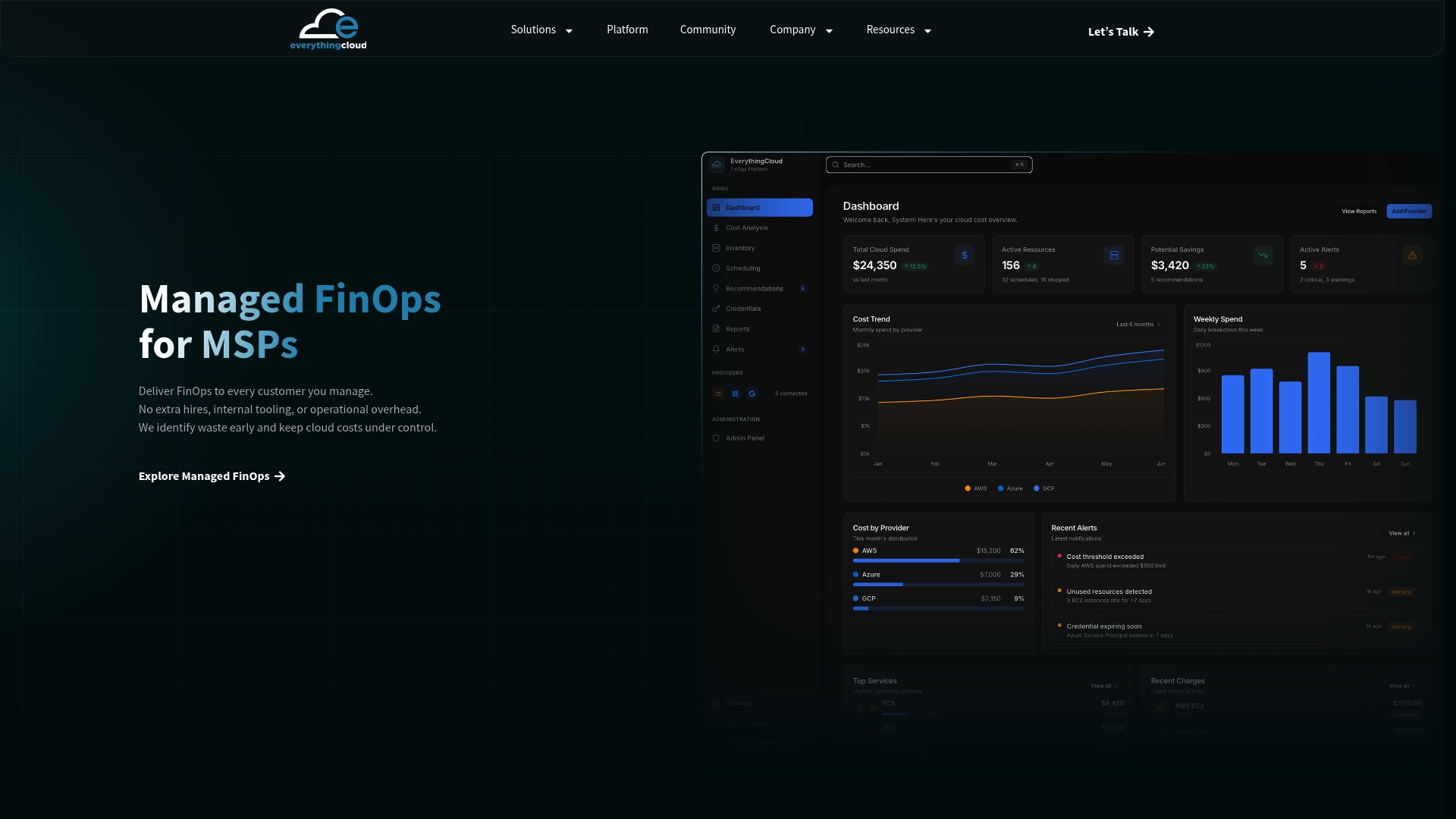
Everythingcloud’s managed FinOps platform provides continuous visibility into Azure licensing costs, automated licenseType auditing across subscriptions, and real-time reconciliation against your entitlement inventory. For MSPs and enterprise teams, the platform surfaces AHB gaps alongside rightsizing and reservation recommendations in a single dashboard, so nothing slips through between renewal cycles. Automated playbooks flag new VMs missing AHB, track SA expiry timelines, and generate executive-ready savings reports without manual exports.
If you want a managed service rather than a self-serve tool, Everythingcloud’s FinOps experts handle the end-to-end workflow: Advisor export, savings sequencing, license reconciliation, and ongoing governance. Talk to the team to see how quickly AHB savings can be validated and locked in for your environment.
Frequently asked questions about Azure Hybrid Benefit
Does enabling AHB restart my running VMs?
No. Changing the licenseType flag is a metadata-only operation and does not trigger a restart, making it safe to apply to production VMs during business hours.
Can I use AHB if my Software Assurance expired last month?
No. Active SA or a qualifying subscription is required at the time AHB is applied. An expired SA makes those licenses ineligible, and Azure will revert to standard pay-as-you-go software pricing.
Does AHB apply to Azure SQL Database on the DTU model?
No. AHB for Azure SQL Database applies only to the provisioned vCore purchasing model. You need to migrate from DTU to vCore before the benefit can be applied.
Can I stack AHB with Azure Reservations?
Yes. AHB removes the software cost component; reservations discount the compute cost component. They apply to separate billing dimensions and stack cleanly when the underlying resource footprint is stable and rightsized first.
What happens to AHB when my SA term expires?
Azure automatically reverts the affected resources to standard pay-as-you-go software pricing. You do not need to manually disable AHB, but you should track SA renewal dates and renew before expiry to avoid billing gaps.
Is the 180-day migration allowance automatic?
The allowance is documented in Microsoft Product Terms for specific license types during active migration, but it is not automatically enforced in the portal. You are responsible for ensuring concurrent use falls within the allowance period and license type conditions.
What is the minimum VM size I can apply AHB to?
The minimum is eight core licenses per VM. For VMs with more than eight cores, you need additional licenses in eight-core increments to cover the full VM core count.
How often should I reconcile my AHB entitlements?
Monthly reconciliation is the practical minimum for most organizations. Teams with frequent VM deployments or complex SA portfolios benefit from weekly automated audits using scripted licenseType queries against their license inventory.
Sources
These Microsoft resources cover the specific questions that come up most often when implementing AHB in production.
- Azure Hybrid Benefit Pricing
- Azure Hybrid Benefit – Azure SQL Database & SQL Managed Instance | Microsoft Learn
- How to calculate total cost savings in Azure Advisor
- Azure savings plan purchase recommendations