
Start with idle instances and scheduling, then right-size with Compute Optimizer, move storage to gp3 or Aurora I/O-Optimized, and commit once usage is stable. Reserved Instances can cut RDS and Aurora costs by up to 72%, Database Savings Plans by up to 35%, and stopping non-production databases can trim compute by up to 70%. Quick wins carry little risk; Graviton and architecture shifts take more effort. We walk through each step and how to validate it.
TL;DR:
- Stopping nonproduction databases can cut compute costs by up to 70%, but storage, provisioned IOPS, backups, and public IPv4 addresses continue billing.
- RDS restarts stopped instances after seven days and blocks modifications while they are stopped, so test tag based schedules on a sandbox first.
- Before right sizing, clone the database, replay representative traffic, compare latency, CPU, memory, and connections, then monitor rollback thresholds through a full business cycle.
- Aurora I/O Optimized can save up to 40% when I/O exceeds roughly 25% of the bill, but changes are limited to once every 30 days.
- Reserved Instances require compatible instance families and engines, and scheduled databases may not qualify; commit only when usage stays predictable.
Table of Contents
- Which RDS cost levers should you pull first?
- What do you actually pay for with RDS?
- How do you eliminate idle resources and schedule non-production databases?
- How do you right-size and modernize RDS instances?
- When do gp3, provisioned IOPS tuning, and Aurora I/O-Optimized pay off?
- How do you cut backup and snapshot costs?
- When should you buy Reserved Instances or Database Savings Plans?
- Which AWS tools should power your monitoring and automation?
- How do multi-tenant architecture choices change RDS unit economics?
- What does a 90-day RDS optimization runbook look like?
- Why does continuous optimization beat a one-off cost project?
- Where does EverythingCloud fit into RDS savings?
- FAQ
- Sources
Which RDS cost levers should you pull first?
Work the list in order. Each lever carries a rough effort and risk rating, so you can pick safe starts before touching production.
- Remove idle instances. Low effort, low risk. AWS points to Trusted Advisor idle checks and Compute Optimizer guidance for finding them.
- Schedule start/stop for non-production. Low effort, low risk, with savings of up to 70% on compute.
- Migrate gp2 volumes to gp3. Low to medium effort, low risk when tested first.
- Right-size over-provisioned instances. Medium effort, medium risk until validated.
- Buy Reserved Instances or Database Savings Plans. Low effort, medium risk if usage forecasts are weak.
- Move suitable workloads to Graviton. High effort, medium risk, because it needs compatibility testing.
- Evaluate Aurora I/O-Optimized. Low effort, low risk when I/O is a large share of the bill.
What do you actually pay for with RDS?
You cannot cut what you cannot see, so break the bill into its parts. Most RDS invoices are driven by a handful of line items:
- DB instance hours. On-demand billing is per instance-hour, charged per second with minimums, so every hour a database runs idle still costs money.
- Storage. Billed per GB-month for the capacity you provision, not the data you use.
- Provisioned IOPS. Billed per IOPS-month on volumes that carry a provisioned rate.
- Backup storage. Automated backups beyond your free allotment and manual snapshots both add up.
- Data transfer. Cross-AZ, cross-Region, and internet egress add charges outside the instance price. Our guide to cutting AWS data transfer costs covers that side in depth.
- Multi-AZ overhead. A standby instance means certain resource charges are doubled.
Multi-AZ deserves a hard look in development and test environments, where a standby rarely earns its keep. Production databases with uptime requirements should keep it.
Stopping an instance does not stop every charge. As the AWS guidance puts it:
While an instance is stopped, you still pay for provisioned storage, provisioned IOPS, and backup storage. Stopped instances keep accruing these charges, so a long-idle database that no one needs should be snaps hotted and deleted instead.
How do you eliminate idle resources and schedule non-production databases?
Start with detection. Trusted Advisor flags idle DB instances, and CloudWatch metrics fill in the picture. A database with near-zero connections and flat CPU over several weeks is a candidate. Then choose: stop it if someone will need it again, delete it after a final snapshot if not.
Scheduling is where the money is. Stopping RDS instances and Aurora clusters outside business hours can reduce compute spend by up to 70% for dev and test. A few operational facts shape the design:
- RDS restarts a stopped instance automatically after seven consecutive days, so a scheduler must re-stop it.
- Stopped instances cannot be modified, which blocks patching or parameter changes until you start them.
- Multi-AZ deployments may not support the stop operation for some engines.
- Storage, provisioned IOPS, backup storage, and public IPv4 addresses keep billing while stopped. Removing public endpoints trims the residual.
Take a manual backup before the first stop. The savings are real, but they only matter if the scheduler is dependable. Test it on one team’s sandbox databases before rolling it out everywhere.
Pro Tip: Tag every database with an owner and an environment before you schedule anything. A scheduler that targets tags is safe to extend, and one that targets instance names is a surprise waiting to happen.
How do you right-size and modernize RDS instances?
Once the waste is gone, match capacity to demand. AWS Compute Optimizer now gives database-specific recommendations for RDS and Aurora on MySQL and PostgreSQL. It classifies each database as over-provisioned, optimized, or under-provisioned, estimates monthly savings, and rates the performance risk of the change. It also surfaces gp3 and Graviton opportunities.
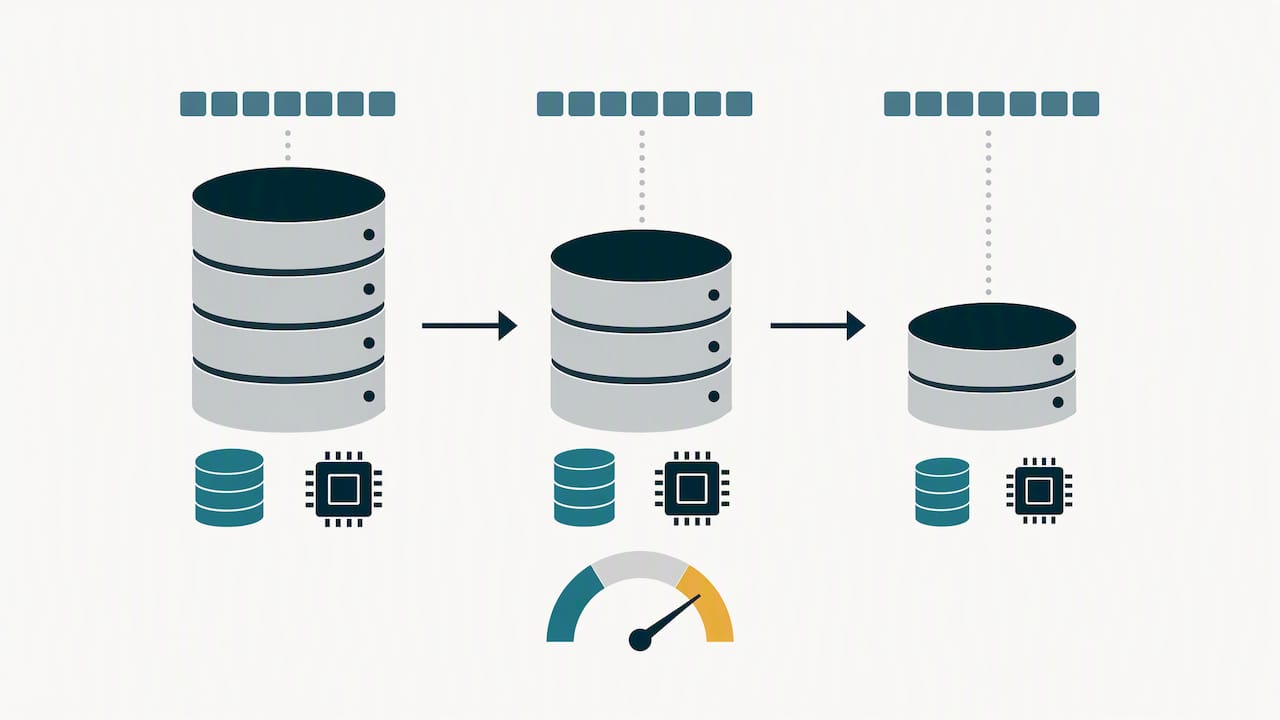
AWS describes a layered approach: eliminate waste first, right-size second, then consider Graviton or Aurora Serverless. That ordering keeps you from right-sizing a database you should have deleted.
A safe sequence looks like this:
- Sort findings by estimated savings, then filter out anything with a high performance-risk rating.
- Clone the database from a snapshot and replay representative load on the smaller instance.
- Compare CPU, memory, latency, and connection counts against your baseline.
- Apply the change in a maintenance window, with a written rollback trigger such as sustained latency above baseline.
- Watch the metrics for a full business cycle before closing the ticket.
Graviton fits best where your engine and extensions already support ARM. Common pitfalls are custom extensions, client libraries pinned to x86 assumptions, and skipping the load test. A newer instance generation is often the simpler first move, since it usually needs less compatibility work.
Pro Tip: Define rollback criteria before you resize, not after. “Revert if p95 latency rises past the agreed threshold” ends the debate during an incident.
When do gp3, provisioned IOPS tuning, and Aurora I/O-Optimized pay off?
Storage is the quiet half of the RDS bill. gp3 lets you scale IOPS and throughput independently of capacity, so you stop buying extra gigabytes just to get performance. Migration is generally low risk, but test it on a non-production copy first and confirm throughput under load.
For io1 and io2 volumes, benchmark actual IOPS consumption before reducing the provisioned rate. Many databases carry far more provisioned IOPS than their peak demand requires. Lower it in steps and watch latency after each one.
Aurora offers two configurations, Standard and I/O-Optimized. The I/O-Optimized option replaces per-request I/O charges with a predictable hourly fee and suits I/O-heavy workloads. The rule of thumb from AWS:
- Check your I/O share of the Aurora bill. If I/O exceeds roughly 25% of the bill, switching often saves up to 40%.
- Plan the switch. You can change configurations only once every 30 days, so confirm the numbers in Cost Explorer first.
- Revisit after major changes. A new feature that shifts query patterns can flip the math.
For spiky or unpredictable demand, Aurora Serverless v2 can save up to 90% versus provisioning for peak load by scaling capacity in fine-grained steps.
How do you cut backup and snapshot costs?
Backup storage grows quietly. Automated backups beyond your free allotment, long retention windows, and manual snapshots that outlive their purpose all add to the line item. Nothing expires a manual snapshot unless you make it.
Run this cleanup in order:
- Audit snapshots. List every manual snapshot with its age, source database, and owner tag. Anything whose source database no longer exists is a deletion candidate.
- Align retention with recovery objectives. Match retention days to your real RTO and RPO. Choose a retention period that fits your recovery objectives for dev databases.
- Automate expiration. Use lifecycle automation to delete snapshots past their retention date, so cleanup does not depend on memory.
- Consolidate before deleting. Keep the newest snapshot that satisfies your recovery objective, and verify a restore from it before removing older copies.
- Export long-term archives. If compliance demands years of retention, export snapshots to cheaper object storage. Our S3 optimization playbook covers lifecycle tiers for that data.
Take a manual backup before stopping any instance, as AWS advises, and apply the same expiration rules to those backups.
When should you buy Reserved Instances or Database Savings Plans?
Commit only after the waste is gone and sizing is settled, otherwise you lock in the wrong footprint. The ranges to plan around:
- Reserved Instances. Up to 72% off On-Demand pricing on 1- or 3-year terms.
- Database Savings Plans. These can reduce Aurora costs and offer more flexibility than instance-specific reservations.
- Best fit. Steady-state production databases that have run at predictable levels for months.
Before you buy, run these checks:
- Compare your usage pattern against the commitment: a database that runs 24/7 qualifies, a scheduled one may not.
- Confirm instance family and engine compatibility, since Reserved Instances are tied to both.
- Use the Cost Explorer reservation recommendations as a starting point, then adjust for planned migrations such as Graviton.
- Put approval governance around purchases so one team does not commit the whole organization.
A single bolded figure to anchor the decision: Reserved Instances can reduce RDS and Aurora costs by up to 72% against On-Demand rates, and the discount only materializes if the reserved capacity stays in use. For the mechanics of Savings Plans versus reservations, see our FinOps guide to AWS Savings Plans.
Which AWS tools should power your monitoring and automation?
Each tool answers a different question, so use them together:
- Cost Explorer shows spend trends and reservation coverage, grouped by tag, engine, or account.
- Cost Anomaly Detection alerts you when spend spikes unexpectedly, such as a forgotten test cluster.
- Compute Optimizer supplies instance, storage, and Graviton recommendations with estimated savings.
- Trusted Advisor flags idle database instances worth stopping or deleting.
Estimate monthly savings for each finding, then rank by savings divided by risk and effort. A snapshot cleanup that saves a modest amount at near-zero risk beats a large migration that needs a quarter of testing.
Automation is what makes savings stick. Schedule start/stop through tag-driven jobs, push instance and storage changes through infrastructure-as-code pipelines so they are reviewed and reversible, and route reservation purchases through an approval workflow. Our three-phase AWS cost reduction playbook shows how to measure results across the whole cycle.
How do multi-tenant architecture choices change RDS unit economics?
If you run a SaaS product, your tenant model sets your cost floor. AWS describes the trade-off between Silo and Pool models: pooling is more cost-efficient but requires trade-offs on tenant isolation.
- Silo. Each tenant gets its own database. Isolation is strongest and per-tenant costing is simple, but you pay for idle capacity many times over.
- Bridge. A middle path that shares some layers and isolates others, such as separate schemas on shared instances.
- Pool. Tenants share one database. Unit costs drop sharply, provided your SLAs tolerate shared resources.
Pooling is a clear win for small tenants with light, similar workloads. Keep silos for tenants with strict compliance or noisy-neighbor concerns. Whatever you choose, tag resources by tenant, set tenant-level throttles, and keep backup separation where contracts demand it.
What does a 90-day RDS optimization runbook look like?
Sequence matters more than speed. Here is the order we follow:
- Discover. Inventory every instance, enforce tags, and group spend in Cost Explorer by environment and owner.
- Quick wins. Schedule idle non-production databases, clean up snapshots, and migrate gp2 volumes to gp3 where safe.
- Days 30 to 90, pilot. Run right-sizing pilots from Compute Optimizer findings and trial reservations on the most stable workloads.
- After day 90, restructure. Start Graviton migrations and any architecture changes, such as pooling tenants.
Track four KPIs: dollars saved, performance deltas against baseline, count of incidents or rollbacks, and reservation coverage. Write rollback criteria before each change and test on a clone first, so your SLAs are never the experiment.
Pro Tip: Report savings against the invoice, not the estimate. Compute Optimizer numbers are projections; the next bill is the proof.
Why does continuous optimization beat a one-off cost project?
A cost cleanup works for a quarter. Then a new team spins up databases, a scheduler breaks, and the savings quietly leak back. I have seen the pattern often enough to hold a firm view: durable savings come from continuous discovery, automated execution, and governance running every month, not from a heroic project. Each cycle compounds on the last. Pair your DBAs with a FinOps owner, and if your team lacks the hours to run that loop, a managed option is a sensible way to keep results from eroding.
— Dan
Where does EverythingCloud fit into RDS savings?
We built our platform for exactly this loop. We give you real-time visibility into cloud spend, automate optimization actions instead of only recommending them, manage reservations and commitments, and back it with Managed FinOps expertise that works your environment every month.
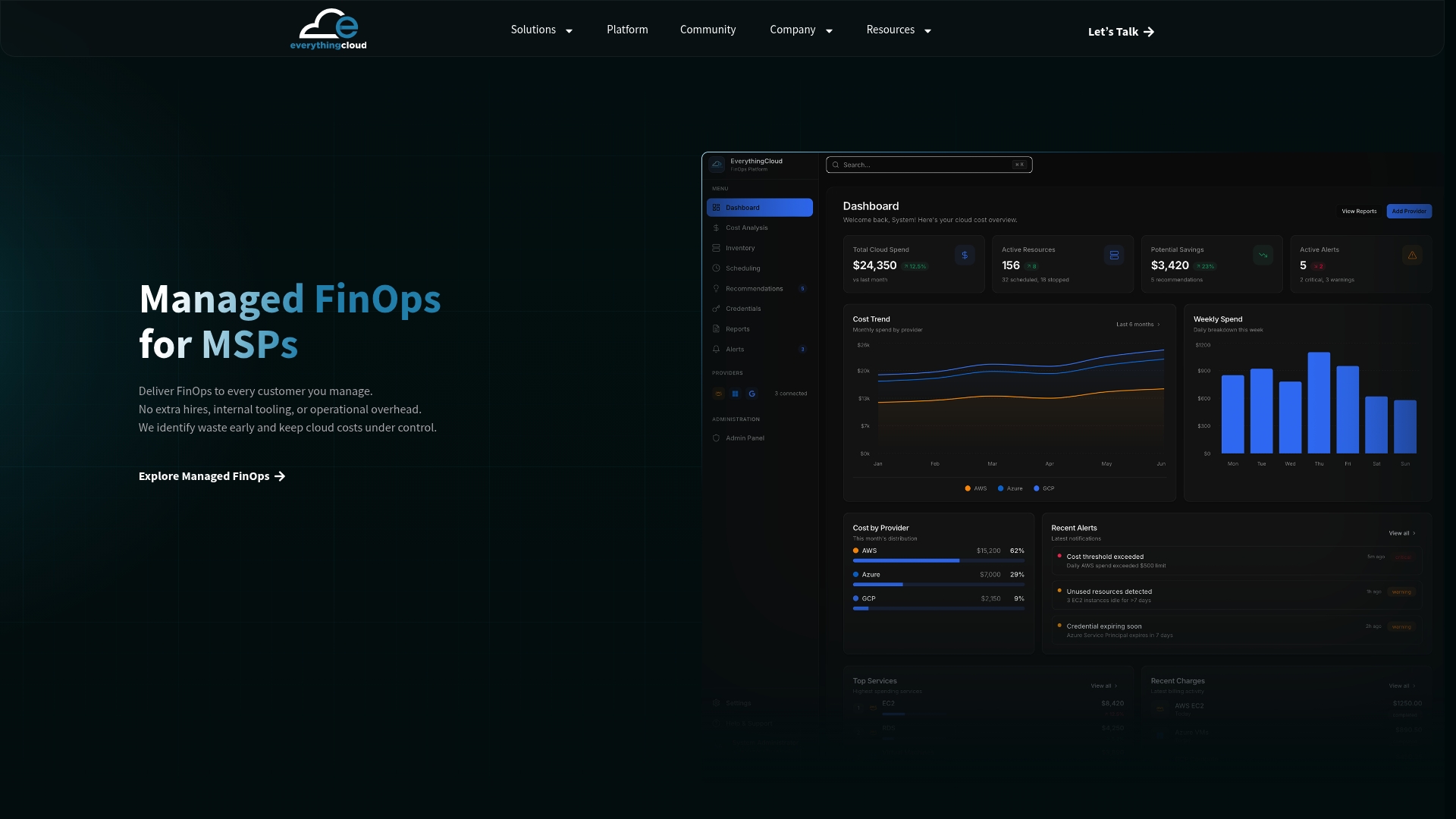
- Continuous monitoring across AWS, Azure, and Google Cloud spend.
- Automated optimization that executes savings actions with governance.
- Measurable recurring savings with less operator burden on your team.
If you want a hands-off path, talk to us about Managed FinOps.
FAQ
Why is my RDS bill so high?
The usual causes are idle or oversized instances, Multi-AZ on non-production databases, unused provisioned IOPS, and old snapshots. Start with Trusted Advisor idle checks and Compute Optimizer findings to see which apply to you.
What does cost optimization involve?
AWS frames cost optimization as delivering business value at the lowest price, balanced against speed to market. In practice, that means eliminating waste, right-sizing, using commitment discounts, and monitoring continuously.
How much does RDS cost per month?
It depends on engine, instance class, storage, IOPS, backups, Multi-AZ, and data transfer, so no single number holds. Use the AWS pricing calculator with your own configuration to estimate it.
Which RDS option is the cheapest?
Cost follows workload fit. Aurora Serverless v2 suits variable demand, while steady workloads gain most from reservations. Compare options against your own usage rather than a generic ranking.