
Azure cost management comes down to four habits: see your spend clearly, assign it to an owner, act on waste every month, and commit to discounts only when usage is stable. The native tools cover the first two well. The last two are where most organizations quietly lose money.
This guide walks through the Microsoft tools in the order most teams need them: cost analysis, budgets, exports, storage waste, commitments, and AI spend. It also covers where the native tooling stops and an operating discipline has to take over.
TL;DR
- Start with cost analysis, tags and budgets. Budgets and alerts can be configured as soon as a subscription exists, even before full cost data appears.
- Set up scheduled cost exports early. Raw billing data in a storage account is what lets finance, engineering and reporting tools work from the same numbers.
- Storage waste is rarely about the per-GB price. Lifecycle policies that move aging data to cooler tiers do the quiet work for you.
- Reservations and savings plans can cut costs sharply, but only on workloads you have verified as stable.
- Recommendations do not save money until someone executes them. Build an owner and a monthly cadence around every action.
Table of Contents
- What Azure cost management actually covers
- Step 1: Get visibility with cost analysis
- Step 2: Put budgets and alerts in front of the people who spend
- Step 3: Use cost exports to get billing data out of the portal
- Step 4: Reduce Azure storage costs without breaking applications
- Step 5: Use commitments, but only on stable usage
- Step 6: Bring AI and database spend under control
- Our perspective: recommendations are not savings
- Build a monthly cost management routine
- When to bring in continuous optimization
- FAQ
- Sources
What Azure cost management actually covers
Microsoft describes Cost Management as the set of tools to plan for, analyze and reduce your spending. In practice that means five pieces:
- The pricing calculator, for estimating before you deploy.
- Cost analysis, for exploring what you already spend.
- Budgets and alerts, for catching overruns early.
- Advisor recommendations, for finding waste.
- Exports, for moving billing data into the systems your finance and engineering teams already use.
Most guides list these tools and stop. The harder question is who does what with them. Cost management is an organizational discipline, not only a technical one, and Microsoft’s own guidance stresses aligning finance, management and engineering teams. A dashboard nobody owns is not cost management. It is a cost report.
If you want the broader enterprise view first, our Azure cloud cost optimization enterprise guide covers governance frameworks in more depth.
Step 1: Get visibility with cost analysis
Cost analysis is where every Azure review should begin. You can group costs by resource group, service, location or tag, and build custom filters to focus on what matters. The goal in the first week is simple: find out which three services and which five resource groups account for most of the bill.
A few habits make cost analysis far more useful:
Tag before you need the tags
Cost allocation is only as good as your tagging. Pick a short set of required tags, such as owner, environment, application and cost center, and enforce them with Azure Policy. Untagged spend is the first place waste hides, because nobody feels responsible for it.
Know what the data can and cannot tell you yet
New subscriptions can see up to 48 hours of delay before full Cost Management features are available, according to Microsoft’s documentation on cost data. The same page notes that you can configure budgets and alerts immediately. So do that on day one rather than waiting for the first invoice to surprise you.
Separate actual from amortized views
If you buy reservations, the actual cost view shows the purchase as a lump, while the amortized view spreads it across the term. Finance usually wants one, engineering the other. Agree on which view each team uses before the first review meeting, or you will spend that meeting arguing about numbers instead of acting on them.
Step 2: Put budgets and alerts in front of the people who spend
Budgets are the cheapest control in Azure. They cost nothing to set up and they change behavior, because an alert in an engineering lead’s inbox is far more effective than a variance in a finance report three weeks later.
A workable pattern looks like this:
- Create a budget per subscription or per resource group, tied to an owner.
- Set alerts on both actual spend and forecasted spend, at several thresholds, for example well before the budget is hit.
- Route alerts to the person who can change the workload, not only to a shared finance mailbox.
- Review thresholds quarterly, since a budget that always fires gets ignored.
Microsoft’s guidance points toward moving from reactive monitoring to proactive practices such as budget-based alerts and automated lifecycle management. That shift matters more than any single feature. A pattern of small overruns starts compounding quietly, and by the time it shows up in a quarterly review, it has been baked into the run rate for months.
Step 3: Use cost exports to get billing data out of the portal
The portal is good for exploring. It is not good for chargeback, long-term trending, or joining cost to business metrics. For that you need exports.
Azure Cost Management lets you schedule recurring exports of cost data to a storage account as files, which then feed a data warehouse, a BI tool or a chargeback process. A step-by-step walkthrough shows both the portal and CLI approaches, including daily exports of actual cost.
What to export
Export actual and amortized cost as separate datasets. Actual cost ties to the invoice. Amortized cost is what you need to allocate reservation and savings plan spend to the teams that benefit from it.
Why the FOCUS format matters
If you run more than one cloud, normalizing billing data is a recurring tax. The FinOps Open Cost and Usage Specification, known as FOCUS, defines a consistent schema for billing data, including actual and amortized cost columns, and Azure is among the providers that support it. The FinOps Foundation notes that adopting it moves effort away from manually normalizing formats and toward unit economics and optimization. The FOCUS 1.1 announcement also points practitioners to FOCUS-formatted datasets available directly from the major infrastructure providers.
For an Azure-only shop, FOCUS is still worth choosing for exports. It makes it far easier to add AWS, Google Cloud or SaaS data later without rebuilding your reports.
Keep the export itself cheap
An export lands in a storage account, and that storage grows every day. Put a lifecycle rule on the export container from the start. Last year’s daily files rarely need to sit in the hot tier.
Step 4: Reduce Azure storage costs without breaking applications
Storage is the line item that grows while nobody is looking. Compute gets reviewed because it is expensive and visible. Storage accumulates snapshots, old versions, logs and backups, and it keeps billing for all of them.
Look past the per-GB price
Microsoft’s architects frame storage optimization as a balance of capacity, transaction and latency costs, not only the per-GB rate. In its guidance on optimizing data costs, the Well-Architected Framework says to match data spending to data priority, including tiering and retention. It also notes that ignoring data lifecycle management is a common source of invisible waste.
That has a practical consequence. Moving a heavily read dataset to a cooler tier because the storage price is lower can raise your total bill, since cooler tiers charge more for access. Check access patterns before you change a tier.
Automate tiering with lifecycle management
Relying on default settings often leads to margin erosion, because data sits in the hot tier long after anyone touches it. Blob lifecycle management fixes that with rules. According to Microsoft’s lifecycle management overview, you can:
- Transition blobs, previous versions or snapshots to a cooler tier when they have not been accessed or modified for a set period.
- Move blobs back from cool to hot when they are accessed.
- Delete blobs, versions or snapshots at the end of their useful life.
- Scope rules to a whole account, selected containers, or subsets filtered by name prefix or blob index tags.
The page also states that the policy feature itself is free of charge. A policy is cheap to write and it keeps working after the person who wrote it has moved on.
A simple starting policy
For most storage accounts holding logs, backups or exports, a sensible first pass looks like this:
- Identify containers where data is written once and rarely read.
- Set a rule to move data to a cooler tier after a period that matches how long the business actually reads it.
- Set a deletion rule for snapshots and old versions that no retention requirement covers.
- Review the result after one billing cycle against actual invoice lines.
Before you pick a tier, read Microsoft’s best practices for blob access tiers. When access patterns are unpredictable, Microsoft’s data cost guidance points to automated options such as Smart tier rather than guessing.
To see where storage spend comes from on a specific account, Microsoft’s page on planning and managing Blob Storage costs explains each billing meter and how to estimate cost with the pricing calculator. Read it before a review. Storage bills have several meters, and teams often optimize the wrong one.
Step 5: Use commitments, but only on stable usage
Commitments are the largest single discount lever in Azure, and also the one that can hurt most if you buy blind.
Per Microsoft’s cost management guidance, Azure Reservations commit you to one- or three-year terms and can reduce resource costs by up to 72% for stable workloads. Azure Savings Plans for Compute can reduce costs by up to 65% for dynamic or evolving compute usage. Those are ceilings, not promises. Your discount depends on the service, region, term and what you already run.
Verify before you commit
The mistake we see most often is committing against current usage without asking whether that usage will exist in a year. A rightsizing project, a migration or a workload retirement can leave you holding a commitment for capacity you no longer run.
A safer order of operations:
- Rightsize and remove idle resources first.
- Wait for usage to settle for a full cycle.
- Commit to the baseline you are confident in, not the peak.
- Use savings plans for compute that shifts between sizes and families, and reservations for the steady, specific resources.
- Track utilization of every commitment monthly.
Our piece on Azure VM cost optimization lays out four levers to verify before committing. For quick wins from Advisor, see how to reduce Azure costs with Advisor rightsizing within a single billing cycle.
Step 6: Bring AI and database spend under control
AI workloads behave differently from classic infrastructure. Costs follow dynamic usage, such as tokens consumed, rather than a static allocation of servers. That makes monthly budgets less predictable and anomalies more expensive.
Azure Copilot in Cost Management now supports natural language questions about your costs. Microsoft documents examples such as simulating the effect of a 15% rise in token usage, or comparing the cost of moving between model versions. These simulations help with forecasting. They do not enforce anything, so you still need budgets, owners and review.
For deeper coverage, see our guides on Azure OpenAI cost management, which covers tokens, provisioned throughput and controls, and on measuring AI cost governance in one reporting cycle. Databases are another common source of overspend, and we cover three levers for cutting Azure SQL costs.
Our perspective: recommendations are not savings
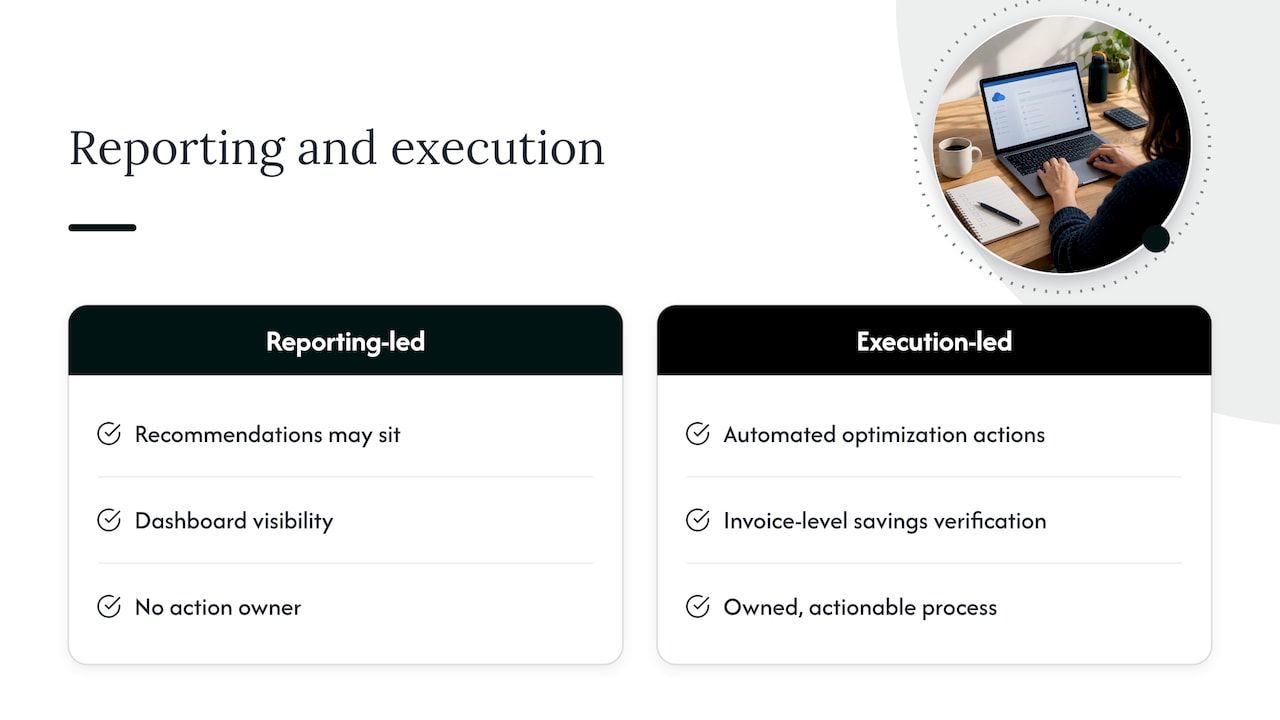
Most Azure cost programs we see follow the same arc. A team turns on cost analysis, reads Advisor, builds a list of recommendations, and then the list sits. Engineers have sprint commitments. Finance does not own the resources. Nobody is accountable for executing the action, so the waste continues, and a cloud margin leak becomes part of the baseline.
That is why we built EverythingCloud around execution rather than reporting. The platform automates optimization actions instead of stopping at recommendations. Savings outcomes are verified against invoice-level billing, so you can see whether a change reached the bill and not just the dashboard. Existing visibility tools can stay in place and be integrated into an owned, actionable process.
For managed service providers, the problem is sharper. Margin erosion happens across many tenants at once, and adding staff to review each one does not scale. Multi-tenant controls, unified reporting and governance let an MSP run FinOps across its customer base without growing headcount in step.
The pattern we would ask you to test in your own environment: pick one recommendation from last quarter, and ask who executed it, when, and what happened to the invoice. If the answer is unclear, the gap is in operations, not tooling.
— Dan
Build a monthly cost management routine
Tools give you the data. A routine turns it into savings. This cadence works for most mid-market and enterprise teams:
Weekly
Review anomaly alerts and budget alerts. Assign every unexplained spike to a named owner and a due date.
Monthly
Reconcile cost analysis against the invoice. Review commitment utilization. Execute the approved optimization actions and record the expected saving for each. Report results to finance and engineering in the same format.
Quarterly
Revisit budgets and tagging compliance. Re-evaluate commitment coverage against the usage you actually expect. Check storage lifecycle rules against current access patterns.
If the roles behind this routine are unclear in your organization, our overview of what FinOps in cloud means for finance, engineering and leaders maps who owns which decision.
When to bring in continuous optimization
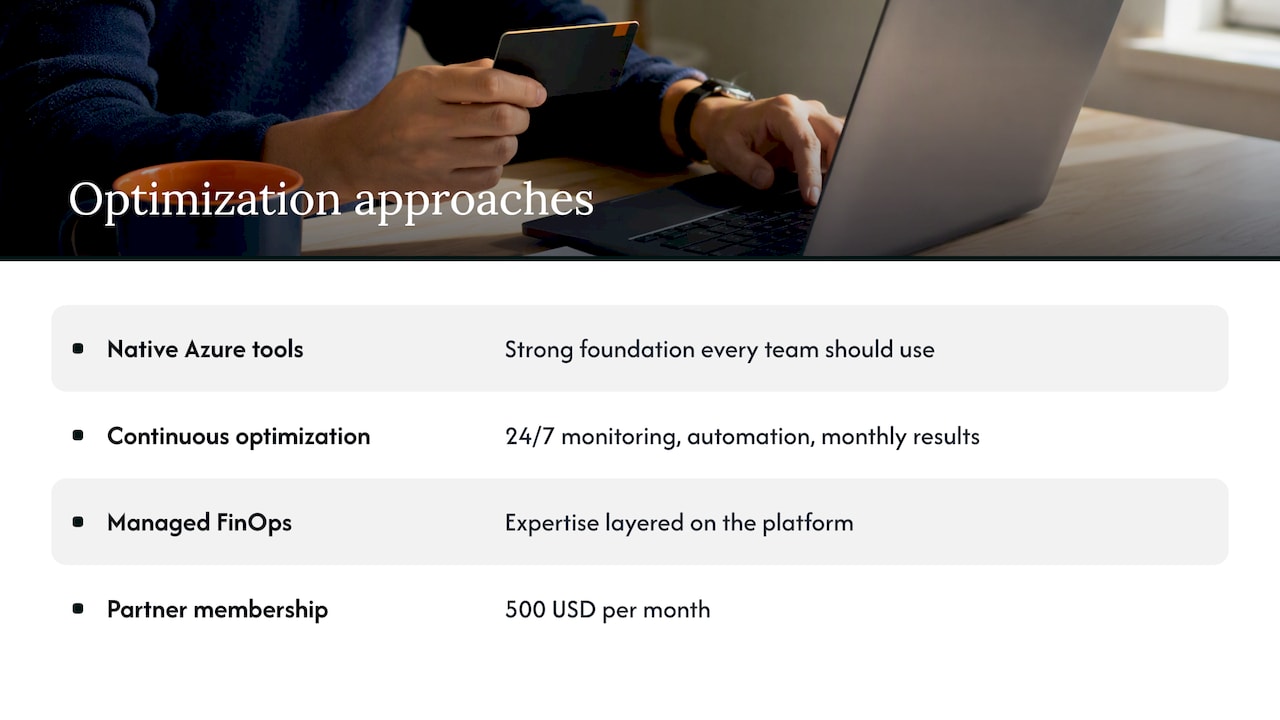
Native Azure tooling is a strong foundation, and every team should use it. It starts to strain when you run Azure alongside AWS, Google Cloud, Microsoft 365 and other SaaS, when you have more subscriptions than one person can review, or when recommendations pile up faster than anyone can act on them.
That is the point where Continuous Cloud Optimization fits. We monitor your environments around the clock, identify opportunities, automate cost-saving actions, and report measurable results each month. If you would rather hand the operating discipline to experts, Managed FinOps gives you that expertise on top of the platform. You can also see how the platform works before you decide.
For MSPs, the Founding Partner Membership costs 500 USD per month and is the entry point to launching managed FinOps for your own customers.
Our analysis of managed FinOps benefits shows what this looks like for cloud finance teams.
FAQ
How do I reduce my costs with Azure?
Start with visibility: use cost analysis with consistent tags, then set budgets with named owners. Remove idle resources and rightsize before you buy commitments. Add lifecycle policies for storage and review results against the invoice each month.
How much can reservations and savings plans save?
Microsoft states that reservations can cut costs by up to 72% for stable workloads, and savings plans for compute by up to 65% for dynamic usage. These are maximums. Your actual discount depends on the service, term and region, so model your own usage before committing.
Why is my new Azure subscription not showing cost data?
Cost data for a new subscription can take up to 48 hours to appear in full, per Microsoft’s documentation. You can still create budgets and alerts immediately. Do that first so early spending is watched while the data fills in.
What is the best way to reduce Azure storage costs?
Manage the full data lifecycle, not only the tier. Use lifecycle management rules to move aging data to cooler tiers and delete what no policy requires you to keep. Check access patterns first, because cooler tiers charge more for access and can raise your bill on frequently read data.
Do I need exports if I already use cost analysis?
Use cost analysis for exploration and exports for anything repeatable, such as chargeback, BI reporting or multi-cloud views. Exports deliver raw billing data to a storage account on a schedule. Choosing the FOCUS format keeps those datasets consistent as you add other clouds.
Sources
- Optimize your cloud investment with Cost Management, Microsoft Learn
- Introduction to cost management and savings with Azure Reservations and Savings Plans, Microsoft Learn
- Understand Cost Management data, Microsoft Learn
- Schedule recurring cost exports to a storage account, OneUptime
- FinOps Cost and Usage Specification, FinOps Foundation
- FOCUS 1.1 now available, FinOps Foundation
- Architecture strategies for optimizing data costs, Microsoft Learn
- Azure Blob Storage lifecycle management overview, Microsoft Learn
- Best practices for using blob access tiers, Microsoft Learn
- Plan and manage costs for Azure Blob Storage, Microsoft Learn
- Analyze, estimate and optimize cloud costs using Azure Copilot, Microsoft Learn