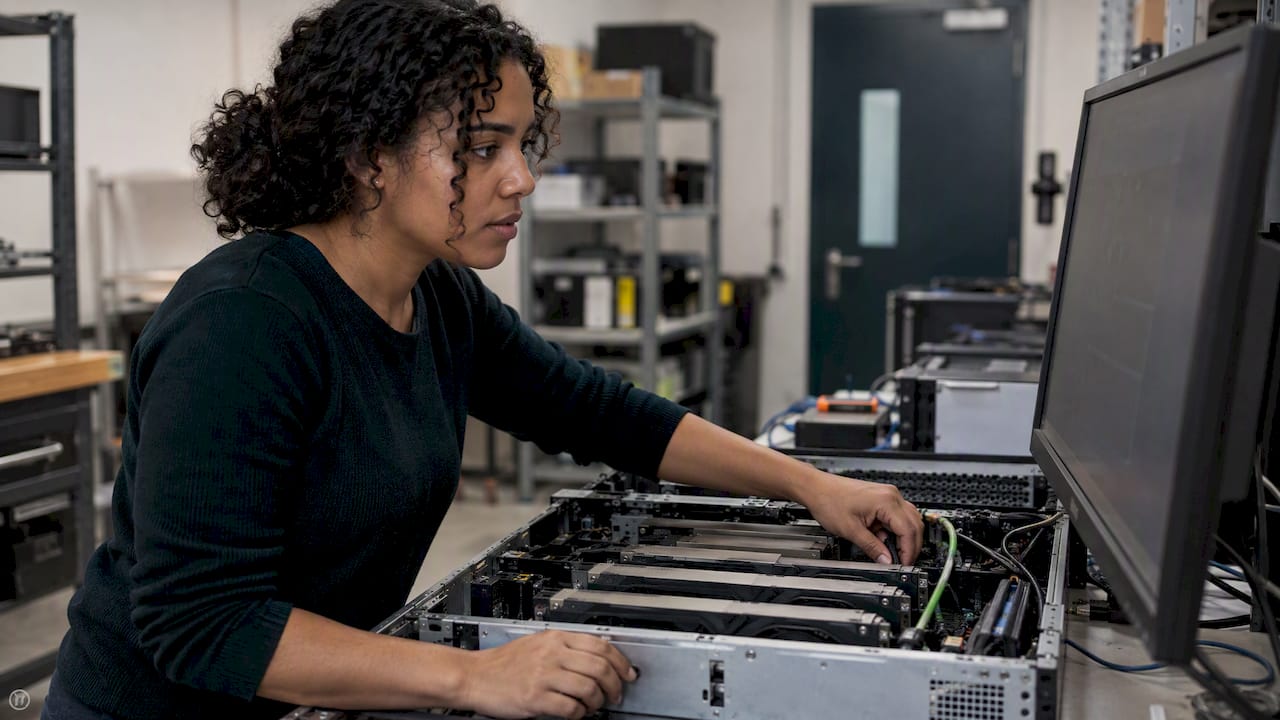
GPU utilization monitoring means collecting a handful of metrics (compute utilization, memory, power draw and per-process usage) and reading them together. A single utilization number is not enough. It tells you whether the GPU ran any work, not whether that work used the hardware well. This guide covers the tools, the cloud-specific gaps, how to interpret the numbers, and how to connect them to the invoice.
TL;DR
- Start with
nvidia-smifor a single machine. For Kubernetes fleets, use NVIDIA’s DCGM Exporter with Prometheus and Grafana. - A 100% utilization reading can hide a poorly used GPU. Pair it with power draw and memory data before you decide anything.
- Sustained utilization below roughly 5% is the clearest sign of idle, paid-for capacity.
- Azure does not expose GPU utilization as a host-level metric, so you need an agent inside the VM.
- Monitoring only pays off when someone acts on it. Tie each metric to a cost owner and a verified savings number.
Table of Contents
- What GPU utilization actually measures
- The metrics worth collecting
- Monitoring a single machine: nvidia-smi and friends
- Monitoring GPUs in Kubernetes
- Monitoring GPUs on cloud virtual machines
- How to read the numbers
- From metrics to money
- Our perspective: visibility is the cheap half
- Where EverythingCloud fits
- A starting checklist for this week
- FAQ
- Sources
What GPU utilization actually measures
Most people read the utilization percentage as “how hard the GPU is working.” That is not quite what it says. According to the AWS EKS best practices guide, the metric captures the share of time the GPU executed at least one instruction during a sample window. It does not reveal how efficiently the hardware was used.
The consequence is easy to miss. One small kernel running continuously can keep the reading at 100% while most of the streaming multiprocessors (SMs) sit idle. The dashboard looks healthy. The invoice says otherwise.
So is 100% bad? Not by itself. High utilization can mean a compute-bound job is saturating the card, which is what you want. It becomes a concern when latency or throughput is poor at the same time. And is 95% good? Often yes, but only if the work completed per hour matches what that GPU should deliver.
The question to ask is never “what is the number?” It is “what did we get for the hours we paid for?”
The metrics worth collecting
Utilization is the headline, but four other signals make it readable.
Memory use and memory utilization
Memory allocated tells you whether a model fits. Memory utilization shows how busy the memory subsystem is. A job that holds 70 GB of memory but barely touches compute is a sizing question, not a performance one.
Power draw against rated power
Fully engaged hardware draws noticeably more power. AWS guidance notes that comparing actual power draw with the GPU’s thermal design power (TDP) can expose bottlenecks that utilization hides, such as slow data preprocessing or inefficient batch sizes (see the same EKS guide). A GPU reporting 100% utilization at a fraction of its rated power is probably waiting on something.
SM activity and occupancy
These show how many compute units are really engaged. They are the honest answer to the question utilization cannot answer.
Per-process and per-pod attribution
Without knowing which job, team or customer owns the usage, you cannot allocate cost. This is the metric that turns engineering telemetry into financial data.
Monitoring a single machine: nvidia-smi and friends
For one workstation or one server, the native nvidia-smi utility is the foundation. The fast.ai GPU guide shows the standard pattern: run watch -n 1 nvidia-smi to see processes and state refresh every second.
For logging, you can query specific fields at a fixed interval:
nvidia-smi --query-gpu=utilization.gpu,utilization.memory --format=csv -l 1
That writes compute and memory utilization to CSV once per second, which is enough to chart a training run afterward. If you want something easier to read live, gpustat wraps nvidia-smi in a compact view, and nvtop offers a task-manager style interface.
The Princeton GPU programming materials walk through the same tool for monitoring usage and memory on shared research systems.
This approach has a ceiling. It shows you the present moment on one host. It keeps no history, raises no alerts and says nothing about cost.
Testing small before you scale
If your team is profiling models on a laptop or a portable workstation before moving to rented cloud GPUs, a portable local AI lab is one way to establish a baseline cheaply. Measure utilization and memory on a small run locally, then use that baseline to size the cloud instance instead of guessing.
Monitoring GPUs in Kubernetes
Once GPUs live in a cluster, manual commands stop working. The standard approach on managed Kubernetes, including Amazon EKS, is NVIDIA’s DCGM Exporter. It exposes GPU metrics at an HTTP /metrics endpoint for Prometheus, as described in NVIDIA’s DCGM Exporter documentation. Grafana then visualizes them.
The Amazon CloudWatch documentation describes OTel Container Insights as the recommended route on EKS. It gives per-pod, per-container and cluster-level visibility of utilization, SM occupancy, thermals and power.
Two practical notes:
- The default collection interval is commonly 30 seconds. That suits capacity and cost analysis. Deep performance profiling may need far finer sampling.
- Enable the Kubernetes mapping option so metrics attach to pods. Without it you get per-GPU numbers but no owner.
AWS also recommends a layered approach: low-level hardware metrics from DCGM, middleware metrics from serving frameworks such as Ray or vLLM, and application-level metrics at the inference endpoint. Each layer answers a different question. Hardware says what the card did. Middleware says how requests were batched. The application says whether users got a fast answer.
If you are also trying to control the wider cluster bill, our guide to Kubernetes cost optimization covers the non-GPU side.
Monitoring GPUs on cloud virtual machines
This is where teams get surprised. On Azure, GPU utilization and GPU memory are not exposed as platform (host) metrics for virtual machines. A Microsoft Q&A answer from April 2026 confirms this is expected behavior. You collect the data from inside the guest OS, using NVIDIA tools such as DCGM or a monitoring agent installed on the VM, and configure Azure Monitor to ingest it.
The practical effect: a fleet of GPU VMs can look unmonitored in the portal even though the cards are billing every hour. If you run GPU virtual machines on Azure, check that agents are on every instance, including the ones spun up for experiments.
The same logic applies to mixed estates. When workloads span AWS, Azure and Google Cloud, hand-built exporters per environment become hard to maintain. Cloud and observability vendors generally advise using an integrated telemetry agent to aggregate GPU data across regions and providers rather than setting up each vendor tool by hand.
How to read the numbers
Here is a working interpretation table. Treat it as a starting point, not a rule, because workloads differ.
| Pattern | Likely meaning | First thing to check |
|---|---|---|
| Utilization under 5% for days | Idle or forgotten capacity | Owner, schedule, whether the instance can be stopped |
| Low utilization, high memory held | Oversized allocation or a model parked in memory | Right-sizing, sharing the GPU |
| 100% utilization, low power draw | GPU waiting on data or tiny kernels | Data loading, batch size, preprocessing |
| 100% utilization, power near TDP, good throughput | Healthy saturation | Whether a commitment covers this baseline |
| Spiky utilization with long gaps | Bursty inference or poor scheduling | Autoscaling, batching, queueing |
Monitoring tools commonly alert on sustained utilization below 5%, as Oodle’s GPU monitoring documentation notes. That threshold is a sensible first alarm. It catches the cheapest-to-fix waste: cards that are allocated, billing and doing nothing.
Avoid static resource limits where you can. Fixed allocations in dynamic AI workloads tend to produce over-provisioning, because teams size for the peak and pay for it around the clock. That is classic margin erosion: it never shows up as a single bad invoice, it just compounds quietly.
From metrics to money
A dashboard is not a savings program. The gap between the two is where most GPU budgets leak.
Consider what you need before a utilization chart becomes a financial decision:
- An owner for every GPU. Tags, namespaces or accounts that map to a team, product or customer.
- A cost per GPU-hour. Include on-demand, committed and discounted rates, so utilization translates into dollars.
- A baseline and a target. Idle hours reclaimed, workloads consolidated, commitments sized to the steady floor.
- Verification against the invoice. A projected saving is a forecast. A lower line on the bill is a result.
Our deeper guides go further on each step: GPU cost optimization through commitment, sharing and measurement, GPU capacity planning and KV cache fragmentation, and cutting AI training costs and proving invoice savings. If your GPU spend sits inside Azure, the Azure VM cost optimization levers apply too.
Our perspective: visibility is the cheap half
We see the same pattern across cloud, SaaS and AI spend. Getting a utilization graph is the easy part. Most teams already have one, or can have one in an afternoon. What they lack is a process that takes a finding and executes on it every month.
A recommendation that sits in a queue saves nothing. An idle GPU found on Monday is still billing on Friday if nobody owns the shutdown, the commitment decision or the right-sizing change. That is why we built EverythingCloud around automating the execution of optimization actions, not only surfacing them.
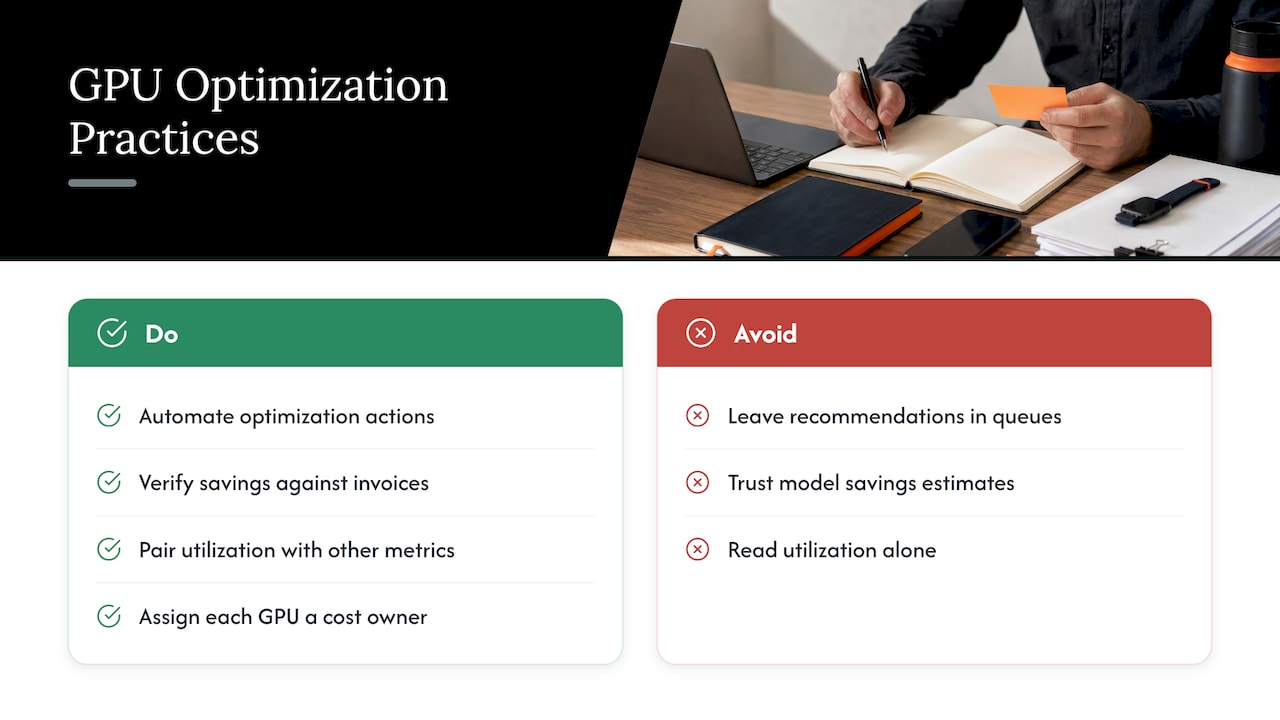
We also hold a firm view on proof. Savings should be verified against invoice-level billing, not against a model’s estimate. If a tool reports savings your finance team cannot find on the bill, nobody trusts the next report.
Finally, utilization alone misleads. We would rather see teams read utilization beside power draw, memory and throughput, and then attach every GPU to a cost owner. For MSPs managing GPUs on behalf of several customers, multi-tenant controls matter just as much: each customer’s idle capacity is your margin leak if you resell it at a fixed rate.
— Dan
Where EverythingCloud fits
If you already have monitoring in place and want the findings turned into verified savings, our Continuous Cloud Optimization service covers AWS, Azure, Google Cloud, SaaS and AI spend. If you prefer to hand off the operating work, Managed FinOps pairs the platform with expert guidance. You can see how it all fits together on The Platform page.
MSPs can launch managed FinOps and AI optimization services for their own customers through the Founding Partner Membership, listed at $500 per month.
A starting checklist for this week
You do not need a new tool to begin. Work through this in order:
- List every GPU instance or node across accounts and subscriptions, including experiments.
- Confirm each one reports utilization, memory and power. On Azure VMs, confirm the guest agent is installed.
- Flag anything under 5% utilization for several days and ask its owner whether it is still needed.
- For anything near 100%, compare power draw with rated power before declaring it efficient.
- Attach a team or customer to each GPU, then calculate hourly cost per owner.
- Decide which steady baseline deserves a commitment, and which bursty work should stay flexible.
Then repeat monthly. One audit finds waste. A cadence prevents it from returning.
FAQ
Is it bad to have 100% GPU utilization?
Not necessarily. It can mean a compute-bound job is saturating the card, which is efficient. It becomes a warning sign when throughput or latency is poor, or when power draw sits far below the GPU’s rated power. In that case the GPU is probably busy with something small or waiting on data.
What should GPU utilization be?
There is no universal target. For training and batch jobs, sustained high utilization with power draw near rated levels is a good sign. For bursty inference, lower averages are normal, so judge it by throughput, latency and cost per request. Sustained readings under about 5% usually mean idle capacity.
How do I monitor GPU usage on Linux?
Run nvidia-smi for a snapshot, or watch -n 1 nvidia-smi for a live view. For a friendlier display, try gpustat or nvtop. For history and alerts across many servers, export metrics with DCGM to Prometheus and Grafana.
Why can’t I see GPU metrics for my Azure VM?
Azure does not expose GPU utilization or GPU memory as host-level metrics for VMs. You have to collect them inside the guest OS with NVIDIA DCGM or a monitoring agent, and configure Azure Monitor to receive the data.
Sources
- AWS EKS best practices: AI/ML observability
- Amazon CloudWatch: OTel Container Insights
- NVIDIA DCGM Exporter documentation
- Microsoft Q&A: GPU metrics for virtual machines
- fast.ai: Working with GPU
- Princeton University: GPU tools
- Oodle: GPU Monitoring