
The biggest SageMaker savings come from several moves: measuring spend with Cost Explorer and AWS CUR, shifting training to Managed Spot with checkpointing, matching inference to the right deployment type, and buying SageMaker Savings Plans once usage is predictable. Spot training and Savings Plans can help reduce costs on eligible workloads. Start by enabling CUR and running an Inference Recommender job this week.
TL;DR:
- Enable CUR for hourly invoice detail, tag notebooks, jobs, and endpoints by team, then use Cost Explorer and budgets to catch waste.
- Use Managed Spot Training only after S3 checkpointing is configured; otherwise, interruptions can force jobs to restart and erase expected savings.
- Run Inference Recommender before choosing instances; use real time for steady, low latency traffic, serverless for idle or spiky demand, and batch for scheduled scoring.
- After right sizing and stabilizing usage, commit to SageMaker Savings Plans for one or three years; eligible ML instance usage can save up to 64%.
Table of Contents
- Where SageMaker costs come from and how to measure them
- Training cost levers: managed Spot, right-sizing, checkpoints, and training plans
- Inference cost levers: matching deployment type to workload
- Commitments and discounts: Savings Plans and training reservations
- Operational controls and automation to lock in savings
- A 30/60/90-day checklist for SageMaker cost control
- What most teams get wrong about SageMaker costs
- How EverythingCloud helps you keep SageMaker spend in check
- FAQ
- Sources
Where SageMaker costs come from and how to measure them
SageMaker spend rarely comes from one place. It accumulates quietly across notebooks left running, training jobs, hosted endpoints, processing jobs, batch transforms, and the storage and data transfer that ties it all together. Each usage type bills differently, and without visibility into which one is driving the bill, teams end up optimizing the wrong thing.
AWS Cost Explorer has preconfigured views that group SageMaker spend by service, usage type, and instance type, which is usually the fastest way to spot where the money is concentrating. From there, enabling AWS Cost and Usage Reports (CUR) gets you hourly, invoice-level detail you can query with Athena, which matters when a monthly summary isn’t granular enough to catch an oversized endpoint quietly running continuously.
Two habits keep this from becoming a one-time exercise:
- Tag every notebook, training job, and endpoint by team or project so AWS Budgets can allocate spend and trigger alerts before a bill surprises anyone.
- Review Savings Plans utilization and coverage reports regularly, since they show whether existing commitments still match actual usage.
Teams that skip this step tend to optimize the first thing they notice rather than the thing actually driving cost. A quick amortized Cost Explorer view smooths out upfront commitment charges so you’re comparing like with like.
Training cost levers: managed Spot, right-sizing, checkpoints, and training plans
Training is often the largest line item for teams iterating on models, and it’s also where the cheapest wins live. Managed Spot Training can reduce training costs compared to On-Demand instances, using spare EC2 capacity. The catch is interruption risk, which is why checkpointing has to come first, not as an afterthought.
- Configure S3-based checkpointing before turning on Spot, so an interrupted job resumes from its last saved state instead of restarting from zero.
- Check your algorithm’s max wait time settings, since some frameworks impose limits on how long a job can wait for interrupted capacity to resume.
- Right-size the instance itself: a smaller cluster of parallel instances sometimes finishes a distributed job cheaper than one oversized instance sitting partially idle.
- For recurring, predictable training windows, look at training plans, which reserve GPU capacity in advance rather than leaving you to compete for on-demand availability.
Pro Tip: Test Spot on a non-critical training job first to confirm your checkpointing logic actually resumes cleanly before moving production workloads over.
Training plans use reservation blocks with defined durations, which matters most for teams running large or high-demand GPU jobs on a known schedule rather than ad hoc experimentation. Our AI training cost reduction playbook goes deeper on sequencing these levers against invoice data.
Inference cost levers: matching deployment type to workload
Hosting is where SageMaker bills can quietly outgrow training, because an endpoint runs continuously whether or not it’s serving requests. The fix starts with picking the deployment type that matches your traffic pattern instead of defaulting to real-time for everything.
- Real-time endpoints make sense for steady, low-latency traffic that needs a response in milliseconds.
- Serverless Inference scales to zero when idle and charges per request duration, which fits spiky or unpredictable traffic far better than a standing endpoint.
- Asynchronous inference suits large payloads or workloads that can tolerate a delay, and it can also scale down to zero instances when nothing is queued.
- Batch transform works well when you’re scoring large datasets on a schedule rather than responding to live requests.
Beyond picking the right type, multi-model endpoints and inference components reduce idle capacity by packing several models onto shared infrastructure instead of dedicating a full instance to each one. Migrating to AWS Graviton instances or using model packing on multi-model endpoints reduces deployment costs by approximately 50% on average, depending on workload and traffic patterns. That’s a meaningful lever for teams running several smaller models that don’t each need a dedicated endpoint.
Before locking in an instance type, run Inference Recommender. It benchmarks your model across configurations and returns validated throughput, latency, and cost-per-configuration data, which turns instance selection from guesswork into a decision backed by real numbers. Those same benchmark outputs feed directly into autoscaling policy recommendations, so you’re not setting scaling thresholds blind.
Graviton and Inferentia chips are worth testing specifically for price-performance, since the right accelerator can shift the cost curve without changing the model itself.
Commitments and discounts: Savings Plans and training reservations
Once usage patterns settle down, commitment-based discounts turn predictable spend into guaranteed savings. SageMaker Savings Plans work on a usage-based commitment model: you commit to a consistent hourly spend for a 1-year or 3-year term and save up to 64% on eligible ML instance usage, with flexibility across instance families and regions.
The sequencing matters here. Buying a commitment before right-sizing locks in waste at a discount instead of removing it.
- Right-size instances and finalize your inference deployment strategy first.
- Use AWS Savings Plans recommendations alongside utilization and coverage reports to size the commitment to actual usage, not projected usage.
- For GPU-heavy training, look at training plans, which offer multi-block reservation options and defined durations suited to high-demand training windows. Our Savings Plans guide walks through how coverage reports should inform the next purchase.
Operational controls and automation to lock in savings
Savings from a one-time cleanup erode fast without controls that keep them in place.
- Set target-tracking or scheduled autoscaling on endpoints, using Inference Recommender’s autoscaling outputs to configure min and max capacity instead of guessing at thresholds.
- Automatically stop idle notebooks and kernels on a schedule, and build programmatic detection for endpoints running with near-zero traffic.
- Feed these signals into AWS Budgets and SNS alerts so drift gets caught within days, not at the next invoice.
- Adopt cost allocation tags and amortized reporting views as a recurring FinOps review habit, and automate small, incremental Savings Plans purchases as coverage shifts.
Pro Tip: Review Savings Plans coverage monthly rather than annually, since ML usage patterns shift faster than most commitment cycles assume.
Automated anomaly detection closes the loop here. Our cost anomaly detection guide covers how to turn a spending spike into a five-minute investigation instead of a later surprise.
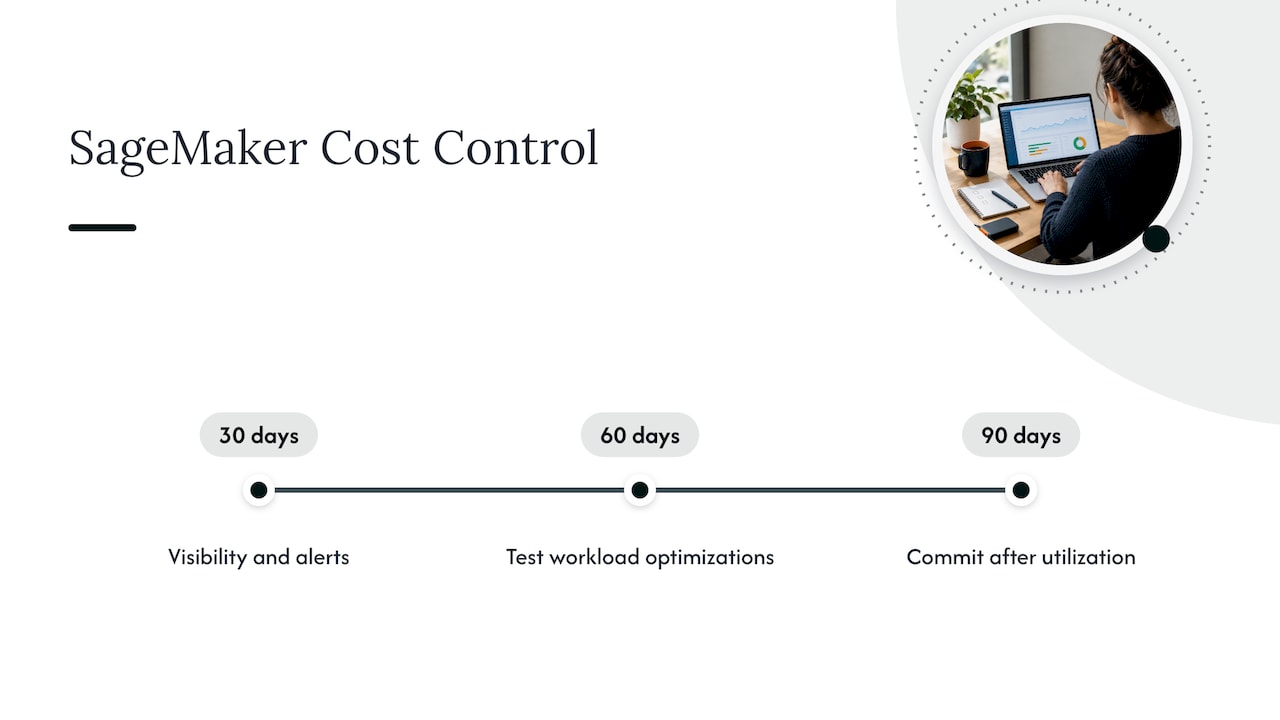
A 30/60/90-day checklist for SageMaker cost control
Start by enabling CUR, running an Inference Recommender job, tagging resources, and setting budgets with alerts. Next, move suitable training to Managed Spot with checkpointing configured, test serverless or async endpoints for low-traffic workloads, and trial Graviton or Inferentia instances. Once utilization is clear, buy incremental Savings Plans, reserve training capacity for predictable workloads, and automate idle resource remediation.
What most teams get wrong about SageMaker costs
Most teams treat cost optimization as a one-time cleanup: right-size a few endpoints, buy a Savings Plan, move on. That misses the point. SageMaker spend drifts continuously as models get retrained, endpoints get forgotten, and traffic patterns shift, so a static fix decays within months.
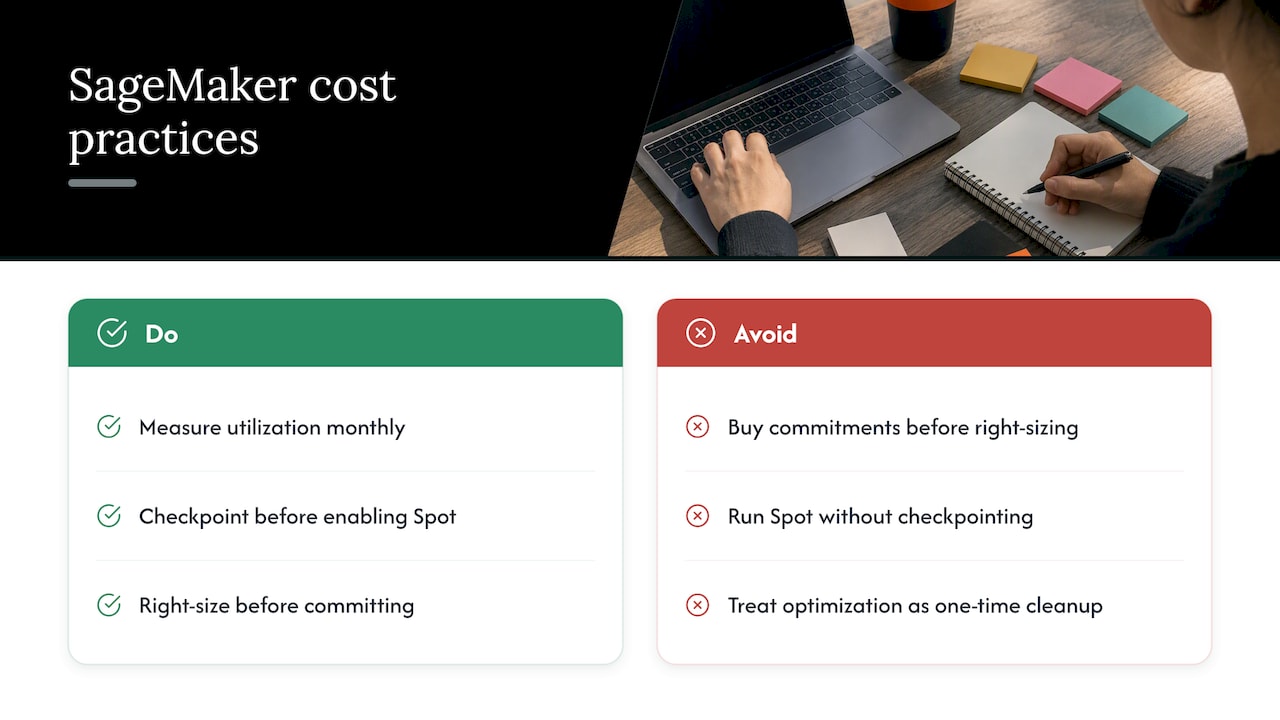
The bigger miss is sequencing. Teams often buy commitments before right-sizing, which locks in waste at a discount rather than removing it. Spot training without checkpointing is another common half-measure: the discount is real, but a job that restarts from scratch after every interruption can end up costing more in wasted compute time than it saves.
What actually works is treating these levers as a cycle, not a project: measure, adjust, commit, then measure again. The teams that get the most out of Managed Spot Training and Savings Plans are the ones who review utilization monthly, not the ones who set it and forget it. Prioritize measurement and checkpointing first. Everything else compounds from there.
— Dan
How EverythingCloud helps you keep SageMaker spend in check
Running this playbook by hand takes a dedicated person watching reports every week, which is exactly the gap our platform and Managed FinOps service are built to close. We provide continuous visibility into SageMaker and broader AWS spend, automate the optimization actions above instead of just flagging them, and verify savings against invoice-level billing.
If you’d rather have a team execute this continuously than build it yourself, explore Continuous Cloud Optimization or get in touch about FinOps solutions for your organization.
FAQ
What is cost optimization in AWS?
Cost optimization in AWS means continuously matching spend to actual usage through right-sizing, commitment discounts, automation, and governance rather than a single cleanup. It applies the same way to SageMaker: measuring usage, choosing the cheapest adequate resource, and automating controls so savings hold over time.
How much does it cost to use SageMaker?
SageMaker pricing varies by usage type, including notebooks, training, hosting, processing, and storage, so there’s no single rate. Commitment options like SageMaker Savings Plans can reduce eligible ML instance costs for teams with predictable usage.
What’s the best tool for AWS cost management?
AWS Cost Explorer and AWS Cost and Usage Reports are the primary native tools for tracking and analyzing SageMaker and broader AWS spend, offering usage type breakdowns and hourly, invoice-level detail. Teams that want continuous monitoring, automated optimization, and managed reporting on top of that often turn to a platform like EverythingCloud’s rather than building it in house.
What are the four pillars of cost optimization in the cloud?
Cloud cost optimization generally rests on measurement, right-sizing, commitment discounts, and automation or governance. Applied to SageMaker, that means tracking usage with Cost Explorer and CUR, matching instance types and deployment modes to actual workload needs, buying Savings Plans once usage is predictable, and automating scaling and idle resource controls to prevent drift.