
Google Cloud can export daily cost, usage, and pricing data to BigQuery in four export types: Standard usage, Detailed usage, Pricing, and the FOCUS preview. To turn on a GCP billing export, confirm your billing account, create a dataset in the right location, enable the required APIs, grant the billing and BigQuery roles, and switch the export on.
TL;DR:
- Choose a multi region US or EU dataset before enabling exports: it includes history from the previous month’s first day, while regional datasets never backfill.
- Enable the BigQuery, Cloud Billing, and BigQuery Data Transfer Service APIs; grant the required billing and BigQuery roles, with BigQuery Admin needed for FOCUS.
- Use Standard exports for invoice level reporting, Detailed exports for resource attribution, Pricing exports for list price comparisons, and FOCUS to normalize costs across clouds.
- Detailed exports add resource level fields, but namespace and node pool costs require GKE cost allocation, which collects data only after activation.
- Initial backfills can take up to five days, so empty tables do not necessarily signal failure; check export_time before reconciling invoice differences.
Table of Contents
- Quick checklist before you enable the export
- How to export GCP billing data to BigQuery, step by step
- Which export type should you choose?
- Dataset location, backfill, and how long data takes to appear
- Permissions, service accounts, and permission errors
- Querying exported billing tables
- GKE cost allocation needs one extra step
- Troubleshooting common pitfalls
- Best practices for FinOps teams
- When to run exports yourself and when to get help
- Let us run the export pipeline for you
- FAQ
- Sources
Quick checklist before you enable the export
Most failed setups trace back to a skipped prerequisite. Run through these before you touch the console:
- Confirm which Cloud Billing account you will export from, and pick or create a dedicated BigQuery project for billing data.
- Decide on a dataset location, multi-region or regional, knowing it cannot be changed later.
- Enable the BigQuery, BigQuery Data Transfer Service (needed for the pricing export), and Cloud Billing APIs.
- Create the dataset in the chosen location and decide how you will partition tables.
- Grant Billing Account Costs Manager or Billing Account Administrator on the billing account, plus BigQuery User (or BigQuery Admin for FOCUS) on the project.
- Plan retention, query costs, and access controls up front.
How to export GCP billing data to BigQuery, step by step
Follow this sequence and you can finish in one pass. The official setup guide covers the same flow with console screenshots.
- Select or create the project that will hold billing data, and confirm it is linked to the correct Cloud Billing account.
- Create the BigQuery dataset and choose its location carefully. Location is a one-time decision and is immutable once the dataset exists.
- Enable the BigQuery API, the Cloud Billing API, and the BigQuery Data Transfer Service API. The pricing export will not work without the last one.
- In the Cloud Billing console, open Billing export, pick your project and dataset, and enable each export type you want.
- Open BigQuery and verify the dataset and new tables appear. Then check the table names and confirm initial population has started.
Pro Tip: Enable Standard and Detailed together as early as practical. Choose a dataset location that meets your needs, because backfill depends on that location.
Which export type should you choose?
Each type answers a different question, and you can run several side by side. Detailed tables follow the pattern gcp_billing_export_resource_v1_<BILLING_ACCOUNT_ID>, as documented in the detailed export schema.
- Standard usage cost: invoice-level costs by SKU, project, and label. Start here for broad reporting and chargeback.
- Detailed usage cost: adds resource-level fields. Choose it when you need to trace spend to individual resources.
- Pricing: list prices by SKU, with fields like pricing_as_of_time and list_price, held in the cloud_pricing_export table. Use it to compare list price against what you were charged.
- FOCUS usage cost (Preview): maps closely to Detailed and lands in an immutable dataset named gcp_billing_immutable_<BILLING_ACCOUNT_ID>, per the FOCUS export documentation. Pick it if you normalize across clouds.
Dataset location, backfill, and how long data takes to appear
Dataset location decides how much history you get, and you only choose once. According to Google’s export documentation, multi-region datasets (EU or US) include data starting from the first day of the previous month. Regional datasets export only from the date you enable them, with no retroactive data at all.
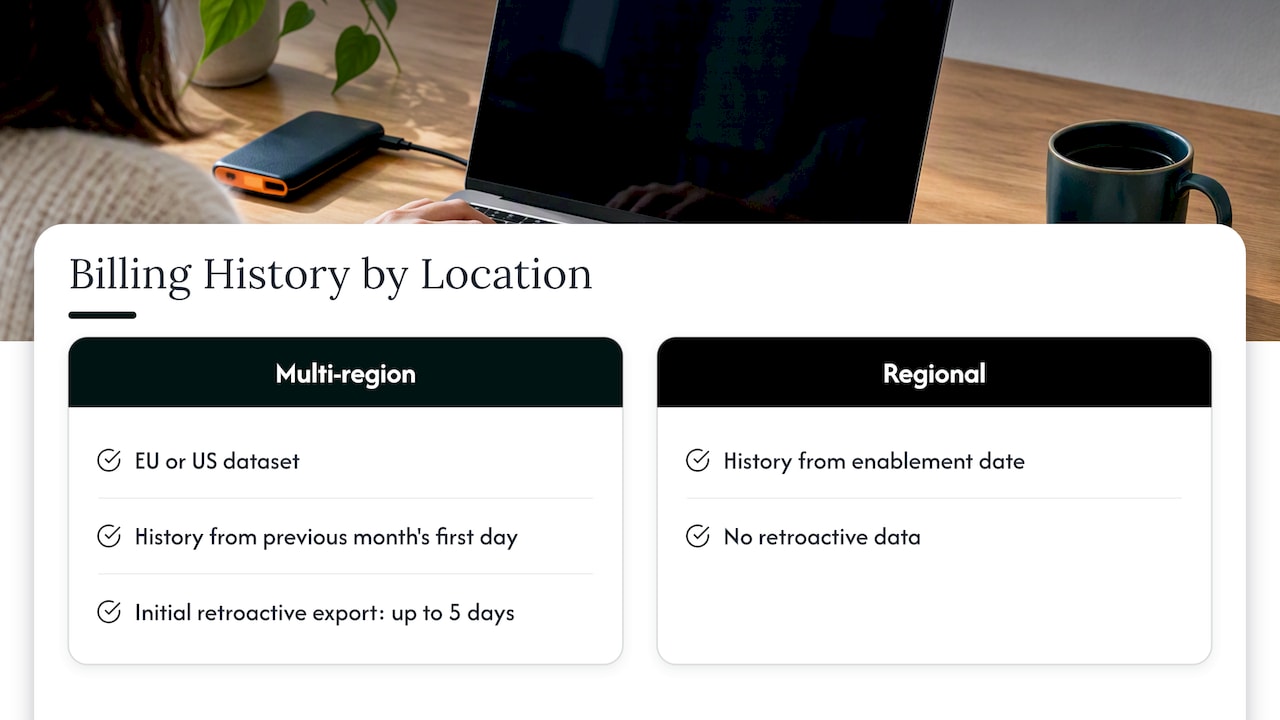
Timing matters too. Initial retroactive exports can take up to five days to populate, so an empty table at first is normal, not a failure. Don’t delete and recreate the dataset in a panic.
Our practical advice: if you need recent historical context when you turn the export on, choose a multi-region dataset. A regional dataset makes sense only when data residency rules push you there and you accept starting from zero.
Permissions, service accounts, and permission errors
Two sets of roles must be in place, per the setup documentation:
- On the Cloud Billing account: Billing Account Costs Manager or Billing Account Administrator.
- On the project hosting the dataset: BigQuery User, or BigQuery Admin for the FOCUS export.
- Where to look when something fails: check IAM bindings on both the billing account and the project, then read the console error text. A missing billing role usually blocks you from enabling export, while a missing BigQuery role blocks dataset access.
- Service accounts: grant only the roles above and nothing broader, and keep human and automation access separate.
Querying exported billing tables
Always reference tables by their full path, project-ID.dataset.table, as shown in Google’s example queries. A standard export table looks like gcp_billing_export_v1_<BILLING_ACCOUNT_ID>, and a detailed one like gcp_billing_export_resource_v1_<BILLING_ACCOUNT_ID>.
- Sum cost by invoice month to get a clean monthly total.
- Group by label to allocate spend to teams or products.
- Join pricing data with usage to compare list price against actual charges.
- Filter the detailed table for resource-level questions.
You don’t have to start from a blank editor. The Reports page can generate queries that match what you see in the project hierarchy view, which makes a solid template.
Pro Tip: Filter on a partition column in every query. Scanning the whole table is the fastest way to run up BigQuery charges on billing data.
GKE cost allocation needs one extra step
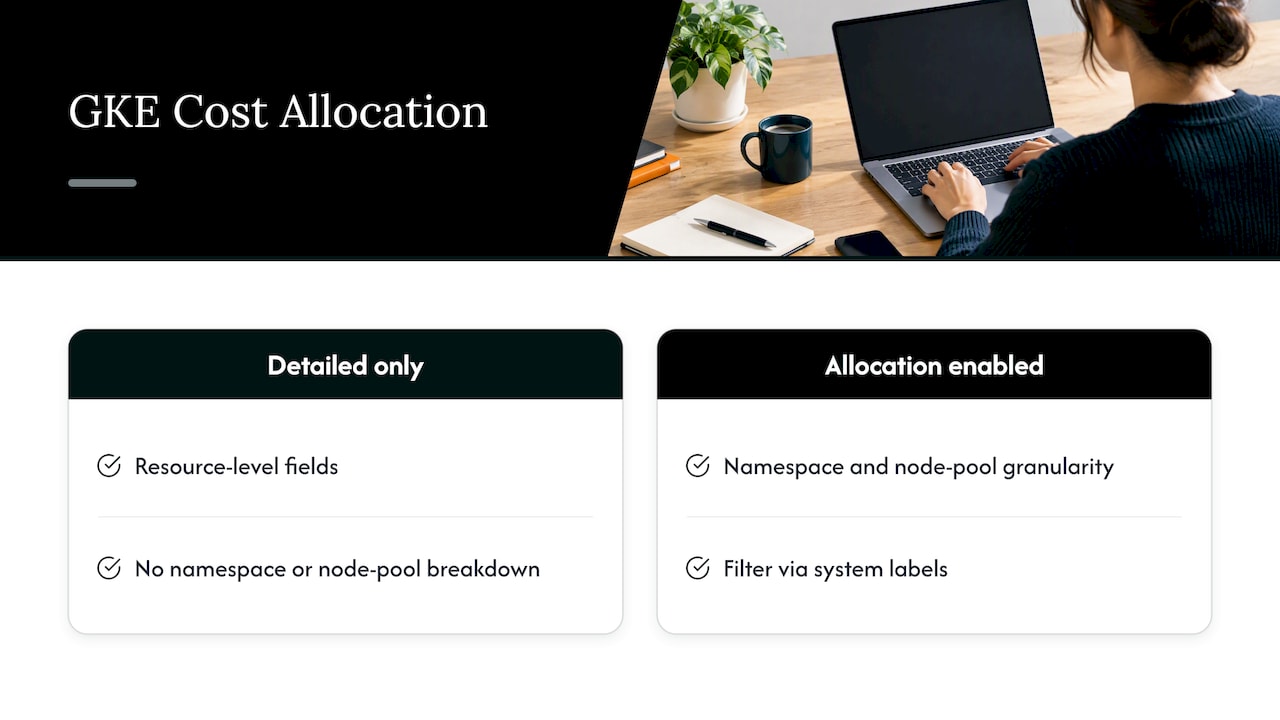
The Detailed export includes resource-level fields, but it does not break costs down by namespace or node pool on its own. Practitioners point out that you must also enable GKE cost allocation to get that granularity.
Enable GKE cost allocation when you need namespace or node-pool granularity. Once on, filter with the system labels k8s-namespace, goog-k8s-cluster-name, and goog-k8s-node-pool-name. For tuning what you find, see our GKE cost optimization playbook.
Troubleshooting common pitfalls
Most export problems fall into a few patterns:
- Location mismatch: dataset location cannot be changed after creation. If it is wrong, create a new dataset in the right location and point the export at it.
- Missing history: regional datasets never backfill. Confirm what is available by checking the earliest usage_start_time in the table.
- Permission errors: read the console message, then verify the billing and BigQuery roles on the correct resources.
- Totals that don’t match the invoice: processing delays and the way credits are presented can cause differences. Use the export_time column, described in the table reference, to see how fresh the data is before you reconcile.
Best practices for FinOps teams
Treat billing tables as an input, not a product. Put BigQuery views between the raw tables and your dashboards, so a schema change or table rename does not break reporting. Google’s table documentation warns against hardcoding absolute table names in production code.
Copy FOCUS data into tables you own, since the immutable dataset can carry TTL policies. Partition and cluster those copies, and budget for storage as history grows. Enforce consistent labels and a clean project hierarchy early, because grouping is only as reliable as your tagging.
Pro Tip: Run a monthly check that compares your view totals against the Billing reports. Catching drift in week one is much cheaper than explaining it in a board review.
When to run exports yourself and when to get help
Setting up the export takes time. Keeping the analytics around it healthy is the real cost: schema changes, broken views, stale dashboards, and someone who actually acts on the numbers. Small teams with one cloud and a few projects do fine in-house. Once you span several accounts, customers, or clouds, the pipeline starts consuming the time you meant to spend saving money.
— Dan
Let us run the export pipeline for you
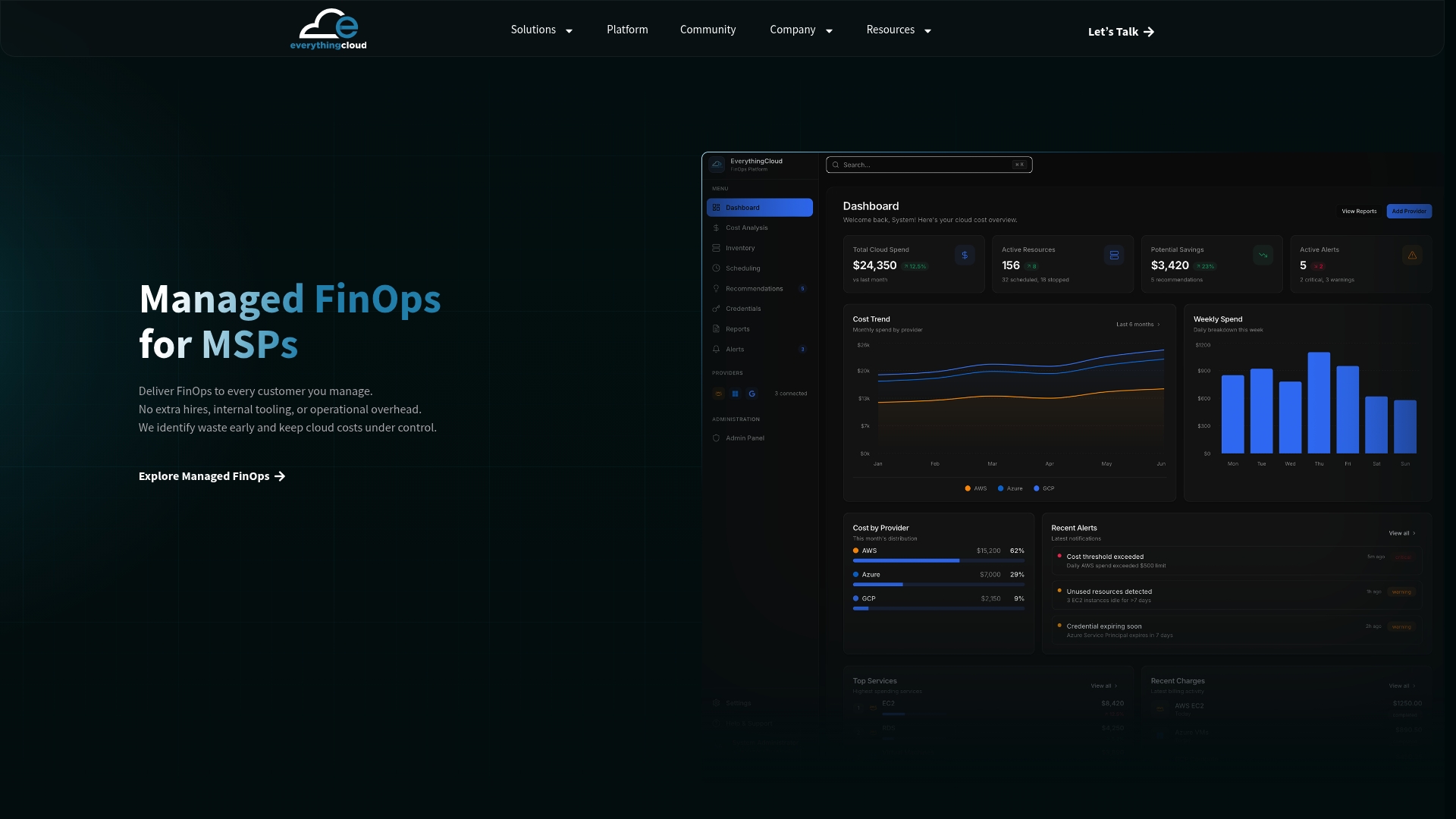
We built our platform and Managed FinOps service so you don’t have to maintain billing ingestion yourself. We pull in your billing data, run continuous analysis, and execute optimization actions, not just recommendations.
If you’d rather spend your time on engineering, explore our platform or contact us for an evaluation.
FAQ
How do I export GCP billing data to BigQuery?
Create a BigQuery dataset in your chosen location, enable the required APIs, and grant the billing and BigQuery roles. Then open Billing export in the Cloud Billing console and enable the export types you want. Tables appear in your dataset once population begins.
Does GCP billing export include historical data?
It depends on dataset location. Multi-region datasets (EU or US) include data from the first day of the previous month, while regional datasets start from the date you enable export, per Google’s documentation.
Can I change the dataset location after enabling export?
No. Dataset location is set when you create the dataset and cannot be changed afterward. If you need a different location, create a new dataset and point the export at it.
Why doesn’t my GKE cost data show namespaces?
The Detailed export alone does not include namespace or node-pool breakdowns. You also have to enable GKE cost allocation, and it only collects data going forward.
Why do my export totals differ from my invoice?
Processing timing and the way credits and discounts are presented can cause differences. Check the export_time column to see how current the data is before reconciling.
Sources
- Set up Cloud Billing data export to BigQuery | Google Cloud Documentation
- Structure of Detailed data export | Cloud Billing | Google Cloud Documentation