
Cutting BigQuery costs comes down to three levers: shrink the bytes your queries scan, control how long and in what format data sits in storage, and match your compute pricing model to your actual usage pattern. Once those are in place, run dry runs and an INFORMATION_SCHEMA jobs audit to find out exactly where your money is going.
TL;DR:
- Before running unfamiliar queries, use dry runs and maximum bytes billed; production queries should select needed columns and filter partition or clustering fields first.
- Tables untouched for 90 consecutive days automatically receive lower long term storage rates, but any modification restarts the clock, so avoid needless writes.
- Spiky workloads usually suit pay as you go pricing, while steady demand may suit slots; trial autoscaling and track P99 usage before committing.
- Review INFORMATION_SCHEMA.JOBS monthly, exclude SCRIPT statements to avoid double counting child jobs, and reconcile billed bytes with Cloud Billing exports against your estimates.
Table of Contents
- 1. How BigQuery pricing actually works
- 2. Storage cost optimizations that don’t cost you data access
- 3. Query cost optimizations that cut billed bytes
- 4. Reservations, slot recommendations, and when to commit
- 5. Monitoring, attribution, and estimating your bill before it arrives
- 6. A 30/60/90 day FinOps playbook for BigQuery
- What most teams get wrong about BigQuery cost control
- Turning this playbook into an operating habit
- FAQ
- Sources
1. How BigQuery pricing actually works
Before you optimize anything, you need the mental model. BigQuery charges separately for compute and storage, and each has more than one pricing path.
On compute, you can run on-demand, where you pay per TiB of data processed, with the first 1 TiB each month included at no charge, according to BigQuery’s cost documentation. This model rewards efficient queries and punishes sloppy ones. Scan less data, pay less. There’s no cap, which is exactly why a single bad query can produce a bill that makes your finance team call an emergency meeting.
The alternative is capacity-based pricing, where you buy slots (units of compute) measured in slot-hours, through BigQuery editions. This model decouples your bill from how much data a query scans and ties it instead to how much processing capacity you’ve reserved. Commitments come in 1-year and 3-year terms, with BigQuery’s documentation noting discounts around 20% for 1-year and 40% for 3-year committed terms. Heavy, steady, predictable workloads tend to do better here. Spiky, occasional, exploratory workloads usually don’t.
Storage pricing runs on its own separate track:
- Active storage covers data modified in the last 90 days, billed at the standard rate.
- Long-term storage applies automatically once a table goes 90 consecutive days without modification, at a meaningfully lower rate, per Google’s storage overview.
- Logical billing charges for uncompressed bytes, the default and simplest to reason about.
- Physical billing charges for compressed bytes, which can be cheaper for highly compressible datasets but locks your billing model choice for 14 days once switched.
Understanding these four variables, on-demand versus slots, and logical versus physical, gives you the full menu. Everything downstream is about choosing the right combination for each workload rather than assuming one setting fits your whole warehouse.
2. Storage cost optimizations that don’t cost you data access
Storage charges are the easiest costs to fix because the fixes are mostly structural, set once and forget. Yet many teams never touch them, and staging tables from three years ago quietly accumulate active storage charges long after anyone queries them.
- Set expirations on staging and short-lived data. Default dataset, table, and partition expirations mean temporary tables clean themselves up instead of sitting there forever at active storage rates.
- Let long-term storage do its job. Any table untouched for 90 consecutive days drops to the long-term rate automatically, roughly half the active price, according to Google’s documentation. Avoid unnecessary writes to tables you don’t need to keep “fresh,” since any modification resets that 90-day clock.
- Evaluate physical billing for compressible data. Logs, JSON blobs, and repetitive event data often compress heavily. Switching to physical billing can meaningfully cut storage spend for those tables, but the switch carries a 14-day lock, so test the compression ratio on a sample first rather than flipping it warehouse-wide.
- Archive what you don’t query anymore. If a dataset is kept for compliance rather than analysis, exporting it to Cloud Storage is usually cheaper than keeping it live in BigQuery. Reserve BigQuery storage for data your team actually queries.
Pro Tip: Before switching a dataset to physical billing, run a quick storage breakdown query to estimate your actual compression ratio. Tables with highly repetitive values (status codes, categorical fields) often compress far better than wide, high-cardinality tables.
Archival decisions come down to query frequency. A table queried weekly stays in BigQuery. A table queried twice a year for an audit belongs in Cloud Storage, with a process to reload it if someone needs it.
3. Query cost optimizations that cut billed bytes
If storage optimization is about housekeeping, query optimization is about discipline. On-demand pricing charges for bytes scanned, so every SELECT statement is effectively a budget decision.
Start with the basics that Google’s best-practices documentation treats as standard controls:
- Run a dry run before executing anything unfamiliar or expensive. The query validator tells you exactly how many bytes a query will scan before you commit to running it.
- Set maximum bytes billed on exploratory or ad-hoc queries so a mistyped join can’t silently scan your entire warehouse.
- Never run **SELECT *** against a production table. Project only the columns you need. A query pulling three columns from a 50-column table can cost a fraction of one that pulls everything.
- Filter on your partition and cluster columns first. A well-partitioned table lets BigQuery skip entire segments of data it doesn’t need to touch, which is the single biggest lever for bringing billed bytes down on large tables.
Materialized views deserve special attention here. For aggregations that run repeatedly, hourly dashboards, daily roll-ups, weekly reports, a materialized view precomputes the result once and BigQuery’s optimizer automatically rewrites matching queries to use it instead of recomputing from scratch, according to Google’s documentation on materialized views. Scheduled queries that recompute an entire result set on every run are one of the most common sources of recurring, avoidable cost. Swapping them for materialized views, or for incremental pipelines that only process new data, tends to cut both compute and downstream storage cost because you stop paying to regenerate what hasn’t changed.
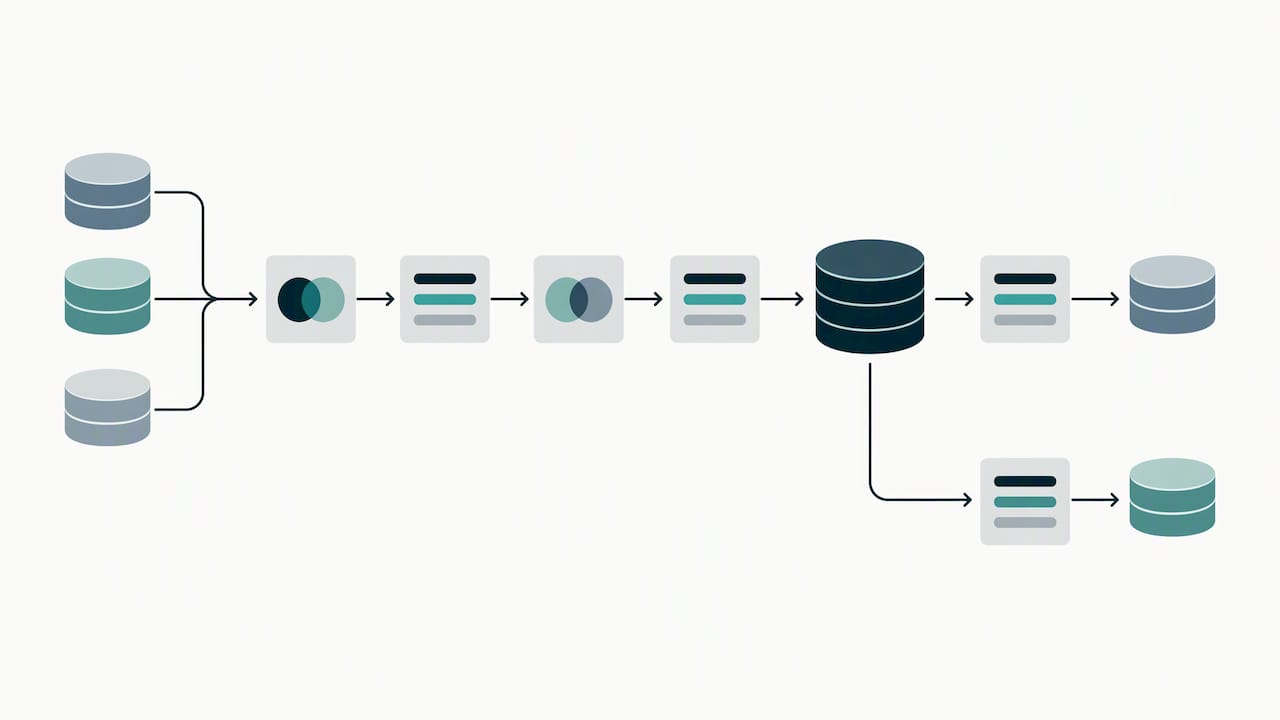
For genuinely complex queries, chained joins, multi-stage transformations, nested subqueries, consider staging the expensive middle steps into their own tables rather than running the whole chain fresh every time. Materializing an intermediate result costs a small amount of storage, but it’s almost always cheaper than reprocessing a large join or a regex-heavy transformation repeatedly, a pattern Google’s performance documentation calls out directly.
Pro Tip: *Run a dry run on your top 10 most frequent queries this week. You’ll often find one or two that scan far more data than the result set justifies, usually because of a missing partition filter or a forgotten SELECT .
4. Reservations, slot recommendations, and when to commit
On-demand pricing is simple but unbounded. Capacity pricing is bounded but requires you to guess your usage correctly, and guessing wrong in either direction costs you money.
That’s what the slot recommender exists to fix. It analyzes your historical slot usage and models your P99 usage over a rolling window, then proposes a baseline commitment size, an autoscale range, and the total projected monthly cost for each option, according to Google’s slot recommender documentation. Instead of estimating slots by gut feeling, you get a recommendation grounded in how your workload has actually behaved.
A few things worth knowing before you act on it:
- The recommender can overstate your autoscale needs if your workload includes short, transient bursts rather than sustained demand, so treat its output as a starting point, not a final number.
- Commitment discounts exist for both 1-year and 3-year terms, per Google’s cost documentation, and separate spend-based committed use discounts offer roughly 10% off for 1-year and 20% off for 3-year committed hourly spend, per Google’s CUD documentation.
- Overage beyond a commitment is simply billed at standard pay-as-you-go rates, so a commitment is a floor, not a cap.
The practical path is to avoid jumping straight to a 3-year commitment. Trial autoscaling or a short-term commitment first, watch your P99 slot usage for several weeks, and only lock in a longer term once the pattern is stable. Overcommitting to slots you don’t consistently use is just a different flavor of the same waste you’re trying to eliminate on the storage side.
5. Monitoring, attribution, and estimating your bill before it arrives
You can’t manage what you can’t see, and BigQuery gives you the telemetry to see almost everything, if you query it.
- Look at jobstage max slots, not just averages. A single stage spike within a job can justify a higher baseline commitment even when the average slot-ms looks modest, a nuance the same documentation calls out specifically.
- Reconcile with your Cloud Billing export. Aggregated dry-run estimates of billed TiB should roughly match what shows up in your actual invoice. Large gaps usually mean something in your estimate is wrong, like excluded jobs or stale assumptions.
- Attribute reservation costs to teams. If you’re on capacity pricing, the Reservations API provides an “Analysis Slots Attribution” line item that lets you allocate shared reservation costs back to individual teams or projects without extra charges, according to Google’s reservations monitoring documentation.
- Set quotas and alerts at the project or user level. Custom quotas prevent a single misconfigured dashboard or a runaway analyst query from turning into a surprise five-figure line item.
This is also where cost accountability starts to feel real to the rest of the business. Once a team can see their own slot consumption and bytes billed in a dashboard instead of a lump-sum invoice, cost conversations stop being adversarial and start being operational.
6. A 30/60/90 day FinOps playbook for BigQuery
Guidance without a timeline tends to stay theoretical. Here’s how to sequence it so the quick wins fund the bigger structural changes.
Days 1 to 30, stop the bleeding:
- Run dry runs on your top 10 most expensive queries and fix the obvious offenders (missing filters, SELECT *, unneeded joins).
- Set maximum bytes billed on all ad-hoc and exploratory query access.
- Add default expirations to every staging dataset and table.
- Pull your first INFORMATION_SCHEMA.JOBS report establishing a cost baseline.
Days 31 to 60, fix the structure:
- Add partitioning and clustering to your highest-volume, most-queried tables.
- Replace recurring scheduled queries with materialized views where the logic qualifies.
- Start a reservations trial on a subset of workloads and monitor actual P99 slot usage.
- Reconcile your dry-run TiB estimates against the Cloud Billing export to validate your numbers.
Days 61 to 90, formalize it:
- Feed your observed P99 usage into the slot recommender to size a commitment, if the data supports one.
- Set up a recurring monthly cost review using Reservations attribution data, split by team or project.
- Put alerts and quotas in place so new waste gets caught automatically instead of at the next invoice.
| Phase | Primary action | What you’re measuring |
|---|---|---|
| 30 days | Fix top queries, cap bytes, add expirations | Billed TiB trend, flagged query count |
| 60 days | Partition hot tables, adopt materialized views | Bytes scanned per query, slot P99 |
| 90 days | Size commitments, formalize review cadence | Reservation utilization, cost per team |
Each phase builds on telemetry from the one before it. You can’t size a commitment sensibly in month three if you never established a usage baseline in month one, and you can’t trust a baseline that was never corrected for the obvious waste sitting in your top 10 queries. For a broader view of how this kind of staged approach plays out across other platforms, our GKE cost optimization playbook and our Databricks cost baseline guide walk through comparable 30/60/90 structures.
What most teams get wrong about BigQuery cost control
The conventional advice treats BigQuery cost optimization as a one-time cleanup: fix your worst queries, add some partitions, move on. That’s a mistake. The real problem isn’t any single expensive query, it’s that query patterns, table structures, and team usage all drift continuously, and a warehouse that was well-optimized six months ago is rarely well-optimized today.
The second mistake is treating the slot recommender’s output as a decision instead of an input. We see teams lock into 3-year commitments based on a single recommendation run during an unusually busy month, then spend the next two years paying for capacity they don’t consistently use. The recommender is a modeling tool, not an authority. It’s only as good as the usage pattern it observed, and usage patterns change when a new team onboards, a product launches, or a quarterly reporting cycle shifts.
What actually works is treating BigQuery costs the way you’d treat any other recurring operational expense: with continuous review, not a single audit. The teams that keep costs flat over time are the ones checking their INFORMATION_SCHEMA data monthly, not the ones who did a thorough review once and assumed it would hold.
— Dan
Turning this playbook into an operating habit
Everything above works, but it requires someone to actually run the dry runs, review the INFORMATION_SCHEMA data, resize the commitment, and catch the new expensive query that shows up next quarter. That’s where the playbook tends to stall for most teams: not from lack of knowledge, but from lack of continuous attention.
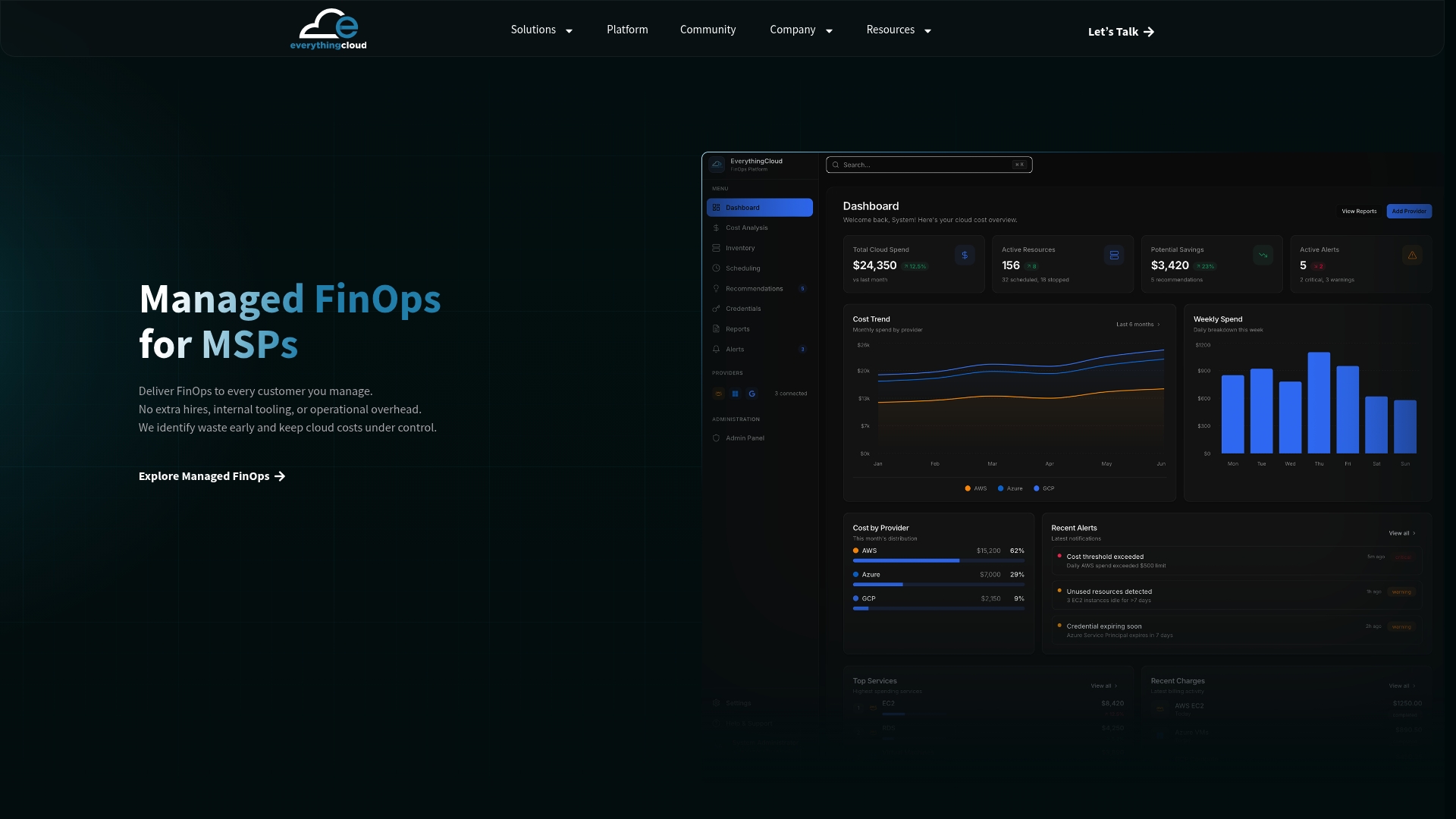
Through our Managed FinOps service, we turn recommendations like these into executed, monitored, and continuously adjusted actions instead of a one-time report that goes stale by next quarter. Our platform gives you real-time visibility into BigQuery spend alongside the rest of your cloud and SaaS footprint, with automated optimization actions and 24/7 monitoring built in. For MSPs and technology partners who want to offer this kind of managed cost optimization to their own clients without building it from scratch, our Founding Partner Membership provides the platform and playbook to launch that service at $500 per month. Talk to us about putting your BigQuery costs on autopilot.
FAQ
What does a dry run in BigQuery actually tell you?
A dry run estimates how many bytes a query will process without actually running it or incurring charges, so you can validate the cost before committing to execution. This is the core mechanism behind the query validator referenced in BigQuery’s cost documentation.
When should you buy slots instead of staying on-demand?
Capacity pricing with slots tends to make sense once your workload is heavy, steady, and predictable, since commitments offer discounts in the range of about 20% for 1-year and 40% for 3-year terms, per Google’s documentation. Use the slot recommender to model your actual P99 usage before committing, and favor a short trial over a long-term lock-in until the pattern is stable.
How does BigQuery long-term storage pricing work?
Any table that goes 90 consecutive days without modification automatically shifts to long-term storage pricing, which is lower than the active storage rate, according to Google’s storage overview. Any edit to the table resets that 90-day clock, so avoid unnecessary writes to data you’re trying to keep cheap.
Are materialized views better than scheduled queries for cost control?
For frequently run aggregations, materialized views typically cost less than scheduled queries because they precompute results once and BigQuery’s optimizer can automatically rewrite matching queries to use them, per Google’s documentation. Scheduled queries that recompute the full result set on every run are a common source of avoidable recurring cost.
What does EverythingCloud’s Managed FinOps service include for BigQuery?
Our Managed FinOps service combines continuous monitoring, automated optimization actions, and expert recommendations across cloud, SaaS, and AI spend, including BigQuery usage. Pricing for Managed FinOps is available on request.