
Run a 30 to 90 day license audit, reclaim inactive seats, and right size E5 and E3 assignments. That single sequence produces the fastest and most defensible savings you can bring to a renewal conversation.
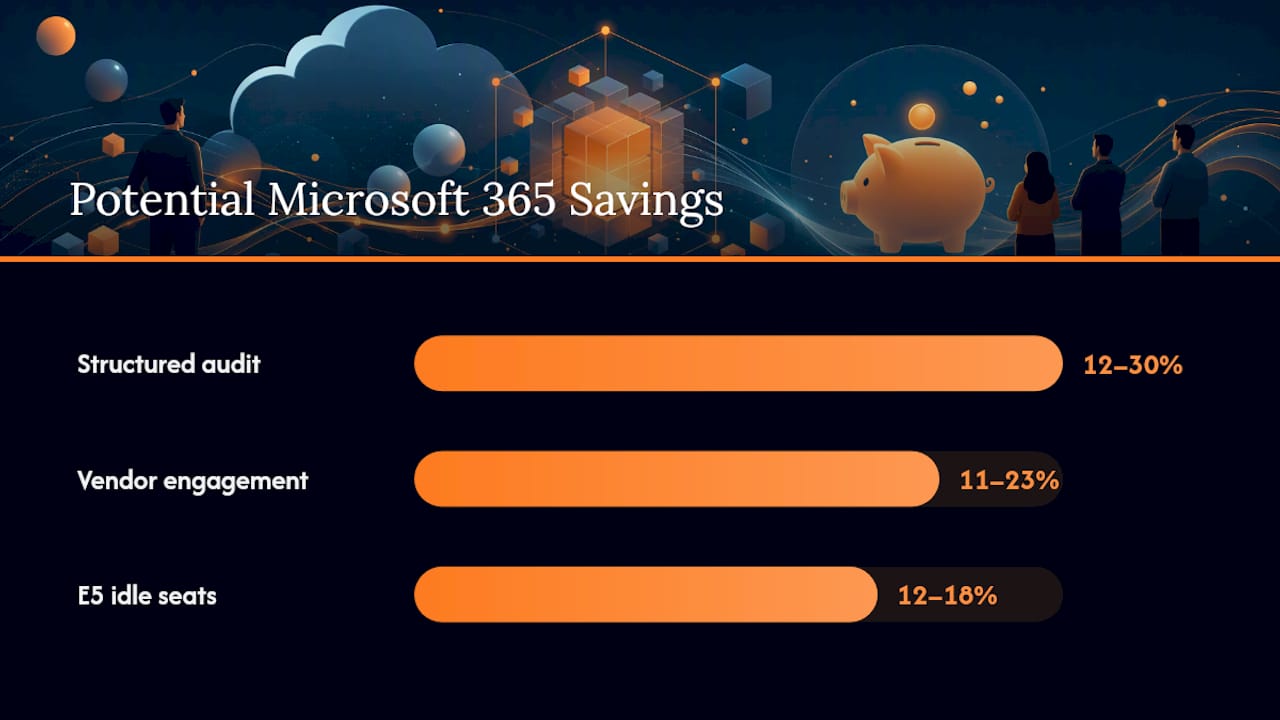
Buyer side engagements typically recover 11% to 23% of annual Microsoft 365 spend, and a structured audit often removes 12% to 30% of the subscription bill once inactive accounts, orphaned add-ons, and mismatched tiers are cleared out. Start in the Microsoft 365 admin center, where purchased versus assigned quantities and last activity data already live.
Here’s the seven day starting checklist, and who should own it:
- Day 1 to 2: IT operations pulls the license inventory and 180 day activity export.
- Day 3 to 4: A licensing lead or FinOps owner scores accounts as active, dormant, or orphaned.
- Day 5 to 7: The IT manager approves a first batch of reclaims and shared mailbox conversions.
Key Takeaways
Reclaiming inactive licenses and right-sizing E5 and E3 assignments produces the fastest, most defensible Microsoft 365 savings, typically 11% to 30% of annual spend.
| Point | Details |
|---|---|
| Start with baseline data | Export license inventory, assignments, and 180-day activity before changing anything. |
| Reclaim first, rightsize second | Dormant account reclaims and shared mailbox fixes carry the least risk and fastest payoff. |
| Map controls before downgrading | Check security and compliance features tied to each tier before moving anyone off E5. |
| Automate governance | Use group-based licensing and leaver workflows to stop savings from decaying. |
| Make it continuous | EverythingCloud’s managed FinOps turns a one-time audit into ongoing, monitored savings. |
Table of Contents
- What Data Do You Need Before You Touch Any License?
- Which Microsoft 365 License Optimization Tactics Save the Most, Fastest?
- Where Do You Pull License and Usage Data From?
- How Do You Structure a Microsoft 365 License Optimization Assessment?
- How Do You Stop License Waste From Coming Back?
- How Does Managed FinOps Turn a One-Time Audit Into Lasting Savings?
- Frequently Asked Questions
- Sources
What Data Do You Need Before You Touch Any License?
Skip the baseline pull and you’ll be negotiating from guesswork. Before you reassign or downgrade a single seat, export a full snapshot of what you own versus what people actually use.
Pull data from five sources: license inventory, user to license assignments, last sign-in logs, service-specific usage (Exchange, OneDrive, SharePoint, Teams), and your add-on SKU list, including guest and external accounts. Progressive Robot’s audit framework recommends starting in Billing under Your Products, then recording every subscription’s unit price, billing frequency, and renewal date alongside the assignment count. That renewal date matters more than people think, because it sets your negotiation clock.
| Field to export | Why it matters |
|---|---|
| SKU ID and plan name | Confirms exactly which tier each user holds |
| Purchased vs. assigned quantity | Reveals unused seats sitting on the invoice |
| Last activity date per service | Flags dormant accounts by actual behavior, not just login |
| Provisioning date | Helps spot stale onboarding assignments |
| HR status flag | Catches licenses tied to departed employees |
| Mailbox type | Identifies shared mailboxes wrongly licensed as individual seats |
- Cross-reference HR status with active assignments to catch leavers immediately.
- Weight service-specific usage over generic sign-in data. A person can log in daily and never touch Teams or OneDrive.
- Keep the export dated. It becomes your evidence file at true-up and renewal.
Which Microsoft 365 License Optimization Tactics Save the Most, Fastest?
Not every fix carries the same effort or payoff. Work through these in order.
1. Quick wins (days 1 to 30):
Reclaim licenses from accounts with zero activity across 90 days. Convert individually licensed shared mailboxes to true shared mailboxes, which need no license at all. Strip orphaned add-ons still attached to disabled or transferred accounts.
2. Medium effort (days 30 to 90):
Rightsize by persona. Move users who never touch Power BI Pro, advanced compliance, or Defender features from E5 down to E3, or from E3 down to F3 for frontline roles. Microsoft Licensing Experts found that 12% to 18% of E5 seats in a typical estate never touch E5-specific capabilities within a six-month window. Deduplicate add-ons purchased separately when they’re already bundled into a higher tier the user holds. Design a small reserved pool of unassigned licenses for onboarding, sized to your average monthly hiring rate instead of buying one-off as people join.
3. Higher effort, higher return (ongoing):
Automate license assignment through group-based licensing in Entra ID, so entitlement follows role membership instead of a manual ticket. Tighten joiner and leaver workflows so departures trigger automatic license release. Review your Copilot seat posture. Copilot pricing sits on top of a base license, so treat it as a controlled add-on assigned by actual usage data, not blanket rollout.
Statistic Callout: A structured audit commonly removes 12% to 30% of the Microsoft 365 bill, and vendor-side engagements land in the 11% to 23% range once persona rightsizing and add-on cleanup are both applied.
Pro Tip: Before downgrading anyone, map the security and compliance controls tied to their current enterprise plan. Losing an included Defender or compliance feature silently is the most common way rightsizing backfires.
- Reclaim dormant accounts before persona rightsizing. It’s faster and carries almost no risk.
- Never bulk-downgrade a department without checking which compliance features that tier includes.
- Log every change with a timestamp. You’ll need the trail for the next audit cycle.
Where Do You Pull License and Usage Data From?
Everything you need lives in tools you already have access to. You just need to know which report answers which question.
Start with native Microsoft sources. The Microsoft 365 admin center gives you licensed users, assigned versus purchased counts, and top-level activity summaries. Azure Active Directory (now Microsoft Entra ID) provides the licensed users report and shows exactly which SKUs and service plans attach to each account. Microsoft 365 usage analytics in Power BI aggregates usage across Exchange, Teams, OneDrive, and SharePoint into a single reportable view instead of forcing you to check each service separately.
For anything the portals don’t expose cleanly, PowerShell and the Microsoft Graph API fill the gap. PowerShell cmdlets can pull assigned SKUs and last activity per user in bulk, while Graph API endpoints let you automate that pull on a schedule instead of running it manually every quarter. This is where behavior-driven optimization becomes practical: combining last-activity data with service-specific consumption catches waste that a single “last sign-in” field misses entirely.

Pro Tip: A person can sign in every day and never open Teams. Score activity per service, not just tenant-wide login, or you’ll misjudge which licenses are actually earning their cost.
At some point, manual pulls stop scaling. Syskit’s optimization guide notes that manual audits pay back fast but need automation to prevent savings decay between review cycles. That’s the gap continuous monitoring platforms exist to close.
How Do You Structure a Microsoft 365 License Optimization Assessment?
A defensible assessment follows six steps in sequence, and skipping one usually shows up later as a disputed number in a renewal meeting.
- Discovery: Pull the full data set covered above across all licensed users and services.
- Analysis: Score each account by consumption, not just presence, flagging dormant, underused, and overprovisioned users.
- Modeling: Calculate estimated annual savings per proposed change, tier by tier.
- Stakeholder validation: Review candidate downgrades and reclaims with department leads before executing.
- Execution: Apply changes in batches, starting with zero-risk reclaims.
- Closeout: Document final savings against the baseline for the renewal file.
A sample report should include the baseline inventory, a persona map of who holds which tier and why, a candidate list for downgrades or removal, projected annual savings, a risk matrix for compliance-sensitive changes, and an approval runbook. Expect four to six weeks for a mid-sized tenant, with IT operations owning discovery, a licensing lead owning analysis and modeling, and department heads signing off before execution.
How Do You Stop License Waste From Coming Back?
An audit without governance is a savings spike that decays within a year. Lock it in with three controls: a leaver process that automatically releases licenses, approval gates on any new add-on purchase, and a documented role-to-SKU mapping so nobody assigns E5 by default.
Automate what you can. Entra ID group-based licensing, provisioning workflows tied to HR status, drift alerts, and a quarterly reconciliation calendar all keep entitlement matched to actual need.

Pro Tip: Time your reclaim and downgrade batches to land 60 to 90 days before your renewal or true-up date. Seats freed after the contract locks in don’t show up as savings until the next term.
What Does a Realistic 90 and 180 Day Roadmap Look Like?
- First 90 days: Pull baseline data, reclaim dormant accounts, strip obvious add-ons, build a reserved onboarding pool.
- Next 90 days: Complete persona rightsizing, automate joiner and leaver workflows, finalize stakeholder sign-off and reporting cadence.
- Expected outcome: Measurable licenses reclaimed, a documented percent cost reduction, and a lower monthly run rate carried into the next renewal cycle.
Why Does This Need to Be Continuous, Not a One-Time Project?
A single audit catches the waste that’s already accumulated. It does nothing about the new hire who gets an E5 by default next quarter, or the add-on nobody remembers approving eighteen months from now. Progressive Robot’s guidance on a disciplined leaver process points at the real lesson: the highest-value control isn’t the audit itself, it’s the process that keeps running after the audit ends. Quarterly reconciliation, tied to your renewal calendar, is what turns a one-time recovery into a permanent lower run rate. That’s the case for treating this as managed FinOps discipline rather than an annual project.
How Does Managed FinOps Turn a One-Time Audit Into Lasting Savings?
Everythingcloud is the alternative to running this whole process by hand, quarter after quarter, on top of your existing IT workload. A one-time audit finds the waste that already exists. It doesn’t stop the next E5 default assignment, the forgotten add-on renewal, or the shared mailbox that quietly gets relicensed six months from now.
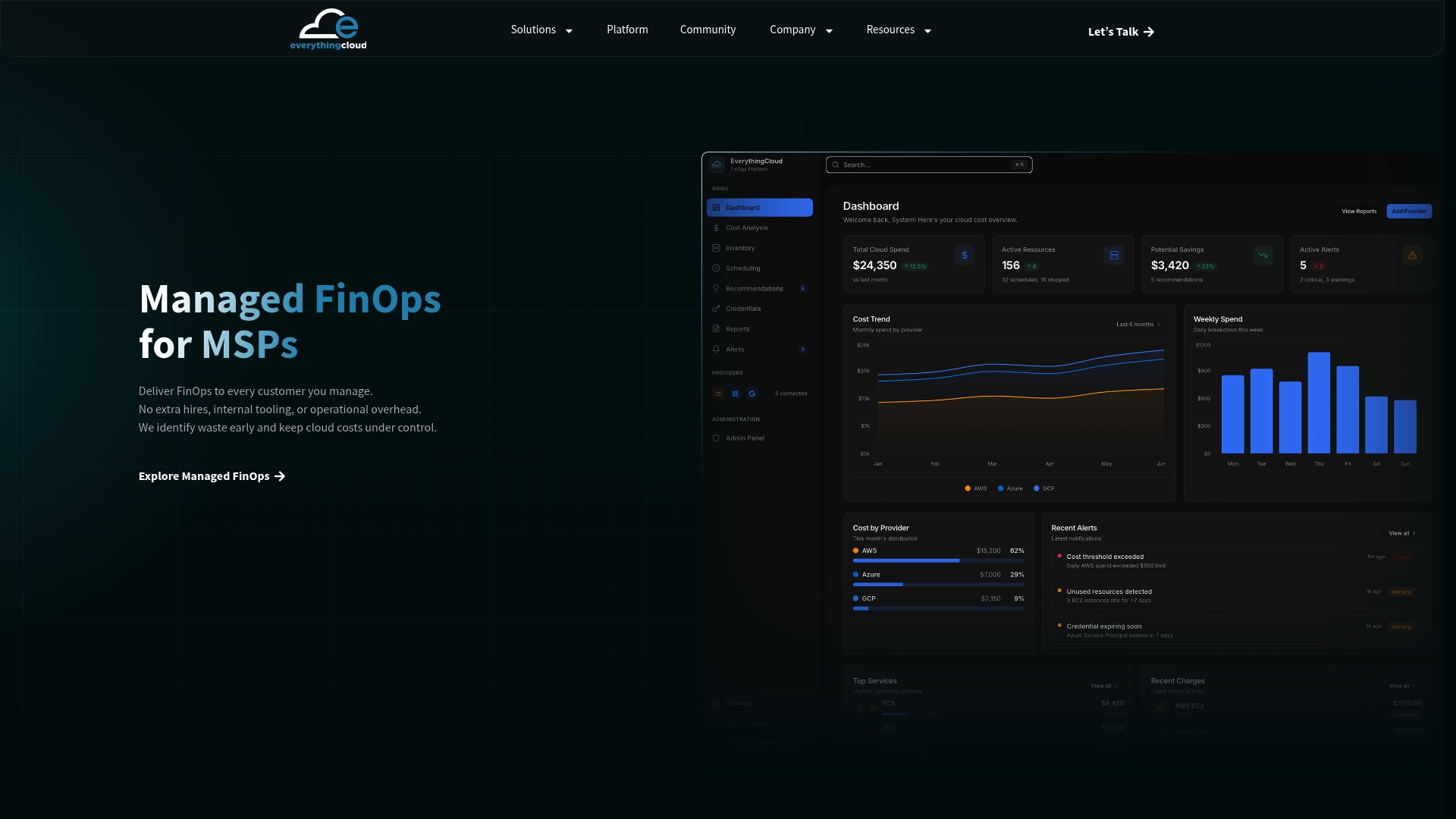
That’s the gap Managed FinOps closes. Instead of re-running exports and reconciliation manually every quarter, EverythingCloud’s managed FinOps service monitors license consumption continuously, automates the reclaim workflow, tracks your reserved onboarding pool, and delivers executive reporting that ties directly to your renewal calendar. If you want to see how the platform surfaces real-time license and usage data across Microsoft 365 alongside your broader cloud and SaaS spend, that’s the natural next step. Reach out through the contact page to scope a demo before your next true-up window closes.
Frequently Asked Questions
What is the fastest way to start Microsoft 365 license optimization?
Export your license inventory and 180-day activity data from the Microsoft 365 admin center, then reclaim licenses tied to accounts with zero activity in that window.
How much can we realistically save?
Structured audits commonly recover 12% to 30% of the subscription bill, while vendor-led engagements average 11% to 23% once persona rightsizing is included.
Is downgrading from E5 to E3 risky?
It can be if you skip the control mapping step. Review which security and compliance features are tied to E5 before moving anyone down a tier.
How often should we run this process?
Treat it as quarterly, not annual. A disciplined leaver process and quarterly reconciliation prevent savings from decaying between renewal cycles.
Sources
- Microsoft 365 Licence Audit: Proven Guide to Avoid Waste
- Microsoft 365 license optimization guide that cuts your renewal bill – Syskit
- Microsoft 365 License Optimization | Microsoft Licensing Experts
- Compare Microsoft 365 Enterprise plans – Microsoft