
Yes. A structured audit combined with targeted cleanup before renewal typically recovers 15 to 30 percent of Salesforce spend. The recovery comes from five levers, in order: auditing utilization, reclaiming inactive or misassigned seats, right-sizing license tiers to actual role needs, cleaning up permission set license waste, and governing consumption-based costs, like Agentforce credits. Start with the audit. Everything else depends on the evidence it produces.
TL;DR:
- Conduct quarterly Salesforce license utilization audits using LoginHistory data to identify inactive users and reclaim unnecessary seats.
- Classify dormant accounts into categories like hard inactive, soft inactive, or integrations before deactivating to avoid outages.
- Build and test persona-based license tier adjustments with small pilot groups, then expand cautiously after 30 days of no issues.
- Regularly remove unused permission set licenses tied to features or projects, documenting the savings to ensure accountability.
- Implement continuous governance with weekly snapshots and trend analysis to prevent spend creep and support effective renewal negotiations.
Table of Contents
- How Do You Run a Salesforce License Utilization Audit?
- Reclaiming Inactive, Duplicate, and Integration Accounts
- How Do You Right-Size License Tiers by User Persona?
- Where Permission Set License and Add-On Waste Hides
- Governing Consumption-Based Costs and Agentforce Usage
- Turning a One-Time Audit Into Continuous License Governance
- When Should You Start Renewal Negotiations, and What Leverage Do You Have?
- Practitioner Perspective: What to Actually Expect
- How EverythingCloud Supports Ongoing Salesforce License Governance
- Sources
- FAQ
How Do You Run a Salesforce License Utilization Audit?
A license utilization audit answers one question with hard evidence: who is actually using what you’re paying for? Salesforce’s own admin guidance frames this as tracking inactive users, confirming which licenses are assigned, and reassigning what sits idle. That guidance is the right starting point, but the mechanics matter more than the concept.
Your utilization formula is simple: active interactive users divided by total assigned licenses, tracked by license type. The objects you need are User, UserLicense, PermissionSetLicense, PermissionSetLicenseAssign, and LoginHistory. LoginHistory is where the real evidence lives, because it captures the exact login timestamp, source, and status for every user, and it’s what separates a defensible renewal brief from a guess.
Here’s the extraction sequence that works:
- Pull a standard user report filtered by
IsActive = trueandUserType = Standard, then cross reference againstLoginHistoryfor the last 90 days. - Run a SOQL query against
LoginHistoryfiltered toLoginType != 'Application'to exclude integration traffic and isolate genuine interactive logins. - Join the results against
UserLicenseto map each inactive user to a license type and its list price. - Build a named list, not a count. Finance and procurement respond to “these 47 people haven’t logged in since August” far better than “we have some inactive users.”
- Dollarize the waste using list price per seat, then total it by license tier.
Repeat this quarterly at minimum, monthly if your headcount is volatile. A single snapshot proves nothing to a renewal negotiator. A trend line proving the same 40 seats sat idle for three consecutive quarters is what actually moves a Salesforce account executive.
Reclaiming Inactive, Duplicate, and Integration Accounts
Not every dormant-looking account is safe to reclaim, and treating them all the same way is how license cleanups cause outages. Classify every flagged account before you touch it.
- Hard inactive: zero logins in 90+ days, no pending projects, manager confirms departure or role change.
- Soft inactive: sporadic logins, often seasonal staff or field roles that spike around quarter end.
- Low engagement: logs in but touches almost no records, a sign the license tier is wrong, not that the seat is unused.
- Integration or service accounts: automated users tied to middleware, ETL jobs, or Connected Apps that never show a browser login but are essential.
- Duplicates and test/admin accounts: leftover from sandboxes, QA, or onboarding that never got deactivated.
Before reclaiming anything, confirm with the account’s manager, check OAuth tokens and Connected App usage to rule out a hidden integration dependency, and exclude any account tagged as a service user in your identity provider. Document the confirmation, the last login date, and the license type freed for every seat you reclaim. Finance will ask for that paper trail before signing off on the renewal reduction.
Pro Tip: Run your reclaim list past whoever owns Connected App management before deactivating anything. A “dormant” account tied to a nightly integration job will break a data sync the moment you pull its license, and that outage costs more than the seat you just saved.
Track seats reclaimed, dollar value freed at list price, and time-to-reassignment for any seat repurposed rather than eliminated. Those three metrics are what turn a cleanup exercise into a repeatable process.
How Do You Right-Size License Tiers by User Persona?
Most Salesforce license waste isn’t from ghost accounts. It’s from live, active users sitting on a $165-a-month Enterprise license to do work that a $25 Platform seat or an Identity license handles just fine. Persona-based mapping fixes this without a role-by-role manual review.
Build four to six personas based on actual usage patterns pulled from your LoginHistory and object-access data, then map each to the cheapest license type that supports the work:
| Persona | Typical behavior | Recommended license tier |
|---|---|---|
| Core sales/service rep | Daily CRM object access, opportunities, cases | Sales Cloud or Service Cloud Enterprise |
| Custom app user | Uses custom objects only, no standard CRM objects | Salesforce Platform |
| Occasional approver | Logs in for approvals, dashboards, rare edits | Identity |
| External portal user | Logs in through a branded portal, limited object scope | Experience Cloud (login-based) |
| Read-only executive | Views reports and dashboards, never edits | Platform or Identity, depending on object needs |
Before rolling any of this into production, pilot the downgrade with a small group, ideally 10 to 15 users per persona, and set a 30-day rollback window. Monitor for permission errors, object access failures, and help desk ticket spikes. If the pilot group reports no functional gaps after 30 days, expand the change.
The savings math is straightforward: multiply the per-seat price difference between the old and new tier by the number of users in that persona, then subtract any add-on costs the new tier requires. A 200-seat Enterprise-to-Platform shift for custom-app-only users, even at a modest per-seat gap, adds up fast across a full renewal cycle.
Where Permission Set License and Add-On Waste Hides
Permission set licenses, or PSLs, are the quietest form of Salesforce shelfware because they’re assigned once during a project rollout and almost never revisited. A sales enablement tool, a CPQ add-on, or a field service permission set gets assigned to 50 users during a pilot, the pilot ends, and the assignments just stay. PSL waste is a frequent hidden cost precisely because the assignment survives long after the project that justified it.
Here’s how to find and clear it:
- Pull every
PermissionSetLicenseAssignrecord and join it against actual feature usage logs for that permission set’s objects or fields. - Cross reference against
LoginHistoryto confirm the assigned user is even active. - Flag any assignment with zero related feature activity in the past 60 days as a candidate for removal.
- Remove or reassign the PSL, then document the license type and monthly cost freed.
- Add a provisioning gate so future project rollouts require a 90-day review before automatic renewal of the assignment.
When you present this to procurement, separate PSL savings from seat savings in the renewal brief. PSL cleanup often recovers a smaller dollar figure than seat right-sizing, but it’s a cleaner, lower-risk cut, and showing it separately makes the overall case more credible, not less.
Governing Consumption-Based Costs and Agentforce Usage
Seat licenses are predictable. Consumption costs are not, and that’s exactly why they need separate governance. Data Cloud queries, Agentforce credits, and flex-credit consumption scale with usage volume, not headcount, which means a single runaway automation or an over-eager AI agent can spike a bill in ways a seat audit will never catch.
Salesforce’s own developer guidance on Data Cloud recommends Salesforce Commerce Cloud SEO Automation as the core levers for controlling consumption spend. In practice, that means:
- Tag consumption by business unit or use case so you can attribute cost, not just track a total.
- Set near-real-time alerts at defined thresholds rather than waiting for a monthly invoice surprise.
- Use
WHEREclause filtering and field-limited queries instead of broad pulls that ingest more data than the use case needs. - Restrict test and sandbox environments from touching production-scale data volumes.
Salesforce’s own Digital Wallet feature tracks flex credits and consumption signals with configurable alerts, which is a reasonable starting point if you haven’t built dashboarding elsewhere. As AI features move toward consumption and bundled pricing, license optimization has to include credit governance alongside seat counts, or you’ll fix one cost problem while a new one grows underneath it.
Build consumption caps and reporting requirements into the renewal contract itself, not just into internal dashboards. A cap without a contractual backstop is a suggestion, not a control.
Turning a One-Time Audit Into Continuous License Governance
A single cleanup before renewal recovers spend once. Continuous governance is what keeps that spend from creeping back within two quarters, and the pattern that works is a shift from an annual fire drill to a standing weekly rhythm.
The core components of continuous governance:
- Weekly login and utilization snapshots, not just a pre-renewal scramble.
- Trend charts that show inactive users repeating across multiple periods, which is far more persuasive to Finance than a single count.
- A standing named inactive list, refreshed automatically, not rebuilt from scratch each quarter.
- Scheduled PSL-to-usage reconciliation so shelfware gets flagged before it accumulates for a year.
For internal teams building this without outside tools, the checklist is: a read-only connector into your Salesforce org, scheduled report exports on a weekly cadence, a lightweight dashboard layer, and threshold-based alerts for utilization drops or consumption spikes. That’s a workable starter pattern for a single org with modest complexity.
Pro Tip: If you’re managing licenses across more than one Salesforce org, or across Salesforce plus Microsoft 365 and other SaaS platforms, a spreadsheet-based tracking approach breaks down fast. That’s usually the signal it’s time to look at a platform built for continuous SaaS spend governance instead of rebuilding the wheel internally.
A continuous, snapshot-based approach converts a one-time recovery into a recurring one and simplifies every future renewal conversation, because the evidence is already sitting there when negotiations start.
When Should You Start Renewal Negotiations, and What Leverage Do You Have?
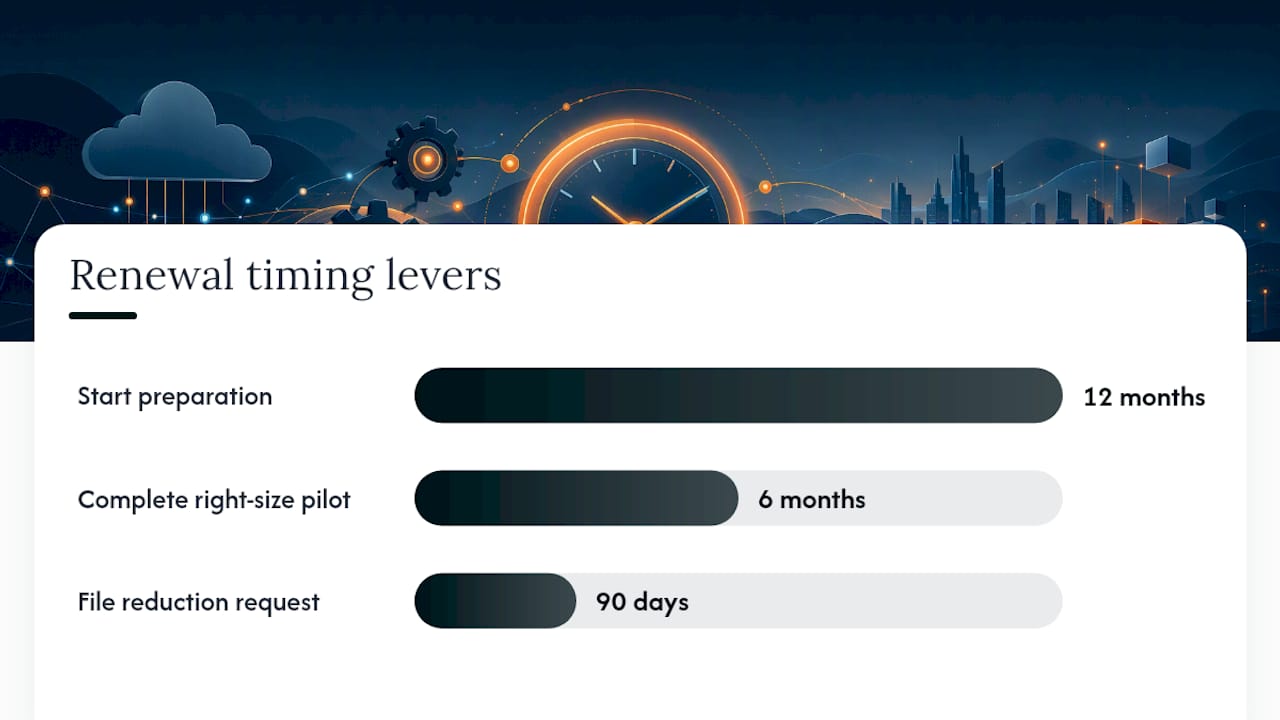
Renewal leverage is a function of timing, and most organizations start too late to use any of it. The practical playbook: begin preparation 12 months before your renewal date, and plan to file any seat reduction requests at least 90 days before the contract anniversary, since co-term structures and auto-renewal clauses often lock in seat counts if you miss that window.
Here’s the sequence that works:
- At 12 months out, start the quarterly audit cadence described earlier so you’re building trend data, not a single snapshot.
- At 6 months out, complete the persona-based right-sizing pilot and PSL reconciliation so the numbers are locked before contract talks begin.
- At 90 days out, file your formal reduction request with named inactive users, dollarized recoverable spend at list price, and quarter-over-quarter trend comparisons attached.
- During negotiation, push on four levers: removing unused add-ons entirely, rebalancing seats toward lower-cost tiers per the persona framework, capping annual price increases, and tightening co-term and auto-renewal language so next year’s cleanup isn’t fighting the same clock.
Gartner’s research on procurement best practices has long supported the broader case that disciplined lifecycle management, not just negotiating harder, is what drives durable software savings. Structure your renewal brief for Finance and Legal around three sections: the evidence (named users, trend charts), the ask (specific seat and add-on reductions), and the contract protections you want written in. Anything less specific reads as a request for a discount, not a data-backed correction.
Practitioner Perspective: What to Actually Expect
The 15 to 30 percent recovery range is real, but it assumes you did the audit properly, not that you skimmed a report once. Most of that number comes from seats and PSLs nobody remembered assigning, not from some clever tier-negotiation trick. Expect the first cleanup to take real hours from an admin, usually spread across two to three weeks, not an afternoon.
The bigger mistake isn’t skipping the audit. It’s treating it as a one-time event. Utilization creeps back within two or three quarters if nobody’s watching. Start with three things this week: pull your LoginHistory inactive list, reconcile one PSL against actual usage, and set a calendar reminder 12 months before your next renewal date.
— Dan
How EverythingCloud Supports Ongoing Salesforce License Governance
Everything above works as a manual process for one org with modest complexity. It gets harder fast once you’re managing Salesforce alongside Microsoft 365, AWS, and a growing list of AI consumption products, each with its own renewal clock and its own way of quietly accumulating waste.
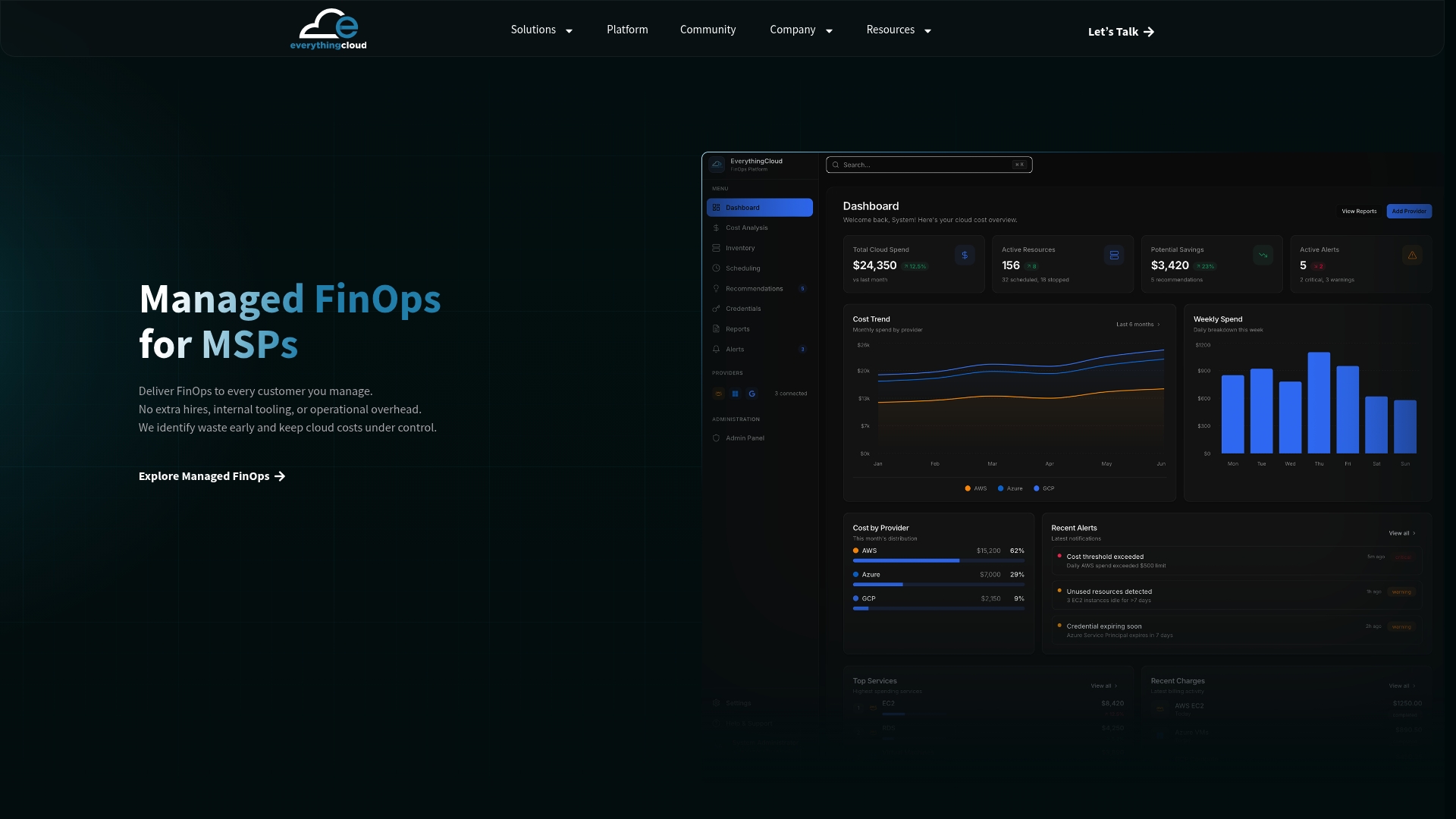
This type of solution is built for that gap: continuous monitoring across your SaaS and cloud footprint, automated reconciliation instead of manual spreadsheet exports, chargeback reporting that maps cost to business unit, and managed FinOps expertise that flags recoverable spend before your renewal clock runs out. For a single Salesforce org, the DIY audit pattern described above is a reasonable starting point. Once you’re tracking multiple platforms, multiple renewal dates, and consumption-based AI costs on top of seat licenses, a managed platform catches drift a quarterly manual review will miss. If you want a clearer picture of what’s recoverable in your own environment, request a discovery audit and see what a structured governance program would actually surface before your next renewal.
Sources
- How to Optimize License Utilization
- Salesforce License Optimization: Cut Costs by 30% Before Renewal
FAQ
What Is the Average Cost of a Salesforce License?
Salesforce license pricing varies widely by edition and product line, ranging from roughly $25 per user monthly for Platform licenses up to $165 per user monthly for Enterprise tier Sales or Service Cloud editions. The right figure for your organization depends on which edition and add-ons your renewal contract specifies, so treat any generic average as a rough starting point, not your actual baseline.
What Are the Different Types of Salesforce Licenses?
The main categories are full CRM licenses (Sales Cloud, Service Cloud, and similar editions), Salesforce Platform licenses for custom-app-only users, Identity licenses for login and approval access, Experience Cloud licenses for external portal users, and permission set licenses that layer specific feature access onto a base license.
Who Is Salesforce’s Biggest Competitor?
Salesforce competes across CRM, marketing, and customer service categories against several major enterprise software providers, and market position shifts by product line and region. For license optimization purposes, the competitive landscape matters less than making sure you’re extracting full value from the Salesforce contract you already hold.
Why Is Salesforce Stock Falling?
Stock price movements reflect broad market and investor sentiment factors well outside the scope of license management, including growth expectations and competitive pressure in enterprise software generally. For IT and procurement teams, the more relevant trend is rising SaaS and AI consumption pricing pressure, which makes internal license governance more valuable regardless of where the stock sits.
How Much Can a Salesforce License Audit Actually Save?
A structured pre-renewal audit covering inactive-user reclaim, tier right-sizing, and PSL cleanup typically recovers 15 to 30 percent of total Salesforce spend, according to industry audit data. The exact figure depends on how long utilization drift has gone unchecked and how many personas are sitting on higher-cost tiers than their actual usage requires.