
AWS Cost Categories group billing line items into the business structures your organization actually uses, like teams, products, or environments so you can budget, report, and catch anomalies by owner instead of by raw AWS invoice line. The FinOps payoff is direct: cost visibility maps to accountability. Start small. Build one category around your highest-value reporting need, like a business unit or product line, before layering in more complex rules.
TL;DR:
- Cost categories should be built around high-value reporting needs and maintained with regular review to prevent drifting and mismatches over time.
- Support for shared costs through split rules (proportional, fixed, even) allows accurate chargeback without manual exports, though not all downstream tools surface split details.
- Proper governance of tags, quotas, and access control is critical to ensure categories stay accurate, especially in large, dynamic environments with multiple teams.
- Scoping budgets and anomaly detection by category improves the precision of alerts and prevents noise from unrelated teams or services.
- Automated platforms can monitor and correct category drift continuously, making ongoing management scalable beyond initial setup.
Table of Contents
- What Are AWS Cost Categories and Where Do They Show Up?
- Rule Types, Supported Dimensions, and Why Order Matters
- How to Create Your First Cost Category in the AWS Console
- Split Charge Rules: Allocating Shared Costs Fairly
- How Cost Categories Feed Your Reporting and Monitoring Stack
- Governance: Tags, Quotas, and Access Control
- Real-World FinOps Use Cases
- When to Manage Cost Categories In House vs. Bring In Managed FinOps
- Your 10-Minute Setup Checklist
- The Real Gap in Most Cost Categories Advice
- Let Everythingcloud Handle the Category Maintenance You Don’t Have Time For
- Sources
- FAQ
What Are AWS Cost Categories and Where Do They Show Up?
AWS Cost Categories are not a standalone reporting tool sitting off to the side. They’re a mapping layer that other AWS cost management products read from. Once you define a category, its values appear as a usable dimension across the tools where FinOps teams already spend their time:
- AWS Cost Explorer — filter and group visualizations by category value
- AWS Budgets — set budget thresholds scoped to a specific category, not just an account
- AWS Cost and Usage Report (CUR) — new columns get added automatically so category values export with every line item
- AWS Cost Anomaly Detection — monitor spend anomalies within a defined category rather than across an entire payer account
A common point of confusion: how is this different from cost allocation tags? Tags label individual resources. Cost Categories sit a level above tags, combining accounts, tags, services, regions, and even other categories into a single rule based grouping. They complement each other rather than compete. AWS provides Cost Categories at no additional charge, which removes the usual budget objection FinOps leads face when pitching a new tool to finance.
Rule Types, Supported Dimensions, and Why Order Matters
Every cost category is built from rules, and every rule references a dimension. Getting the dimension choice right up front saves hours of debugging later. Supported dimensions include:
- Accounts — group by linked account ID, common in multi-account AWS Organizations setups
- Tags — reference cost allocation tag key/value pairs
- Service — group by AWS service (EC2, S3, RDS, and so on)
- Region — useful for geography-based chargeback
- Usage Type and Charge Type — separate usage costs from taxes, credits, refunds, or support fees
- Cost Category — reference another category as a dimension, which lets you build hierarchical relationships
These supported dimensions also include Billing Entity for organizations working across AWS Marketplace or reseller arrangements.
Rules come in two flavors. Regular rules assign a fixed value when conditions match. Inherit rules pull the value dynamically from a tag, which matters when your organization adds new applications constantly and you don’t want to hand edit rules every sprint. Rules evaluate top to bottom, and the first match wins, so rule order is not cosmetic. Anything left unmatched falls into the default value, which should never be left blank if you want clean, complete reporting.
How to Create Your First Cost Category in the AWS Console
Building your first category takes less time than most FinOps engineers expect. Here’s the sequence:
- Open Billing and Cost Management in the AWS console and navigate to Cost Categories.
- Click Create cost category, then name it clearly. “Product Line” or “Business Unit” beats vague names like “Category1.”
- Choose your build method. The Rule builder handles most straightforward logic through a guided interface. Switch to the JSON editor when you need NOT or operators, or when rules get nested deep enough that the GUI becomes hard to read.
- Set the effective date. AWS lets you apply a lookback so the category retroactively categorizes historical costs, not just spend going forward.
- Add rule values one at a time, and use cost preview before saving. This shows estimated dollar amounts matching each rule, which catches misconfigured logic before it ships.
- Set the default value to catch anything unmatched.
- Reorder rules if needed, since evaluation order determines outcomes when line items could match more than one rule.
- Save. Processing can take up to 24 hours, and changes become fully effective at the start of the next billing cycle for retroactive lookback scenarios.
Pro Tip: Name your first category around whatever question your CFO asks most often, not around what’s technically easiest to build. If the recurring question is “what did the Analytics team spend last quarter,” build that category first, even if a services based category would be simpler to set up.
Split Charge Rules: Allocating Shared Costs Fairly
Not every cost belongs cleanly to one team. Support fees, shared networking, and centralized logging infrastructure benefit everyone but don’t map to a single business unit on their own. Split charge rules solve this by taking a source category value (the shared cost pool) and distributing it across target values using one of three methods:
- Proportional — splits based on each target’s existing usage share, ideal for infrastructure costs that scale naturally with consumption
- Fixed — assigns a set percentage to each target, useful for centralized support contracts where usage doesn’t reflect fair allocation
- Even — splits the cost equally across all targets, appropriate when a shared tool benefits every team the same regardless of size
AWS Cost Categories supports all three allocation methods natively, which means chargeback and showback models can run without exporting data to a spreadsheet for manual math.
One limitation worth flagging: split allocation results appear on the Cost Categories details page and in CSV exports, but not every downstream AWS product surfaces the split. Build a periodic export process if your finance team needs post-split numbers in a data warehouse, using marketing attribution powered by BigQuery.
How Cost Categories Feed Your Reporting and Monitoring Stack
The moment you save a cost category, it starts flowing into the products where budgeting and anomaly work actually happens. The AWS Cost and Usage Report gains a new column for every category you define, so your CUR-based pipelines pick up the mapping automatically without a separate join step.
From there:
- Cost Explorer lets you filter and group any visualization by category value, turning a generic spend chart into a per-team or per-product view
- AWS Budgets can scope thresholds to a category, so alerts trigger when a specific product line overspends, not just when the whole account crosses a limit
- AWS Cost Anomaly Detection gets a cleaner signal when monitors are scoped to a category, since noise from unrelated teams doesn’t dilute the baseline
Teams running cost anomaly detection at the account level often find the alerts too broad to act on quickly. Scoping monitors to a category narrows the blast radius of every alert to something an owner can actually investigate.
Governance: Tags, Quotas, and Access Control
Cost Categories are only as reliable as the tags feeding them. AWS recommends activating only the tag keys you actually need, since a sprawling, inconsistent tag taxonomy produces categories full of gaps and mismatches. Watch for the awsApplication tag, which AWS can activate automatically and which sometimes surprises teams auditing their tag list.
A few operational guardrails worth building in from day one:
- Keep the number of active tag keys small and enforce naming conventions before rolling out categories organization-wide
- Track quotas for the number of cost categories and rules per editor, since large organizations hit these limits faster than expected
- Restrict edit access using IAM policies tied to Cost Category permissions, so remapping requires a deliberate change, not an accidental click
- Always test with the cost preview feature and use lookback before trusting a new rule against historical spend
- Monitor for uncategorized costs regularly. A growing “unallocated” bucket usually signals a new account, tag, or service that slipped past your rules
Pro Tip: Set up a monthly review of the default value bucket in each category. If it’s growing month over month, something new launched in your AWS environment that your rules haven’t caught up with yet.
Real-World FinOps Use Cases
A few patterns show up repeatedly once teams get comfortable with Cost Categories:
- Departmental chargeback: combine account and tag dimensions so each business unit sees exactly its own AWS bill, down to shared service allocations
- Centralized support cost splitting: use a fixed-split rule to divide enterprise support fees across departments by negotiated percentage rather than raw usage
- Inherited tag grouping: apply an inherit rule at the application tag level so new services get grouped automatically without a rule update every time engineering ships something
- Budget and alert granularity: layer a category on top of AWS Budgets so alerts fire per product line instead of drowning in a single account-wide threshold
When to Manage Cost Categories In House vs. Bring In Managed FinOps
Building and maintaining Cost Categories yourself works fine when you’re managing a handful of accounts and a stable tagging structure. It gets harder fast once you’re running dozens of linked accounts, multiple business units, and tag policies that drift every time a new team spins up infrastructure.
A platform layering automated policy execution and 24/7 monitoring on top of the category and tagging structure you build can catch and correct drift instead of letting it accumulate quietly for months. A few signals it’s time to bring in managed FinOps support:
- Your uncategorized cost bucket keeps growing despite manual reviews
- Multiple teams touch tagging and category rules without a shared change process
- You need chargeback numbers verified against actual invoices, not estimates
- Savings recommendations pile up faster than your team can act on them
Automated execution shortens the gap between identifying a savings opportunity and actually capturing it, which is usually where in-house FinOps efforts stall out.
Your 10-Minute Setup Checklist
You don’t need a full afternoon to get a working category live. Follow this sequence:
- Pick one business perspective to model, like a product line or department, and name the category clearly.
- Choose 3 to 6 dimensions (accounts, tags, or services) and build rules for your highest-spend items first.
- Set the effective date, run the cost preview, and save once the estimated numbers look right.
- Verify the category shows up correctly in Cost Explorer and in your next CUR export.
- Attach it to a budget threshold and a Cost Anomaly Detection monitor so the category starts working for you immediately, not just sitting in a report.
The Real Gap in Most Cost Categories Advice
Most guidance on Cost Categories reads like a features list: here are the dimensions, here’s the rule builder, good luck. That misses the actual failure point. Categories don’t break because someone picked the wrong dimension. They break because nobody owns them after launch. A category built in Q1 quietly drifts out of sync with reality by Q3, once new accounts, new tags, and new services show up that nobody updated the rules for.
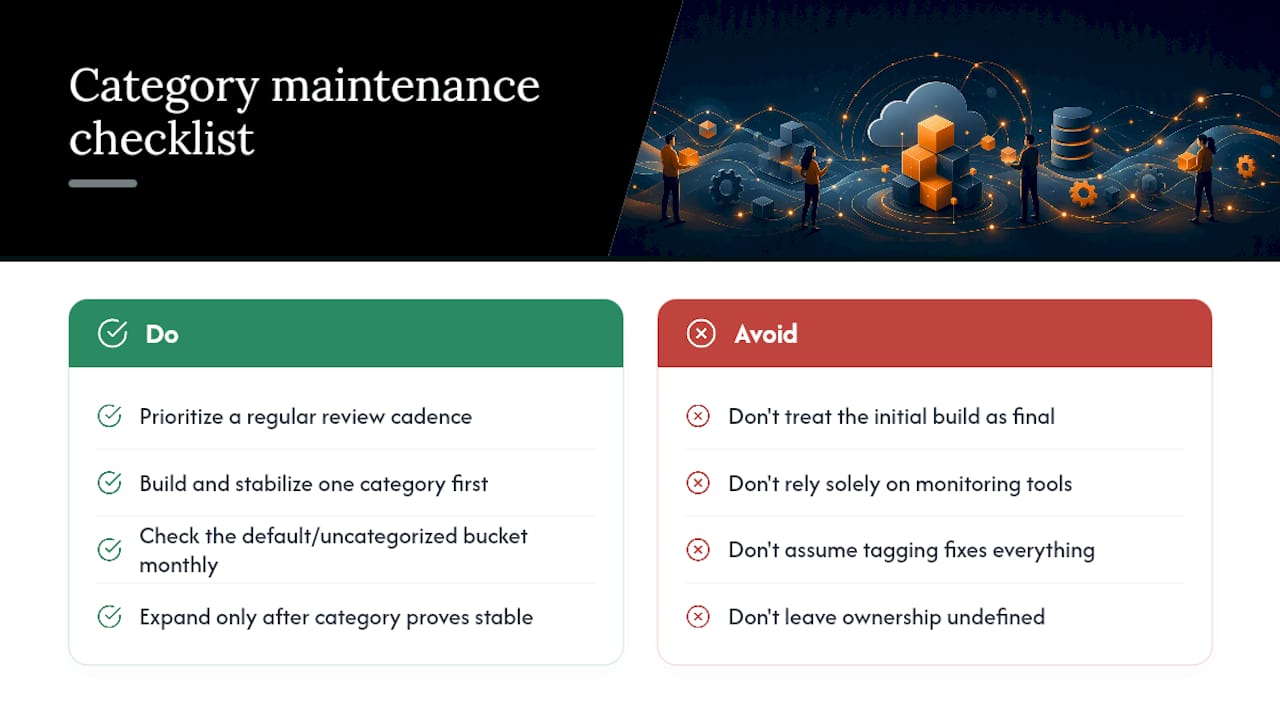
The conventional advice to “just tag everything consistently” also undersells how hard tag governance is at scale. Small tag hygiene problems compound quietly across hundreds of resources until the uncategorized bucket becomes bigger than most of your named categories.
If you take one thing from this guide, prioritize the review cadence over the initial build. Build one category well, check the default value bucket monthly, and only expand once that first category holds up under real organizational change. Automation helps here, but only after the rule logic itself is sound. No monitoring tool fixes a category built on bad assumptions.
— Dan
Let Everythingcloud Handle the Category Maintenance You Don’t Have Time For
Some platforms are built for FinOps teams that get Cost Categories working initially but later see the uncategorized bucket creep back up. Such platforms monitor tagging and category rules continuously and flag gaps before they distort a budget report.
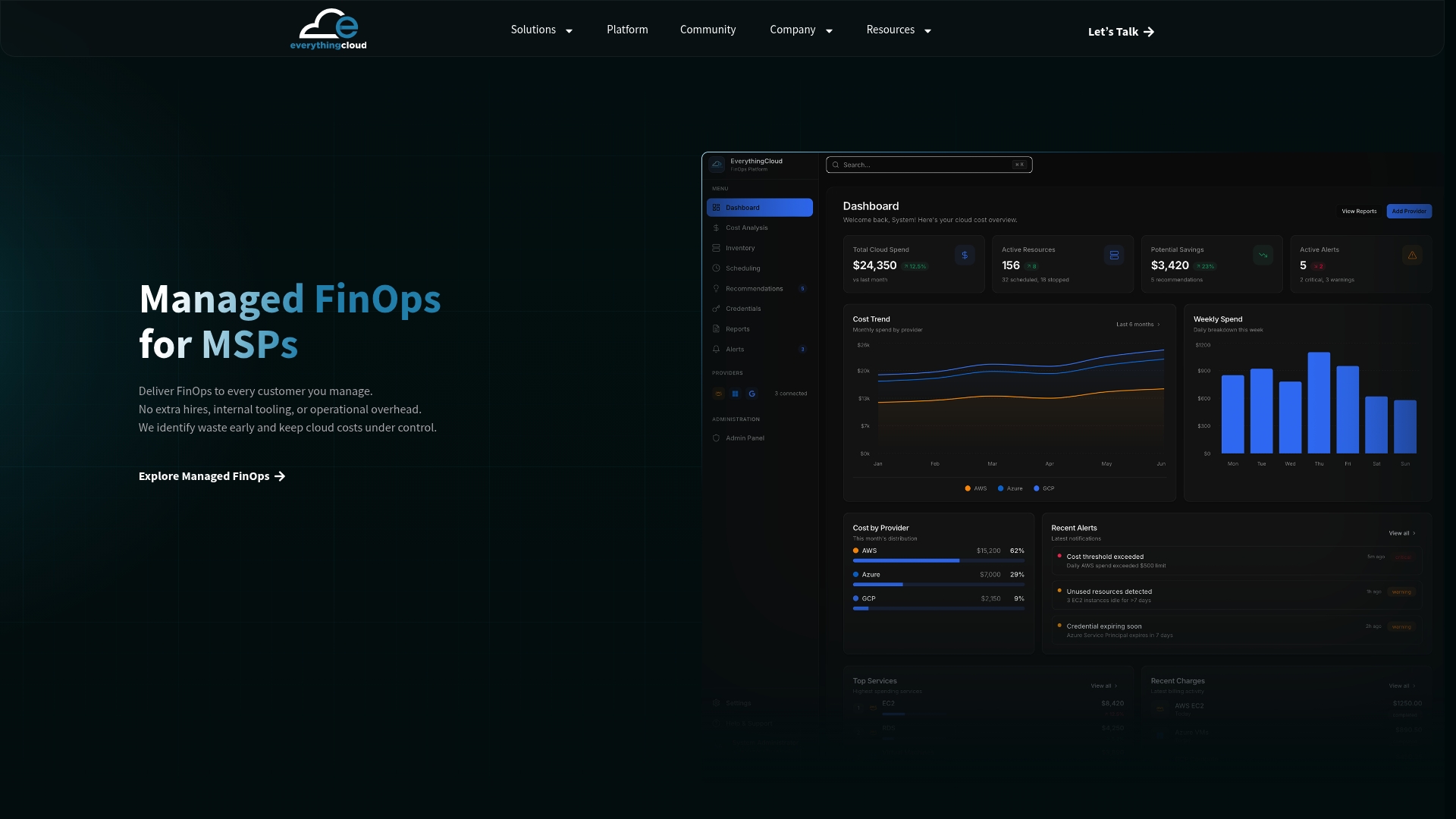
Certain platforms pull real-time visibility across AWS, Azure, Google Cloud, and SaaS spend into one place and can be paired with managed FinOps expertise for hands-on rule maintenance rather than just providing another dashboard to check. For MSPs and channel partners looking to offer managed FinOps without building it internally, the Founding Partner Membership provides a turnkey path at $500 per month.
If your organization would rather hand off category governance, tag hygiene, and anomaly monitoring entirely, Managed FinOps covers ongoing execution, not just recommendations. Get in touch to see how the platform fits your current AWS setup.
Sources
FAQ
What Are Cost Categories in AWS?
Cost Categories are rule-based groupings that map AWS billing line items to business structures like teams, products, or environments, using dimensions such as accounts, tags, services, and regions.
What Are the Different AWS Pricing Models?
AWS pricing generally falls into on-demand pricing, Savings Plans and Reserved Instances for committed usage discounts, and Spot Instances for interruptible workloads at lower rates. Cost Categories don’t change these pricing models. They organize the resulting costs for reporting after the fact.
What Are the Different Types of Costs in AWS Billing?
AWS billing separates usage costs from charge types like taxes, credits, refunds, and support fees, all of which can be isolated using the Charge Type dimension inside a cost category.
What Are the Main Categories of AWS Services?
AWS organizes services broadly into compute (EC2, Lambda), storage (S3, EBS), database (RDS, DynamoDB), networking, and machine learning, among others. The Service dimension in Cost Categories lets you group spend by these same service families for reporting.
Does Everythingcloud Support AWS Cost Category Setup?
Everythingcloud’s Managed FinOps service helps organizations build, govern, and maintain AWS Cost Categories as part of ongoing cloud spend optimization, with current pricing details available on the Managed FinOps page.