
Copilot license management is one of the easiest recurring services an MSP can add this year, because your customers already bought the seats and nobody is watching them. Someone has to decide who gets a license, check whether they use it, and catch the bills that arrive when agents and usage-based billing enter the picture. If that someone is you, on a monthly cadence, you protect your customer’s budget and you get a line item that renews itself.
This isn’t a click-by-click admin tutorial, though the routine is below. It’s the case for treating Copilot licenses as managed spend, and a practical way to deliver that for the customers you already have.
TL;DR
- Assigning a Copilot license takes minutes. Knowing who should have one, who stopped using it and what the agents are costing is the monthly work customers will pay you for.
- Copilot needs a qualifying base license, so Copilot management is really base license management too. That’s where most of your margin questions live.
- Usage-based billing is now part of the picture. A spending policy and a monthly review keep the surprises off your customer’s invoice and your support queue.
- Visibility matters, but someone still has to own the work. A report nobody acts on doesn’t renew.
- Sell it as a fixed monthly review with a white-label report and tracked actions, so it’s repeatable across tenants.
Table of Contents
- Why Copilot licensing is a service and not a one-time task
- What a Copilot license actually is, and what it depends on
- E3 and E5 add-ons versus E7
- The admin routine: assign, reassign, remove
- Finding idle seats: where the savings come from
- Agents and usage-based billing: where the surprises live
- Fix permissions before you hand out seats
- How Copilot license management builds your recurring service
- How an MSP delivers this for clients
- Our perspective
- Put it to work with EverythingCloud
- FAQ
- Sources
Why Copilot licensing is a service and not a one-time task
Most MSPs treat Copilot like any other SKU: customer asks, you assign, you invoice. That works for the first ten seats. It stops working at the first renewal conversation, when the customer’s CFO asks who is actually using the thing.
Here’s the commercial picture. A customer buys seats in a burst of enthusiasm. Three months later a chunk of those users have opened Copilot twice. Nobody notices, because nobody owns the question. The customer either keeps paying for idle seats and eventually resents it, or cancels the lot in one angry move and blames the tool, and you.
The MSP that owns the review catches that drift early. You reassign idle seats to people who’d use them, you right-size at renewal, and you walk into the QBR with evidence instead of apologies. That’s the difference between a one-time license sale and a service customers keep.
What a Copilot license actually is, and what it depends on
Before you manage licenses, get the dependency chain straight, because it explains half the support tickets.
Per Microsoft Learn’s license options page, Microsoft Copilot comes with Microsoft 365 E7 or as an add-on for eligible commercial, US Government and education plans. The qualifying base plans include Microsoft 365 E3, E5, F1, F3, and Business Basic, Standard and Premium, along with several Microsoft 365 Apps and Office 365 plans.
The user also needs more than the license. Microsoft’s requirements page lists a Microsoft Entra ID work or school account, an Exchange Online mailbox for mailbox-grounded experiences, supported apps and browser, and network access. It also says Copilot isn’t available with device-based licensing for Microsoft 365 Apps for enterprise. That last one catches shared-device environments, so check it before you promise a rollout date.
One size rule worth knowing: Copilot Business is an add-on for organizations with up to 300 users on eligible Microsoft 365 Business licenses, sold with an annual commitment. Larger organizations use the enterprise licensing options, per the same Microsoft page. If you serve customers near that line, the headcount conversation belongs in your review.
E3 and E5 add-ons versus E7
This is where margin gets decided. Microsoft’s E3, E5 and E7 comparison explains that E7 bundles Copilot, the Microsoft Entra Suite and Agent 365 in one license, while on E3 and E5 Copilot is only an add-on.
What does that mean for you? A customer with a mix of E3, E5 and add-on seats has a licensing puzzle, and the answer changes as their headcount and AI use change. Somebody should be rechecking it at least yearly. Our view: that somebody should be the partner who already holds the Microsoft relationship, not a customer who reads a pricing page once and guesses.
If you’re a CSP, you also know that Microsoft announced commercial Microsoft 365 suite list-price changes effective July 1, 2026, with local market adjustments. Price changes are exactly when customers ask “are we on the right plan?” Be the one who already has the answer.
The admin routine: assign, reassign, remove
The mechanics are simple, and you should do them the same way in every tenant so a junior tech can run them.
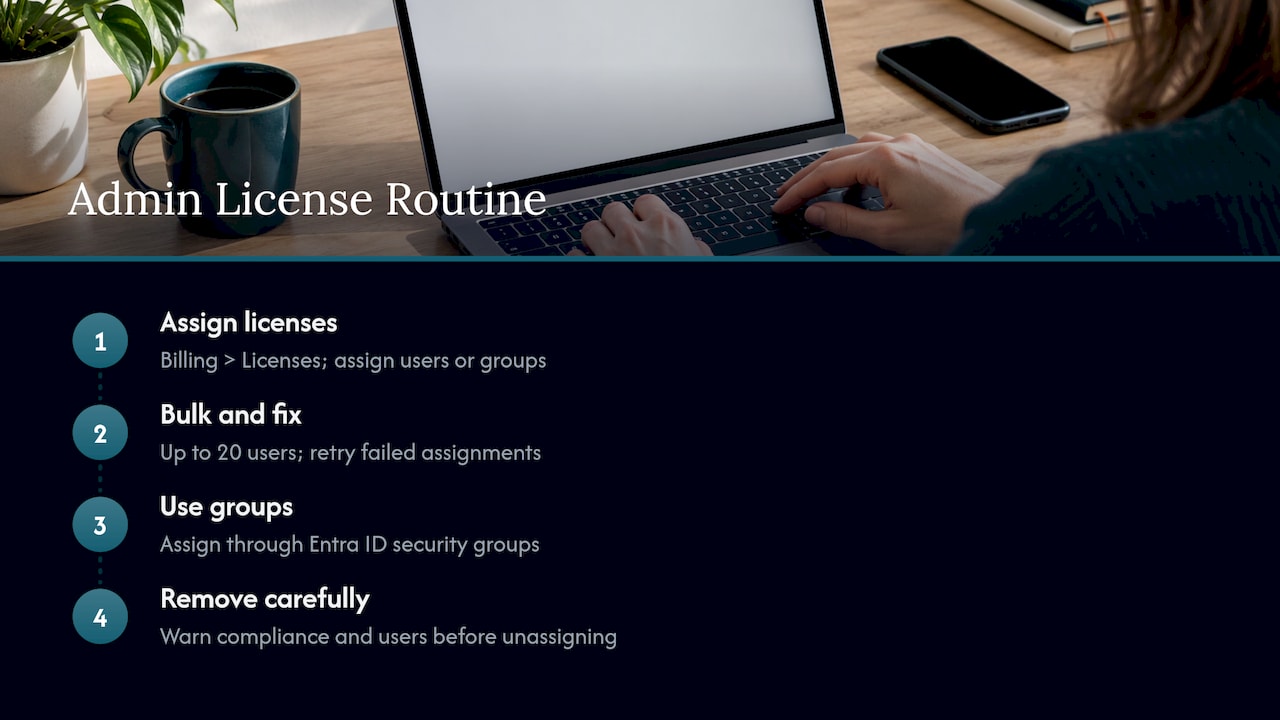
Assign. Microsoft’s setup guide has admins go to Billing, then Licenses in the Microsoft 365 admin center, select Microsoft Copilot, and assign to individual users or groups. Verify under Users, then Active users. Copilot can take up to 24 hours to show up in some apps, so tell the customer that before they text you at minute five. Cross-tenant users, including guests, can’t be assigned Copilot licenses.
Bulk and fix. On the Licenses page you can assign up to 20 users or groups at a time and toggle specific apps and services. Each product has an Errors and Issues tab that shows failed assignments, such as no available licenses, conflicting plans or an invalid usage location, and lets you retry with Reprocess. Invalid usage location is the one you’ll see most with new hires.
Use groups. Microsoft’s deployment playbook recommends pilot-group licensing and assigning through Entra ID security groups. Group-based assignment means a leaver or role change updates the license without a ticket. That’s less work for your team, which is the whole point.
Remove carefully. When you unassign, Microsoft documents what happens: Exchange Online data is held for 30 days before deletion unless retention labels apply, OneDrive files aren’t deleted unless the account itself is deleted, the mailbox is no longer searchable by eDiscovery tools, and users with Office apps installed may see “Unlicensed Product” activation errors. Warn the customer’s compliance contact before you strip seats from anyone under legal hold, and warn users before the error message does.
Finding idle seats: where the savings come from
Assigning is the easy half. The recurring value is in finding who stopped using it.
Microsoft gives admins the raw material. According to Microsoft Learn’s measurement guidance, operational reports in the Microsoft 365 admin center monitor licenses, agents and deployments, the Copilot Dashboard shows Copilot actions by app to help forecast licensing needs, and Viva Insights offers customizable usage reports. A Microsoft training module on AI services makes a distinction worth repeating to customers: licensed access isn’t the same as actual adoption, and you read them from separate Copilot usage and Agent usage reports.
If you like scripting, Practical365 notes that Copilot usage data is available through Microsoft Graph, and PowerShell against Graph can show who is and isn’t using it, so admins can decide whether to pull licenses for reassignment.
A review that works in the real world looks like this:
- Pull licensed users and compare them to active users for a consistent period.
- Flag seats with no meaningful activity, and check with the manager before removing anything.
- Reassign to people on a waiting list or in the next pilot group.
- Record what you did and the monthly effect, so the report shows work and not just charts.
Microsoft’s own adoption guidance suggests a monthly review with a consistent scope, actual consumption compared to forecast, users and policies near limits flagged, and actions (scale, optimize, investigate, stop) assigned to owners with due dates. That’s a service description you can almost lift straight into a statement of work. Notice the last part: owners and due dates. A finding without an owner is just an observation.
Agents and usage-based billing: where the surprises live
Seat licenses are predictable. Agents aren’t always.
Microsoft’s license management documentation says Copilot costs can be managed with per-user monthly licenses and pay-as-you-go services, including policies, usage limits and message-capacity monitoring. Administrators manage Copilot Studio message capacity in the Power Platform admin center.
Microsoft also explains the split between the two models. In its USL and usage-based billing explainer, the user subscription license is the fixed-price foundation for everyday AI work, while usage-based billing covers advanced and agentic work that consumes Copilot Credits and still requires a license for access.
Two details matter for customer conversations:
- A default change. CRN reported that new Copilot Business licenses became consumption-based by default starting November 2, 2026, but usage-based billing stays off until an administrator creates a spending policy in the Microsoft 365 admin center, and nothing is billed before that policy exists. So the spending policy is your control point.
- Policy settings. Microsoft’s usage-based billing guide says admins set spending policies in the Cost Management dashboard, with options for monthly budgets, per-user credit caps and email alerts, and that prepaid credits are always consumed before pay-as-you-go.
There’s a licensing wrinkle that makes the bill feel random. A vendor blog on SharePoint agents explains that the same agent used by a licensed colleague and an unlicensed one can be treated differently: the licensed user’s use doesn’t draw on a Copilot Studio meter, while the unlicensed user’s use can be metered and billed to the Azure subscription. Whether or not you’d put it that way, the lesson is that who holds a license affects where the cost lands. Check it before an agent rollout, not after the invoice.
Also keep Microsoft 365 and Azure AI costs apart in your reporting. Microsoft’s training recommends reconciling the two without double-counting. If your customer also runs Azure OpenAI workloads, our guide to Azure OpenAI cost management covers the Azure side.
Fix permissions before you hand out seats
Copilot works across what a user can already reach. That’s useful, and it’s also why oversharing becomes everyone’s problem on day one.
Microsoft’s security and governance guidance says that with SharePoint Advanced Management and Microsoft Purview on eligible plans, admins should run data access governance reports to find overshared sites, send site access reviews, restrict organization-wide site access, use sensitivity labels and DLP notifications, and archive or delete content that’s no longer needed so responses rest on clean data.
Treat that as a paid readiness assessment before you assign a single seat, and as a recurring check afterward. It’s the part of Copilot management that overlaps with security posture, and customers who’ve been burned once don’t forget who warned them.
How Copilot license management builds your recurring service
Let’s be plain about the business case.
Recurring revenue. The review is monthly by nature. Seats move, agents change, billing policies get edited, Microsoft changes the rules. A fixed monthly service with a report fits that rhythm, and it doesn’t depend on the customer remembering to call you.
Margin. If you resell licenses, idle seats look like revenue until the customer cancels them in bulk. If you deliver the service, you’re paid for the review whether seats go up or down, and you stop depending on seat count alone. Right-sizing also moves you from a vendor who sells more to an advisor who saves money, which tends to defend your position at renewal. For the wider licensing side, see our piece on Microsoft 365 license optimization.
Customer retention. Customers leave providers who feel like order takers. They stay with the one who shows up with a one-page report saying what was found, what was changed and what’s next. Copilot is new enough that most customers are nervous about the spend, so being the calm voice is worth a lot.
Less work for your team. Without a routine, Copilot requests come in as ad hoc tickets: assign this, remove that, why is the bill higher. With group-based assignment, a monthly review and a spending policy, those turn into one scheduled job per tenant. Fewer interruptions, fewer after-hours questions.
One caution from experience: don’t launch this as a dashboard. Customers have dashboards. What they lack is somebody who reads them and does something.
How an MSP delivers this for clients
Here’s a delivery model you can run with a small team.
Onboarding (once per customer). Document the base licenses, check prerequisites, review SharePoint permissions, set up Entra groups for pilot and rollout, and create a spending policy so usage-based billing has limits from day one. Agree who at the customer approves removals.
Monthly cycle. Compare licensed to active users, reassign or remove idle seats, review Copilot Credit consumption against the policy, check agent costs, and note any plan changes from Microsoft. Write the result in plain language.
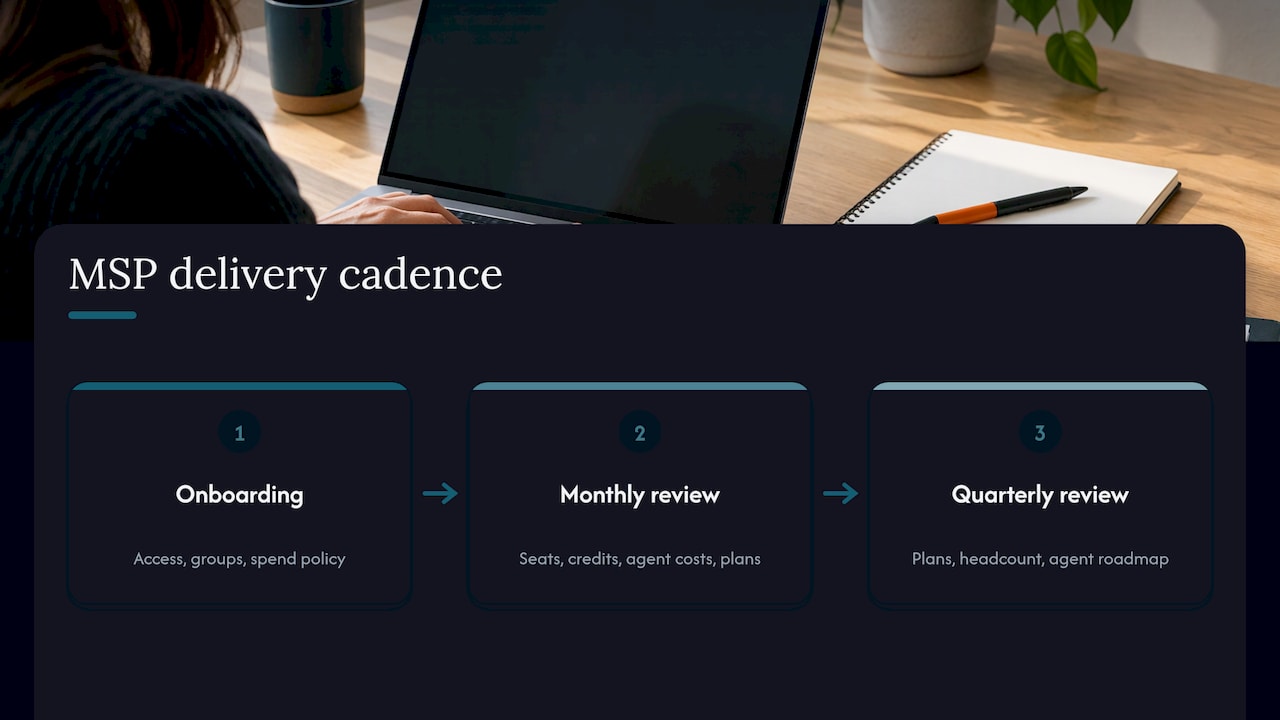
Quarterly conversation. Revisit base plans (E3, E5, E7 or Business), headcount thresholds and the agent roadmap. Bring a recommendation, not a menu.
What gets tricky at scale. Doing this by hand across 20 or 50 tenants is where the margin leaks back out. Every tenant has its own spreadsheet, every report is formatted differently, and findings get lost in email. That’s the point where a multi-tenant platform pays for itself in hours.
We cover this in more depth in our guide to AI cost governance for MSPs, and the 90 day AI budget plan shows how to forecast usage-driven spend with a customer.
Our perspective
Licensing is where AI cost starts, and it’s the part partners already own. A customer who bought Copilot seats is going to ask someone whether they were worth it. We’d rather that someone be you.
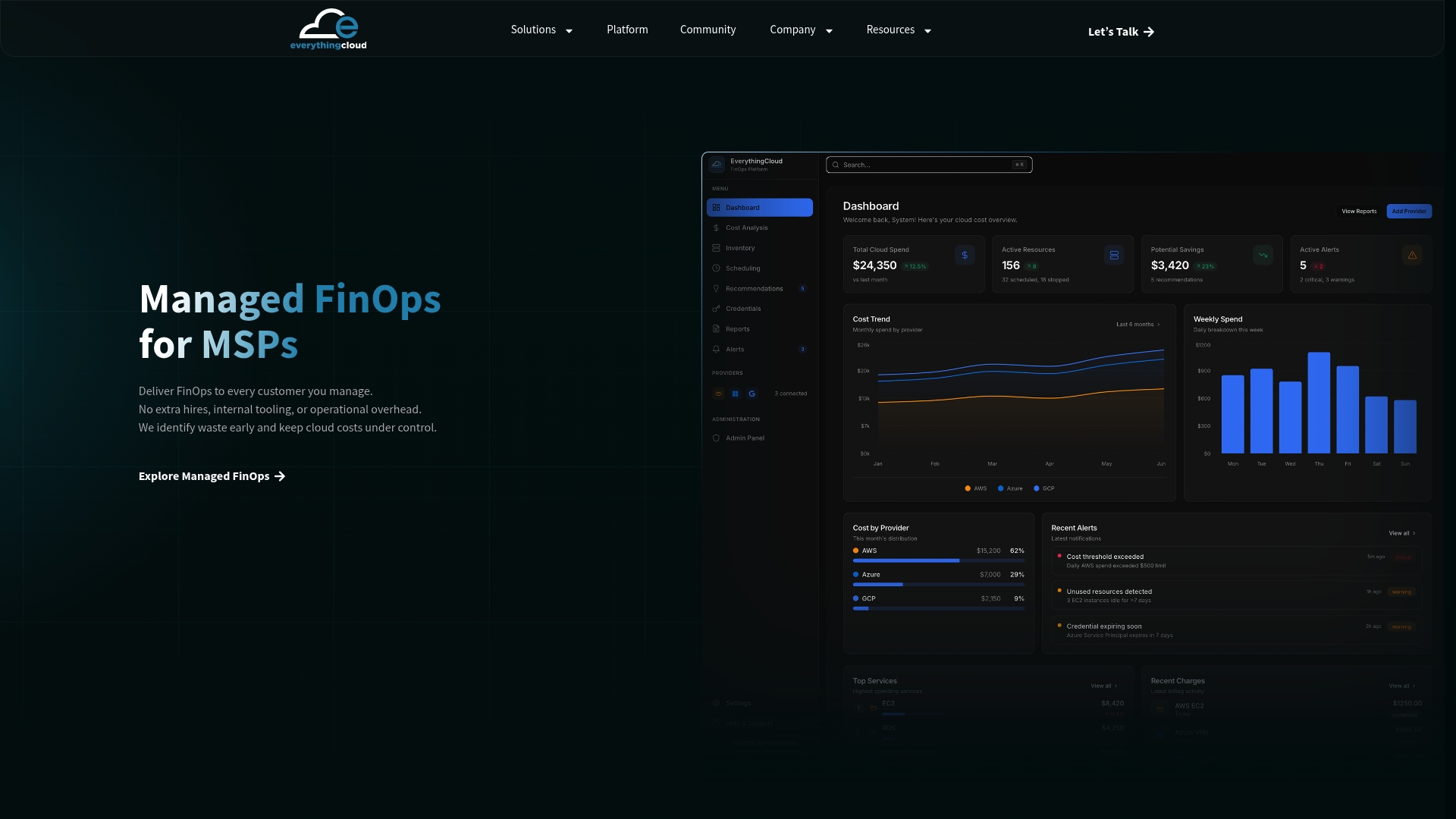
We built EverythingCloud for exactly that moment. It works through MSPs, cloud partners and distributors, so you keep the customer relationship and we help deliver the service behind it. The platform is multi-tenant and covers Azure, AWS, Google Cloud, Microsoft 365 license optimization, AI spend such as OpenAI and Anthropic, and security posture, so Copilot sits in the same workspace as the rest of your customer’s spend instead of becoming one more spreadsheet.
Our opinion is simple: visibility matters, but someone still has to own the work. That’s why we turn findings into tracked work and produce white-label monthly reports under your brand. Your customer sees your name and your judgment. You don’t need to hire a FinOps team to get there.
Dan Belkie
Put it to work with EverythingCloud
If you want to offer Copilot and Microsoft 365 license review as a monthly service without building the tooling yourself, the EverythingCloud platform is built for that. You own the customer. We provide the multi-tenant platform and the FinOps expertise behind it, with Canadian data residency available for customers who need it.
The Founding MSP Program is a small partner cohort. If you’d rather start with proof, we can also work with one of your customers first and let the first report make the argument.
FAQ
How do I assign a Copilot license in Microsoft 365?
Sign in to the Microsoft 365 admin center, go to Billing, then Licenses, select Microsoft Copilot and assign it to users or groups. You can verify under Users, then Active users. It can take up to 24 hours to appear in some apps, per Microsoft’s setup guide.
Who manages Copilot in an organization?
Administrators manage licensing in the Microsoft 365 admin center, and Microsoft documents an AI Administrator role that can manage Copilot without Global Administrator rights, per the requirements page. For customers without a dedicated admin, the MSP is usually the practical owner, which is why it works as a managed service.
Do users need a Microsoft 365 plan before they can get Copilot?
Yes. A user needs a qualifying base license plus the Copilot license, along with an Entra ID work or school account and, for mailbox-grounded features, an Exchange Online mailbox. The eligible plans are listed on Microsoft Learn.
What happens when I remove a Copilot license from someone?
Exchange Online data is held for 30 days before deletion unless retention labels apply, and OneDrive files stay unless the account is deleted. Office apps may show “Unlicensed Product” errors, according to Microsoft’s license documentation. Check legal holds with the customer first.
Is Copilot cost only the per-user license?
Not always. Agentic work and some agents can consume Copilot Credits under usage-based billing, which Microsoft describes in its USL and usage-based billing explainer. A spending policy and a monthly review keep that spend visible and capped.
Sources
- License Options for Microsoft Copilot, Microsoft Learn
- Microsoft Copilot requirements, Microsoft Learn
- Compare Copilot in E3, E5, and E7, Microsoft Learn
- Advancing Microsoft 365: New capabilities and pricing update, Microsoft
- Set Up Microsoft Copilot and Assign Licenses, Microsoft Learn
- Assign or unassign licenses for users in the Microsoft 365 admin center, Microsoft Learn
- Get started deploying Copilot and agents, Microsoft adoption playbook
- Copilot controls measurement and reporting, Microsoft Learn
- Monitor and Optimize Microsoft 365 AI Services, Microsoft Learn training
- Office 365 Copilot, Practical365
- Understand your team’s Microsoft Copilot usage and spend, Microsoft adoption
- Copilot controls for management, Microsoft Learn
- Understanding the user subscription license and usage-based billing, Microsoft Learn
- Microsoft To Enable Usage-Based Billing By Default For Copilot Business, CRN
- Managing AI experiences enabled by usage-based billing, Microsoft Learn
- SharePoint AI in 2026: Agents, Licensing, and the Meter, UseCarly
- Copilot controls security and governance, Microsoft Learn