
Inactive Microsoft 365 accounts are one of the easiest recurring services an MSP can sell. Your customers are paying for licenses nobody uses, and every dormant sign-in is a door nobody is watching. Finding those accounts takes an afternoon. Keeping them found, month after month, across every tenant you manage, is the service.
This guide covers what Microsoft counts as inactive, how to find those accounts, what to check before you touch one, and how to package the whole thing so it protects your margin and keeps customers longer.
TL;DR
- Microsoft defines an inactive account by its last sign-in timestamp, and many organizations use a 90 to 180 day window.
- A blank last sign-in value is a reason to investigate, not a reason to delete. Break-glass, shared and service accounts look idle by design.
- Disable first, delete later. Microsoft gives you 30 days to restore a deleted user, but a disabled account is an easier undo.
- One cleanup is a project. A monthly review across every tenant is a recurring service, and that’s where the margin is.
- Visibility matters, but someone still has to own the work.
Table of Contents
- What Microsoft means by an inactive account
- Why this is a recurring service and not a one-time cleanup
- How to find inactive accounts in a Microsoft 365 tenant
- What to check before you disable anything
- Disable first, then delete
- How an MSP delivers this for clients
- Where EverythingCloud fits
- Our view: the cleanup isn’t the product
- FAQ
- Sources
What Microsoft means by an inactive account
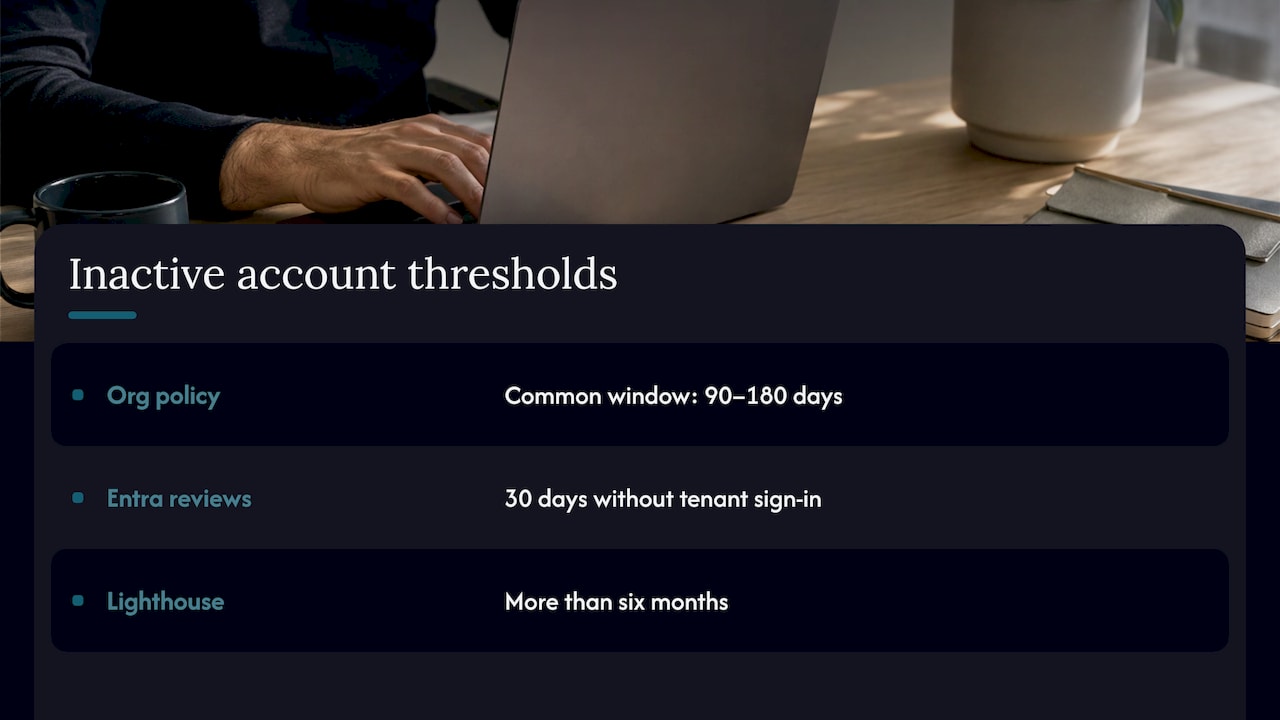
Microsoft describes inactive accounts as accounts that are no longer needed to get at organizational resources. It identifies them using the timestamp of the last sign-in attempt, and it notes that many organizations pick a window between 90 and 180 days.
There’s no single official cutoff, and that’s useful. It means you get to set the policy with each customer instead of inheriting someone else’s number. Other Microsoft tools use their own thresholds. Entra ID Governance access reviews, for example, treat a user as inactive after 30 days without a tenant sign-in. Microsoft 365 Lighthouse, the portal built for managing many customer tenants, flags users inactive for more than six months.
So three tools, three definitions. Pick one for each customer, write it down, and get the customer to sign off. That single page of policy is what turns a one-off scrub into something you can repeat and bill for.
Three sign-in timestamps, and why they differ
Microsoft Graph’s signInActivity property exposes several values. The last interactive sign-in includes failed attempts, the last non-interactive sign-in covers background token refreshes, and the last successful sign-in shows the last time someone actually got in.
That matters because a failed attempt, say from a password spray against a dormant account, can make an unused account look alive. The last successful sign-in is the cleaner signal. One catch: Microsoft says that value only became effective on December 1, 2023, and it isn’t backfilled. An account with no value may simply predate the field.
Why this is a recurring service and not a one-time cleanup
Owners tend to see license cleanup as a favor you do once to look good at a quarterly review. I’d argue the opposite. People leave, contractors roll off, projects end, and new hires arrive weekly. Dormant accounts don’t stop appearing. Any cleanup you do starts going stale the day after you finish it.
That’s a good thing commercially. A repeating problem supports a repeating fee.
It builds recurring revenue
A monthly inactive account review is easy to explain to a customer: here’s who stopped signing in, here’s what we did about it, here’s what you’re no longer paying for. It’s a deliverable with a clear before and after. You can attach it to a managed services agreement or sell it as a standalone line, and it sets up the conversation about wider Microsoft 365 license optimization and security posture.
It protects your margin
If you resell Microsoft 365 as a CSP, license counts feed straight into what you bill and what you owe. Unused seats on a customer’s subscription are a cost to them, and if nobody’s watching, they become a cost you absorb when a customer pushes back on an invoice. Cleaning seats on a schedule keeps invoices defensible. It also keeps you from discovering a problem only when the customer does, which is the worst time.
The same logic applies to cloud spend more broadly. We’ve written about how an MSP can have a cloud margin leak without noticing, and idle Microsoft 365 seats are the same pattern at smaller scale: small, quiet, compounding.
It keeps customers longer
Customers rarely leave because of one big failure. They leave because they stop seeing what they’re paying you for. A monthly report that says you removed a set of dormant accounts and closed a set of risks is proof of work in plain language. It also shows you’re watching their tenant, which is exactly what they assume you’re doing anyway.
It reduces work for your team
Done by hand, this is tedious. Someone exports a report, filters a spreadsheet, emails a manager, waits, then repeats for the next tenant. Done with a defined policy and a repeatable process, it becomes a short review on a calendar. The goal isn’t more tickets. It’s fewer, because stale accounts stop generating surprises.
How to find inactive accounts in a Microsoft 365 tenant
Here are the routes, from quickest to most scalable.
Option 1: the Entra admin center, for a single tenant
Sign in to the Microsoft Entra admin center with at least the Reports Reader role, then go to Users. Add the Last interactive sign-in time column and filter it with the less-than-or-equal operator against your cutoff date. Microsoft lays out these steps in its guidance on managing inactive user accounts.
Two timing notes. Sign-ins typically show up in reports within about six hours, and the last sign-in tile can take up to 24 hours to update. Don’t act on a report minutes after a customer says Jane logged in this morning.
Option 2: Microsoft Graph or PowerShell, for repeatable checks
Graph lets you query signInActivity directly or filter on the last successful sign-in. That’s the route for anything you want to run on a schedule. Tony Redmond’s June 2026 walkthrough checks licensed accounts by combining license assignments with sign-in data and flags accounts with no successful sign-in since a 90-day baseline. It needs read permissions for users, places and license assignments, so scope your credentials tightly.
One licensing detail to plan around: reading sign-in activity generally requires Microsoft Entra ID P1 or P2, which Business Premium, E3 and E5 include. Check what each customer actually has before you promise a report.
Option 3: Microsoft 365 Lighthouse, for many tenants
If you manage a lot of customers, Lighthouse gives you a cross-tenant view. Its Inactive users tab lists up to 500 inactive accounts per tenant and lets you block sign-in or delete the user. Microsoft recommends blocking at a minimum to cut the security risk.
Don’t stop at sign-in data
A sign-in means someone authenticated. It doesn’t prove they used the service. Compare sign-in dates with mailbox and app activity from the Microsoft 365 admin center’s usage reports, which cover 7, 30, 90 and 180 day windows. Usage reports also hide user names by default, and the data runs a day or more behind, so build in a short buffer before acting. Judge usage on 90 days rather than a week, because a person on leave looks exactly like a person who’s gone.
And compare the result against what the customer is paying for. The gap between purchased and assigned seats on the Billing and Licenses page is the first number a finance contact will care about.
What to check before you disable anything
This is where a quick cleanup becomes a bad Monday. Idle isn’t the same as unused.
Go through these groups before you act:
Break-glass accounts. Emergency access accounts should almost never sign in. If you disable one because it looked stale, you’ve removed your own way back in during an outage.
Shared and resource mailboxes. These often have no interactive sign-ins at all and are working fine.
Service accounts. Scripts, integrations and scanners sign in without people, and sometimes only occasionally. Disabling one can break a process nobody remembered.
People on leave. Parental leave, sabbaticals and long medical absences all look like abandonment in a sign-in report. Ask the manager or HR before you act.
Accounts under retention or legal hold. If the customer has compliance duties on that mailbox, the account needs a plan, not a delete button.
The account is also not a blank value waiting to be cleaned up. Because the last successful sign-in field only started recording in late 2023, an empty value means investigate. Treat it that way.
This list is also where your judgment earns its fee. Anyone can export a spreadsheet. Knowing which of the 40 rows are traps is the job.
Disable first, then delete
I’m firmly in the two-step camp. Disable the account and block sign-in, wait a defined period, then delete. Tony Redmond, who writes widely on Microsoft 365 administration, describes a two-phase workflow with a 90 day threshold: the first run marks and disables accounts, and later runs delete them after protecting mailboxes. His argument is simple. If you disabled something in error, you can recover it quickly.
If you’d rather not script it, Microsoft Entra ID Governance has Lifecycle Workflows with a sign-in inactivity trigger. It runs on the last successful sign-in, lets you set the number of days, and includes a task that emails about the inactivity. It sits in the governance tier, so confirm the customer’s licensing first.
Protect the data before you remove the user
Microsoft’s delete a user guidance is worth reading in full before your first deletion. The essentials:
You need a user administrator role, and a deleted user can be restored within 30 days. Move OneDrive files within the default 30 day retention period, after which they sit in the recycle bin for 93 days. Move email before deletion, or restore the user within 30 days to get it back. On Enterprise subscriptions you can preserve mailbox data as an inactive mailbox.
An inactive mailbox needs a hold in place first, ideally through Microsoft 365 retention, and then the mailbox or user is deleted. Microsoft’s Purview documentation also says that once the account is deleted, the Exchange Online license tied to it becomes available to assign to someone new.
Reclaim the license, and watch the billing rules
The money part is removing the license from the user and then reducing the subscription so the customer stops paying. Microsoft notes this is subject to restrictions around partner arrangements, volume licensing and commitments, so check the term on each subscription before you promise a saving. Don’t quote a savings figure to a customer until you’ve confirmed the subscription can actually shrink.
What happens to OneDrive if you only unlicense
If you remove a license and leave the account, OneDrive doesn’t stay frozen forever. For most commercial tenants, unlicensed OneDrive accounts go read-only after 60 days and are archived after 93, with different handling for EDU, GCC and DoD customers. Microsoft also describes a cumulative 365 day nonpayment clock for unlicensed, unpaid accounts. Read that page before you build a retention promise around it, and recheck it, since the dates in it are tied to Microsoft’s schedule.
An unlicensed person isn’t completely locked out of everything. Users of Microsoft 365 Apps for enterprise can still view and print Word, Excel and PowerPoint files in viewer mode. That’s helpful when you explain to a customer why removing a license isn’t the same as erasing someone.
How an MSP delivers this for clients
Here’s the delivery model I’d use. It’s boring on purpose, because boring scales.
Step 1: set the policy per customer
Agree the inactivity window, the exception list (break-glass, shared, service, leave), who approves removals, and how long disabled accounts wait before deletion. Put it in one page. This is also the moment to confirm which Entra licensing the tenant has, since that decides which reports you can run.
Step 2: pull the report on a schedule
Monthly is the right rhythm for most customers. Quarterly means the list is long and the customer’s attention has drifted. Combine sign-in data, usage data and the purchased versus assigned gap into a single view per tenant.
Step 3: review exceptions with a human
Send the candidate list to the customer’s manager or HR contact with a deadline. Silence isn’t approval for anything touching a leave of absence or a legal hold. Your job is to make saying yes or no take thirty seconds.
Step 4: disable, wait, delete, reclaim
Disable and block sign-in, hold the data, wait the agreed period, then delete and reduce the license count where the subscription allows. Record each step. If a customer asks six months later where an account went, you want an answer in one minute.

Step 5: report the outcome in plain language
One page: what was found, what was removed, what was kept and why, what’s still open. Customers who get that page every month rarely ask what they’re paying you for.
Where teams get stuck
The process isn’t hard. The pain is doing it for 30 or 60 tenants with a small team, and keeping findings from rotting in a spreadsheet. Someone has to own each item until it’s closed. That’s the real gap between a report and a service.
Where EverythingCloud fits
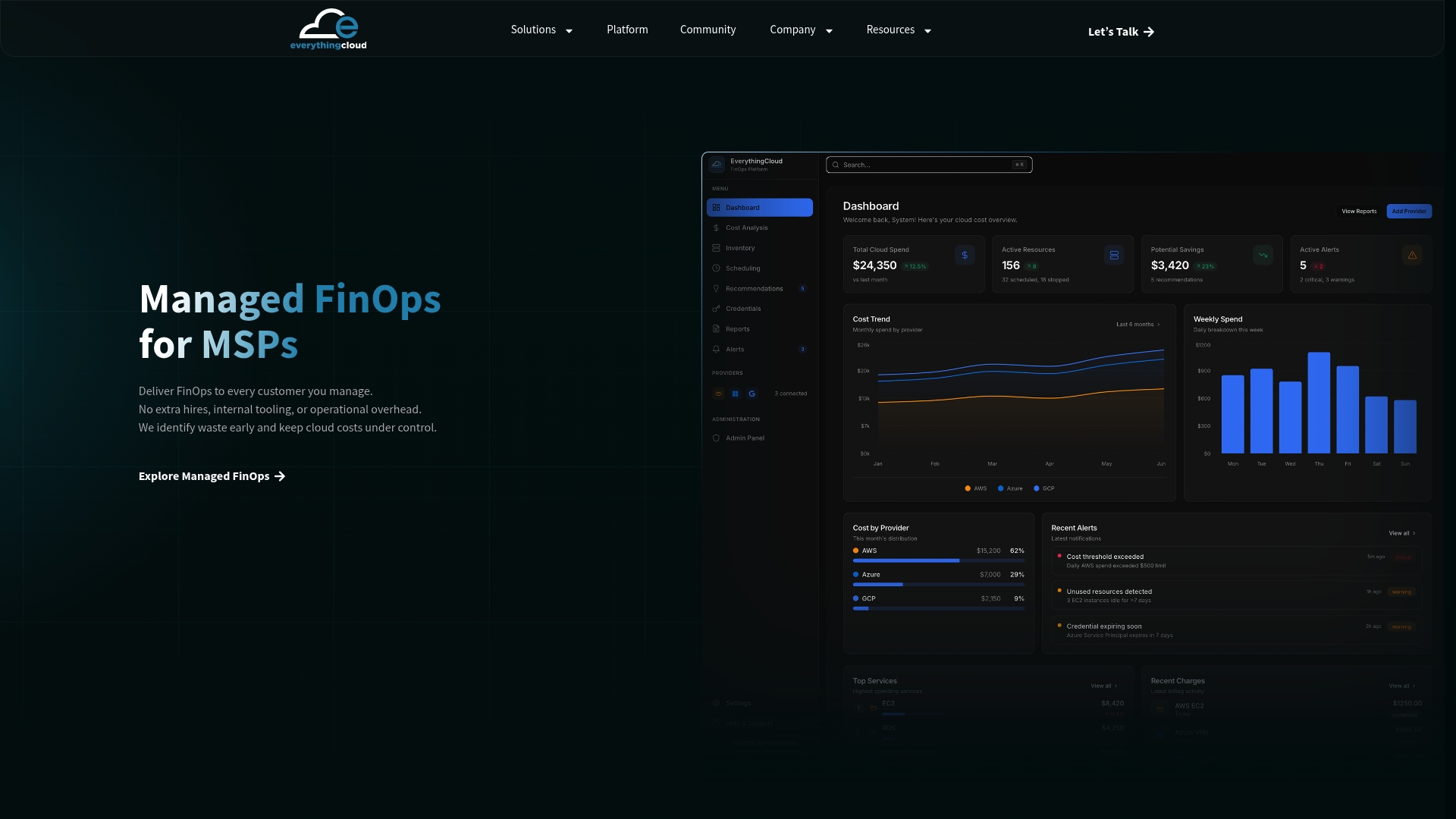
We built EverythingCloud for partners who want to sell this kind of work without hiring a FinOps team. You own the customer relationship. We provide the multi-tenant platform and the FinOps expertise behind the service.
On the Microsoft 365 side, the platform covers license optimization, and it turns findings into tracked work, so a dormant account becomes an action with an owner instead of a line in an export. Fixes are ranked by savings and effort, and monthly reports are white-label, so the customer sees your brand. The same workspace covers Azure, AWS, Google Cloud and AI spend such as OpenAI and Anthropic, and it can be deployed in Canada for customers with data residency requirements. If you want the wider view of license savings first, our guide to Microsoft 365 license optimization is a good next read, and the platform overview shows how the pieces fit.
If you want to add this as a service line, the Founding Partner Membership is a small partner cohort built for exactly that. Or we can start smaller by working through one of your customers’ tenants with you.
Our view: the cleanup isn’t the product
Most advice on inactive accounts stops at how to find them. That’s the easy half. Any admin can run a report in ten minutes, and Microsoft gives you the tools for free.
The hard half is what happens next. Who confirms the account is really dead? Who tells the manager? Who reduces the license count, and who proves it to the customer a month later? When nobody owns those answers, the report becomes a list people feel vaguely guilty about.
That’s why we built a platform around finished work rather than visibility. Visibility matters, but someone still has to own the work. For a partner, that means findings turn into tracked actions, the multi-tenant workspace keeps every customer in one place, and white-label reporting puts the result under your name.
Inactive accounts are a good first service because the value is easy to see: fewer wasted seats, fewer open doors, and a customer who can read the report without a translator. Once that’s running, license optimization and cloud cost work are natural next steps, built on the same monthly habit.
Dan Belkie
FAQ
How long should an account be inactive before it’s flagged?
There’s no single Microsoft rule. Microsoft says many organizations use 90 to 180 days, while its access reviews use 30 days. Pick a window with each customer, write it down, and apply the same exceptions every month.
Does deleting an inactive account stop the billing?
Not by itself. You also need the license removed and the subscription quantity reduced, subject to partner, volume licensing and commitment terms, as Microsoft’s delete a user page explains. Confirm the term on each subscription first.
Can I recover an account I deleted by mistake?
Yes, within 30 days of deletion, according to Microsoft. Email and OneDrive data have their own timelines, so move or protect them before you delete. Disabling first gives you an easier undo than deleting.
What can an unlicensed user still do?
In supported versions of Microsoft 365 Apps for enterprise, an unlicensed user can view and print Word, Excel and PowerPoint files. They can’t create or edit as a licensed user would.
Sources
- How to manage inactive user accounts, Microsoft Entra ID
- signInActivity resource type, Microsoft Graph
- Review recommendations for access reviews, Microsoft Entra
- Manage inactive users in Microsoft 365 Lighthouse
- Find Inactive Accounts with PowerShell, Office 365 IT Pros
- How to Remove Inactive User Accounts with PowerShell, Office 365 IT Pros
- Manage inactive users using Lifecycle Workflows, Microsoft Entra
- Delete a user from your organization, Microsoft 365 admin
- Create and manage inactive mailboxes, Microsoft Purview
- Manage unlicensed OneDrive user accounts, SharePoint
- Overview of viewer mode for Microsoft 365 Apps