
Most Amazon EFS overspend comes from three settings: data that sits in Standard storage long after anyone touches it, a throughput mode that does not match the workload, and file systems built for maximum resilience when the data did not need it. Fix those three and the bill usually moves. This guide walks through each lever, what it costs you in latency or access fees, and how to confirm the savings are real.
TL;DR
- EFS bills for storage by class, for read, write and tiering activity, and for cross-AZ or cross-Region data transfer, so optimizing means working on each of those lines separately.
- Lifecycle Management moves cold files to Infrequent Access (IA) or Archive. AWS says IA storage costs up to 95% less than Standard, with higher latency and per-GB access charges.
- Elastic throughput charges for what you use. Provisioned throughput only pays off when the application needs a steady level for many hours a day.
- Watch BurstCreditBalance and ThroughputUtilization. Provisioned utilization under 30% for several days is a sign you are over-provisioned.
- Verify every change against the invoice, not just the console estimate.
Table of Contents
- What actually drives an EFS bill
- Lever 1: Lifecycle Management and storage classes
- Lever 2: Regional or One Zone
- Lever 3: Throughput mode
- Lever 4: Right-size by workload, not by habit
- What to monitor to prove the savings
- Where EFS fits in broader AWS cost optimization
- A worked example
- Perspective
- Keep EFS savings from drifting
- FAQ
- Sources
What actually drives an EFS bill
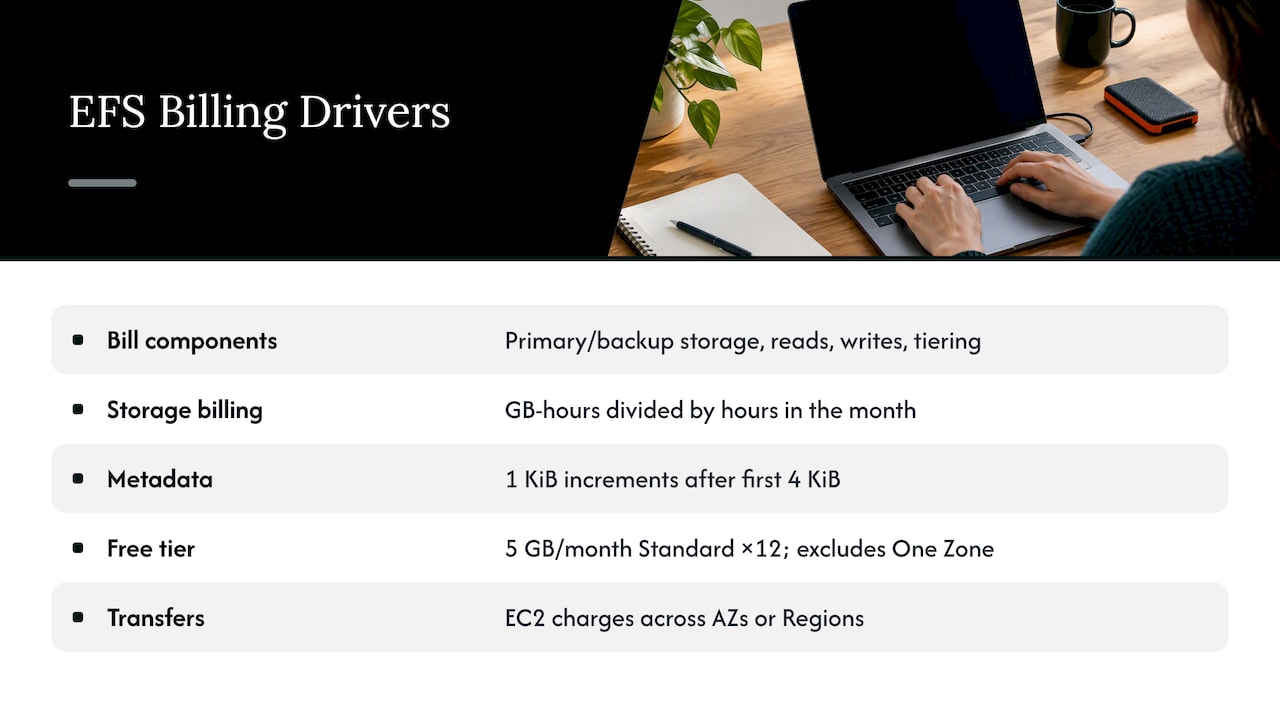
Before you change anything, know what you are paying for. EFS pricing has several parts: the primary and backup storage you use, plus read, write and tiering activity. You also choose between Regional and One Zone file systems. Transfers across Availability Zones or Regions incur the applicable EC2 data transfer charges.
Two details trip up finance and engineering teams alike.
First, storage is billed in GB-months. According to the EFS billing and usage report documentation, AWS adds up GB-hours across the month and divides by the number of hours in that month. A file system that spikes for two days and then shrinks does not cost the same as one that stays large all month, which is why a point-in-time size check can mislead you.
Second, metadata counts. For file systems on Elastic throughput, the same documentation explains that metadata operations are metered in 1 KiB increments after the first 4 KiB. Workloads that list directories constantly, or that touch millions of tiny files, can see throughput charges that surprise people who only looked at gigabytes stored.
New accounts get a small cushion. AWS offers a free tier for EFS of 5 GB per month of Standard storage for the first 12 months, and it does not apply to One Zone file systems. That helps a proof of concept. It does nothing for production.
If you replicate data to another Region, remember that replication and data transfer across Regions are subject to EC2 cross-Region transfer rates, including charges for data leaving the source Region, per the same pricing page.
Lever 1: Lifecycle Management and storage classes
This is the biggest lever for most teams, and the easiest to get half right.
How tiering works
Lifecycle Management moves files between storage classes based on access patterns. AWS states that IA storage costs up to 95% less than Standard. The trade-off is that IA and Archive have higher latencies, and both carry per-GB tiering and access charges. Archive adds a 128 KiB minimum billable file size and a 90-day minimum duration.
That last point matters. If you push short-lived or tiny files into Archive, you pay for capacity you are not using. Archive suits data you must keep but rarely read: completed project files, old logs you retain for compliance, media masters.
For scale, a price reference
In U.S. East (Virginia), a 2024 TechTarget guide to AWS storage cost lists EFS Standard at $0.30/GB-month and IA at $0.016/GB-month. Prices change and vary by Region, so check the current AWS pricing page before you model anything. The gap is what matters: a terabyte that sits cold in Standard costs many times what it would in IA.
The access-charge trap
Tiering is not free money. Every read from IA adds a per-GB access charge, and moving a file between classes adds a tiering charge. If you set an aggressive policy on a directory that applications scan regularly, files can drop to IA, get read, and generate charges that eat the savings.
Two features reduce that risk:
- Intelligent-Tiering. AWS describes how EFS Intelligent-Tiering moves accessed files back to Standard. That improves latency on later access and removes the risk of unbounded access charges.
- Understanding the timer. For transitions from Standard, the lifecycle documentation says an internal timer tracks when a file was last accessed and resets whenever the file is accessed in Standard. It is not based on the POSIX attributes you can see, so do not try to predict transitions with
ls -ltimestamps.
This is also where governance matters. Lifecycle policies, throughput modes and replication settings are all configuration, and anyone with the wrong permissions can undo a savings plan in one click. Tight identity and access management around who may change file system settings keeps tiering policies from drifting.
A practical way to set the policy
- Pull usage by storage class from your billing data. Start with how much sits in Standard.
- Sample access patterns on the biggest file systems. Which directories are hot, which are never read?
- Turn on tiering to IA for the cold majority. Keep hot working sets in Standard.
- Use Archive only for data you are confident will be read a few times a year at most, and where files are comfortably above the 128 KiB minimum.
- Recheck after 30 to 60 days. Compare IA read volume with the savings.
Lever 2: Regional or One Zone
Regional file systems give the highest availability and durability. As the EFS pricing page explains, they store data and metadata redundantly across multiple Availability Zones. One Zone file systems store data redundantly within a single Availability Zone.
That difference is a design decision first and a cost decision second. Production systems of record, shared application state and anything where an AZ outage would hurt the business belong on Regional. Development and test environments, reproducible build caches, scratch data and workloads you can rebuild are the natural One Zone candidates.
A few rules of thumb:
- Ask what happens if the Availability Zone goes down. If the answer is “we rebuild it in an hour”, One Zone is worth pricing out.
- Check whether your compute runs in the same AZ as the One Zone file system. Cross-AZ access brings data transfer charges, which can cancel part of the saving.
- Remember the free tier does not cover One Zone.
The cheapest mistake to fix is the one that is easy to spot: non-production file systems that were cloned from production settings. Inventory them by environment tag first.
Lever 3: Throughput mode
Throughput is where EFS bills quietly compound, because the default is not always the cheapest option for your pattern.
Per the EFS pricing page, Elastic throughput is the default and charges for the throughput you use. Provisioned throughput lets you configure performance upfront and bills for throughput provisioned above the baseline.
The AWS re:Post guidance on choosing a throughput mode frames the choice around the application: use Provisioned throughput when the workload needs a constant level for many hours a day. Low utilization may indicate over-provisioning.
Quick decision guide
| Workload pattern | Throughput mode to evaluate | Why |
|---|---|---|
| Spiky, unpredictable, or mostly idle | Elastic | You pay for what is used, with no capacity to guess |
| Steady, high throughput for many hours a day | Provisioned | A constant requirement is where paying upfront for a level makes sense |
| Low burst credits showing up in metrics | Elastic or Provisioned | Per AWS, low burst credits may call for a move away from Bursting |
The common error is the “safety margin” provisioning. A team sets throughput high during a load test, the launch goes fine, and nobody lowers it. Months later the file system is billed for performance that is used a few percent of the time.
Lever 4: Right-size by workload, not by habit
Some EFS spend is not an EFS problem. It is a storage choice problem.
The same TechTarget guide gives U.S. East (Virginia) EBS prices from $0.015/GB-month for sc1 to $0.08/GB-month for gp3, against EFS Standard at $0.30/GB-month. It also describes EFS as a serverless file server for unstructured data and EBS as high-performance block storage, mostly for EC2 virtual disks and snapshots. So the cost difference between EBS and EFS is real, but the right comparison is function first. If one instance needs a fast disk, EBS fits. If many instances or containers need a shared file system, that is the job EFS does.
Where you find an EFS file system mounted by exactly one instance that never shares data, ask why. Moving it may be a cheaper design. Our guide to EBS cost optimization covers the block-storage side, and our S3 cost optimization playbook is the place to look when the data is really object storage that landed on a file system by accident.
What to monitor to prove the savings
Optimization without measurement is guessing. Three signals are worth putting on a dashboard.
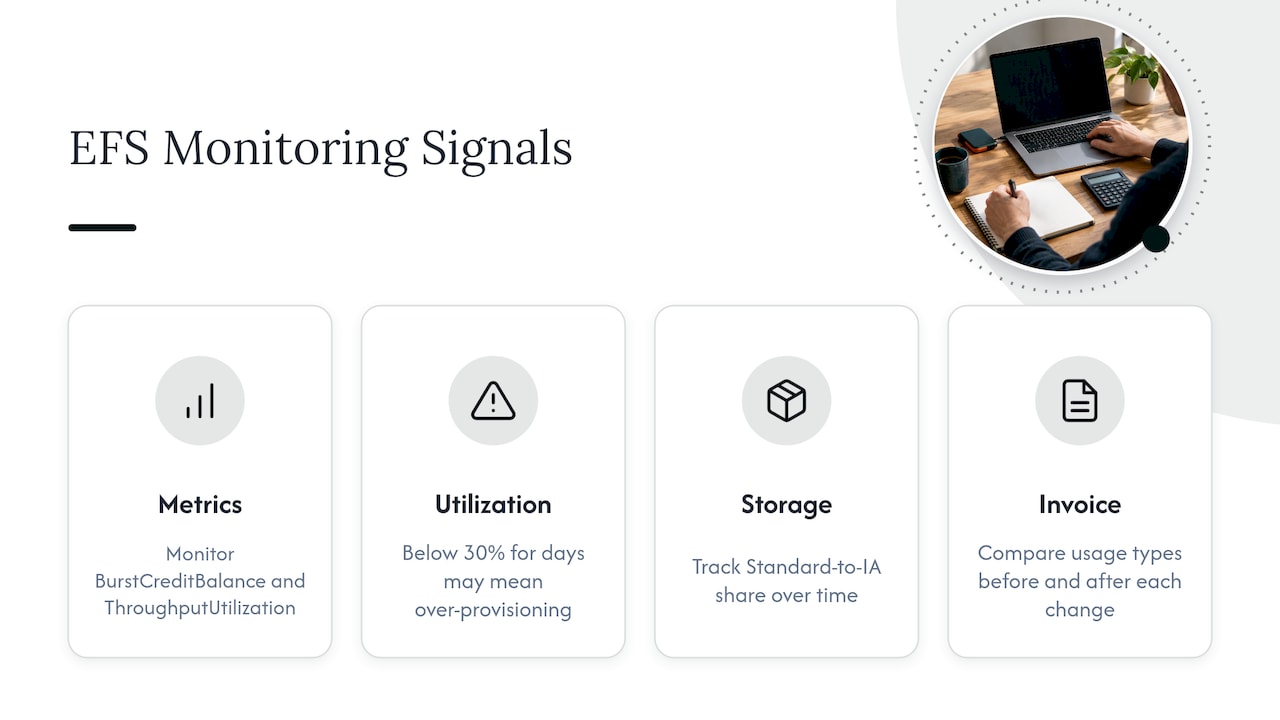
Throughput health. The re:Post guidance says to monitor BurstCreditBalance and ThroughputUtilization. Low burst credits may mean the file system needs Elastic or Provisioned throughput. Provisioned utilization below 30% for several days may mean you have over-provisioned.
Storage by class. The EFS usage reports list usage types such as region-TimedStorage-ByteHrs for Standard and region-IATimedStorage-ByteHrs for IA. Track the ratio over time. If you turned on tiering and the IA share never rises, the policy is not doing what you think.
Invoice-level results. Console estimates and calculators tell you what should happen. The invoice tells you what did. Compare the same usage types before and after each change, and tie each saving to one specific action so you know which lever worked.
Where EFS fits in broader AWS cost optimization
People also ask how AWS cost optimization works in general. In practice it is a loop: see where the money goes, allocate it to owners, act on the waste, and check the invoice to confirm the result. EFS is a good example because the levers are all configuration (tiering, mode, file system type), which makes them easy to apply once and easy to forget.
A few habits make the loop stick:
- Tag every file system with an owner, an environment and an application, so spend lands with someone who can act on it.
- Review quarterly, not once. Data ages. A file system that was hot at launch can be 80% cold a year later.
- Set alerts on usage types, not just total spend. A jump in IA reads or cross-AZ transfer tells you what changed.
- Look at the commitments around it. EFS is one line in a bigger AWS bill. Our three-phase playbook for reducing AWS costs shows how storage clean-up fits with compute and commitment work.
For organizations with large AWS spend, negotiation matters too. See how teams win AWS enterprise discount deals at high spend levels.
A worked example
Take a hypothetical file system holding 10 TB for a shared content workflow. Most of it is finished projects. Only a small working set is touched weekly.
The team does four things:
- Enables tiering so untouched files move to IA, and uses Intelligent-Tiering behavior so files that are read return to Standard.
- Moves the rebuildable staging file system to One Zone.
- Checks ThroughputUtilization and finds the Provisioned setting sits well under 30%, then switches that file system to Elastic.
- Tracks the IA storage usage type each month and compares it with the invoice.
The numbers depend on your Region, your access pattern and your current prices, so we are not promising a percentage. The shape is what matters: most of the saving comes from moving cold data out of Standard, and the rest from not paying for performance or resilience the workload never used.
Perspective
Most EFS overspend is not a big mistake. It is a small default that nobody revisits. A file system gets created with generous throughput, everything lands in Standard, and the pattern starts compounding quietly. Six months later it is a line item no one owns.
We built EverythingCloud around the idea that finding waste is the easy half. Visibility tools will tell you a file system looks oversized. The harder half is acting on it, safely and repeatedly, then proving it on the invoice. That is why our platform automates the execution of optimization actions rather than stopping at recommendations, and why we verify savings against invoice-level billing.
For MSPs this matters even more. Your customers’ storage settings drift across dozens of accounts, and every unreviewed file system is margin erosion you never see. Continuous monitoring, multi-tenant controls and managed FinOps expertise let you catch it without adding headcount.
If you are looking at an EFS bill and cannot say who owns it, start there: ownership first, then tiering, then throughput.
Dan
Keep EFS savings from drifting
One cleanup helps for a quarter. Continuous optimization keeps it. The EverythingCloud platform gives you real-time visibility into AWS, Azure, Google Cloud, SaaS and AI spending, and our Continuous Cloud Optimization service works on the opportunities month after month, with expert FinOps guidance behind it.
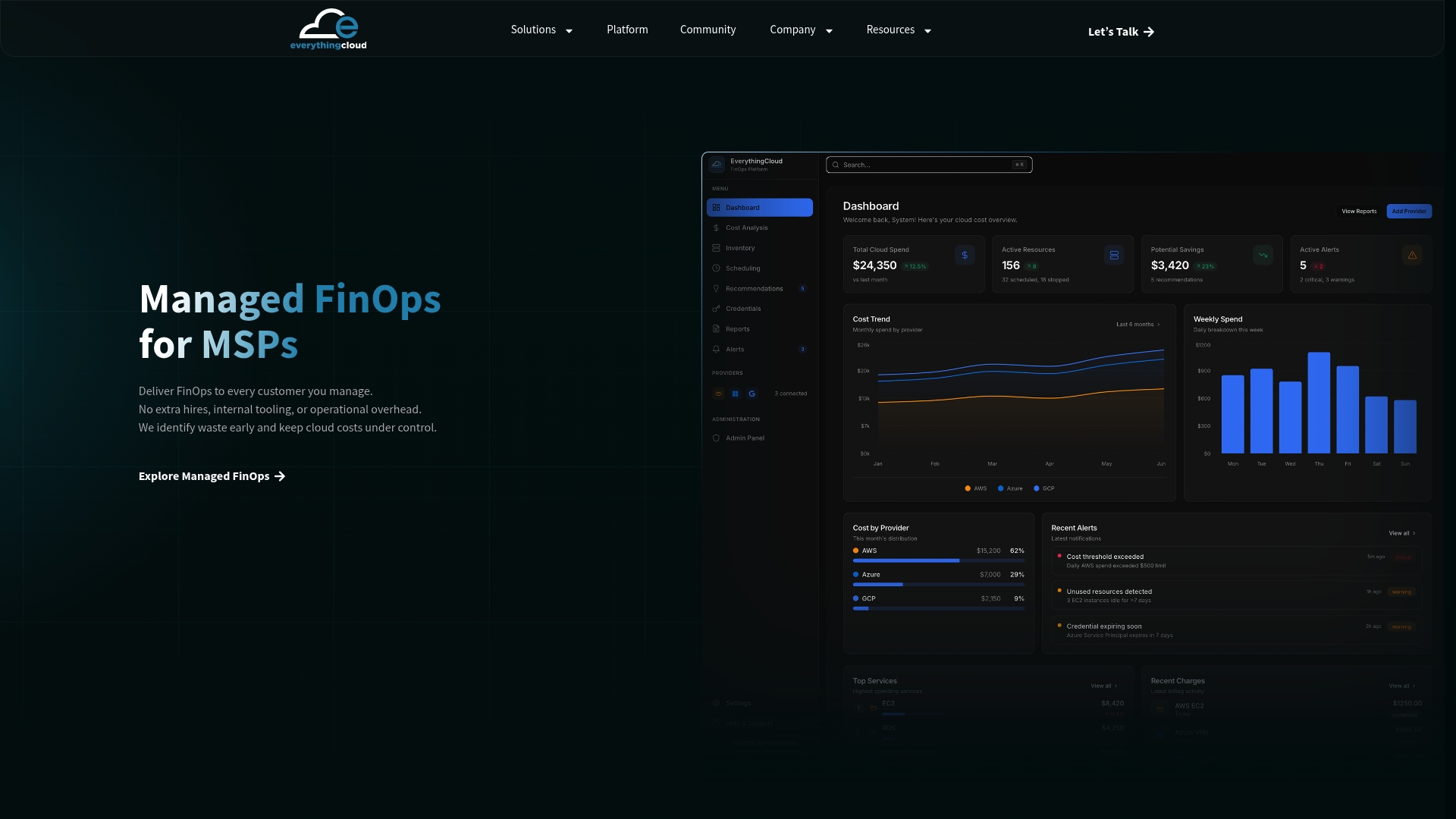
If you run an MSP and want to offer this to customers without building the tooling yourself, the Founding Partner Membership is $500 per month. For organizations that want a team to run it for them, see Managed FinOps or contact us.
FAQ
What is the difference in cost between EBS and EFS?
In U.S. East (Virginia), a 2024 TechTarget guide lists EFS Standard at $0.30/GB-month and IA at $0.016/GB-month, while EBS ranges from $0.015/GB-month for sc1 to $0.08/GB-month for gp3. The services do different jobs, though. EBS is block storage for EC2 disks, and EFS is a shared file system. Confirm current prices on the AWS pages for your Region.
How does AWS cost optimization work?
It is a repeating cycle: get visibility into spend, assign it to owners, act on waste, and verify the result on the invoice. For EFS, the actions are lifecycle tiering, throughput mode, file system type and removing unused file systems. Monitoring usage types turns each change into a measurable result.
Does Intelligent-Tiering stop surprise access charges?
It reduces the risk. AWS says EFS Intelligent-Tiering moves accessed files back to Standard, which improves latency on later access and eliminates the risk of unbounded access charges. You still pay tiering and access charges for the transitions that do happen, so watch IA usage after you enable it.
When should I use Provisioned throughput?
Use it when your application needs a constant level of throughput for many hours a day, according to AWS re:Post. If utilization stays below 30% for several days, you are probably over-provisioned and should consider Elastic throughput.
Sources
- EFS Pricing, AWS
- Amazon EFS FAQs, AWS
- Understanding billing and usage reports for Amazon EFS
- File Storage Classes, Amazon EFS
- Amazon EFS Infrequent Access
- Managing storage lifecycle, Amazon EFS
- Choose the correct throughput mode in EFS, AWS re:Post
- A guide to AWS storage cost, TechTarget