
AWS Compute Optimizer is the AWS service that looks at how your compute resources are configured and used, then tells you whether each one is too big, too small, or about right. You opt in once, wait for it to collect data, and read the findings in the console or through the API. This guide covers what it analyzes, how to turn it on, how to read its classifications, how to apply a recommendation safely, and where the tool ends and real cost control begins.
TL;DR
- Compute Optimizer analyzes EC2 instances, Auto Scaling groups, EBS volumes, Lambda functions, ECS services on Fargate, and SQL Server licenses on EC2, using CloudWatch utilization data.
- By default it looks back 14 days. Enhanced infrastructure metrics, a paid feature, extends that to 93 days.
- Findings come as over-provisioned, under-provisioned, or optimized. Treat each one as a candidate change to test, not an order to execute.
- The tool recommends. It does not resize anything, verify savings on your invoice, or govern change across many accounts or customers.
- Teams that need recommendations turned into verified, recurring savings add an execution layer on top.
Table of Contents
- What AWS Compute Optimizer actually does
- How Compute Optimizer builds a recommendation
- How to turn on Compute Optimizer
- Reading the findings
- Applying recommendations without breaking things
- Where Compute Optimizer stops
- Our perspective: a recommendation is not a saving
- Closing the loop with a managed approach
- A simple 30-day plan
- FAQ
- Sources
What AWS Compute Optimizer actually does
Compute Optimizer analyzes the configuration and utilization metrics of your AWS resources, decides whether each one is optimal, and recommends changes to cut cost and improve performance. According to the Compute Optimizer user guide, the current list of supported resources includes:
- EC2 instances
- EC2 Auto Scaling groups
- EBS volumes
- Lambda functions
- ECS services on Fargate
- Commercial software licenses for Microsoft SQL Server on EC2
That covers most of the compute layer a typical account runs. It does not cover everything you pay for. Databases, data transfer, SaaS licenses, and most of your Azure or Google Cloud footprint sit outside its view. Keep that boundary in mind, because it shapes how much of your bill this tool can ever touch.
How Compute Optimizer builds a recommendation
The logic is simple to describe. After you opt in, the service pulls the specifications of each resource (vCPUs, memory, storage) and pairs them with Amazon CloudWatch utilization metrics. For EC2, the user guide says the analysis includes CPU, network, and disk read and write activity, along with other supported metrics.
By default it analyzes the previous 14 days. Enhanced infrastructure metrics, a paid feature, stretches the lookback to 93 days for the resources you select. The console then shows graphs of recent metric history and projected utilization for the recommended configuration, so you can see how the workload would have behaved on a different size.
Why does the lookback matter? A 14-day window can miss a monthly close, a quarterly batch job, or a seasonal peak. An instance that looks idle for two weeks may be sized correctly for the one day a month it works hard. If your workloads have long cycles, the longer window is worth evaluating. If they are steady, the default is often enough.
How to turn on Compute Optimizer
The getting started documentation lays out the requirements. You can opt in through the console, or through the API, CLI, or an SDK. You need the right IAM permissions, and AWS creates the service-linked role for you.
Three account types can opt in: a standalone account, a member account in an organization, and a management account. A management account can include its member accounts, provided the organization has all features enabled.
A practical sequence looks like this.
Step 1: Decide the scope
If you run an organization, opt in from the management account and include members. That gives you one view across accounts instead of a dozen separate ones. If you are a single team with one account, opt in that account.
Step 2: Confirm permissions
The person opting in needs the IAM permissions the documentation lists. Have your cloud platform or security team grant them before you start, so you are not blocked halfway through.
Step 3: Opt in and wait
Once you opt in, Compute Optimizer starts scanning your infrastructure and generating recommendations. Newer resources need some history before the service can say anything useful, so do not judge the tool on day one.
Step 4: Decide on enhanced metrics
Do not switch on the paid lookback everywhere. Start with the resource groups whose usage swings across the month, such as batch fleets and finance or reporting workloads. Check current rates on the AWS pricing page before you enable it at scale.
Reading the findings
Each EC2 recommendation carries a finding classification. As the AWS well-architected migration workshop describes them:
| Finding | What it means |
|---|---|
| Over-provisioned | Utilization can be sized down and still meet performance requirements, and no specification is under-provisioned. |
| Under-provisioned | At least one utilization metric does not meet requirements. |
| Optimized | All metrics meet requirements and the instance is not over-provisioned. |
The same workshop shows how to compare the current instance type against the recommended ones on price and performance. That comparison is the part most people skip. A smaller instance is not automatically a better one, and a different family can change both cost and behavior.
Under-provisioned findings deserve as much attention as over-provisioned ones. Teams chasing savings tend to read only the cost side. But an under-provisioned instance is a performance risk, and that risk usually shows up as a slow application or a pager alert, not a line on the bill.
Applying recommendations without breaking things
The user guide frames the decision plainly: review the recent and projected utilization graphs to decide when to move or resize a running resource, or to stop or delete an idle one, while still meeting performance and capacity requirements.
In practice, a careful team works through a short checklist before touching production.
Check the window against the workload
Does the lookback include the busiest period of the cycle? If not, treat the recommendation as provisional. For long-cycle workloads, extend the window or compare against your own monitoring.
Look at the metric that would break first
A recommendation can look safe on CPU and still be wrong for memory, network, or disk throughput. Open the projected utilization graph and ask which resource would run hottest on the smaller size.
Test outside production first
Resize a nonproduction copy, or one node of a fleet, and watch it through a full business cycle. Rolling a change into production without that test is where rightsizing earns its bad reputation.
Plan the rollback
A resize usually means a restart. Know the maintenance window, the owner of the application, and how to go back to the old size within minutes.
Record the change
Write down what changed, when, and the expected monthly effect. Without that record, nobody can confirm later whether the saving was real.
We have written more on the operational side of this in our piece on instance rightsizing and savings drift, which covers why savings from a one-time resize tend to fade.
Where Compute Optimizer stops
Compute Optimizer is a good starting point and it is worth turning on. It is also a recommendation engine, and that has consequences. These are the gaps we see most often when teams rely on it alone.
It scopes to part of the bill
It analyzes the resource types listed above. It does not look at the rest of your AWS spend, and it has no view of other clouds, Microsoft 365, other SaaS, or AI platform consumption. If your estate is broader than AWS compute, you need another way to see it.
It tells you what, not who or when
A recommendation does not have an owner. Someone has to decide whether to act, schedule the change, test it, and close it out. In a busy account the list grows faster than the team works through it.
It does not prove savings
A projected saving is a model. What matters is what shows up on the invoice a month later, after discounts, commitments, and usage growth. Compute Optimizer does not check that for you.
It does not manage commitments
Rightsizing and commitments interact. If you buy a Savings Plan or Reserved Instances for a size you later shrink away from, you can end up paying for capacity you no longer use. Sequencing matters: fix the size first, then commit. Our three-phase playbook for reducing AWS costs walks through that order.
It is not built for multi-tenant delivery
For a managed service provider running dozens of customer accounts, a per-account console is not a delivery model. You need consistent reporting, governance, and controls across tenants without adding headcount for each one.
How does it compare with other AWS tools? Cost Explorer shows what you spent and offers its own rightsizing views. Trusted Advisor runs broader checks across categories such as cost, security, and limits. Each answers a different question, and none of them executes the change or confirms the result on your bill. Check the current AWS documentation for each before you decide which ones you will use together.
Our perspective: a recommendation is not a saving
We see the same pattern in almost every environment we look at. The recommendations exist. The findings are accurate more often than not. And the bill still does not move, because nobody owns the step between “this instance is over-provisioned” and “this instance is now the right size, and we can prove it.”
That gap is where margin leaks. For an MSP it compounds quietly. A handful of oversized instances per customer, multiplied across a book of business and left for a quarter or two, is real margin erosion, and it rarely shows up in a dashboard no one opens.
Our position is that optimization has to be continuous and it has to execute. EverythingCloud automates the actions, not just the recommendations, and we verify savings against invoice-level billing rather than modeled estimates. If you already have visibility tools, including Compute Optimizer, we can work alongside them: they keep generating findings, and we make sure each one has an owner, a safe execution path, and a measured outcome.
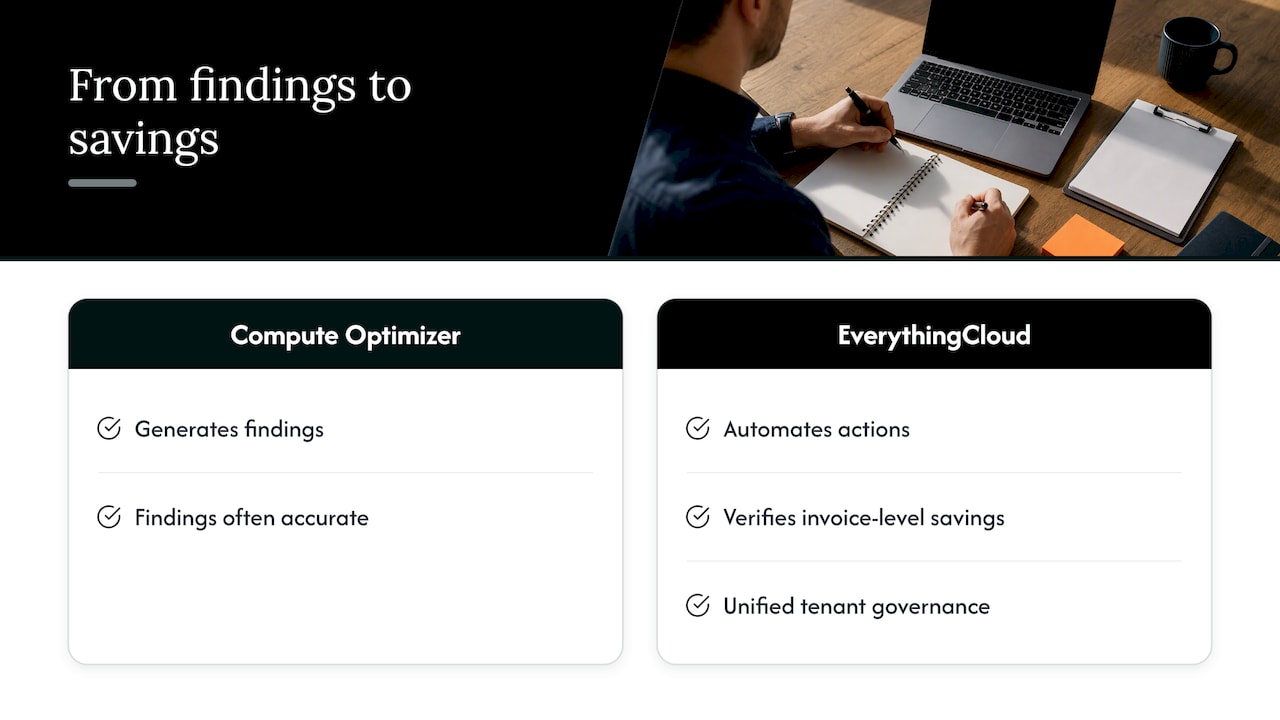
For MSPs, the second half matters just as much. Unified reporting and governance across tenants means you can deliver this as a managed service without hiring a FinOps analyst for every customer.
If you take one thing from this guide: turn Compute Optimizer on, read it with skepticism, and build a process that closes the loop.
— Dan
Closing the loop with a managed approach
If you want recommendations turned into verified monthly savings, The Platform pairs continuous monitoring with automated optimization actions, and our Managed FinOps service adds expert guidance on top. If you run an MSP and want to offer this to your own customers, the Founding Partner Membership is $500 per month.
A simple 30-day plan
You do not need a large program to get value from Compute Optimizer. A month is enough to start.
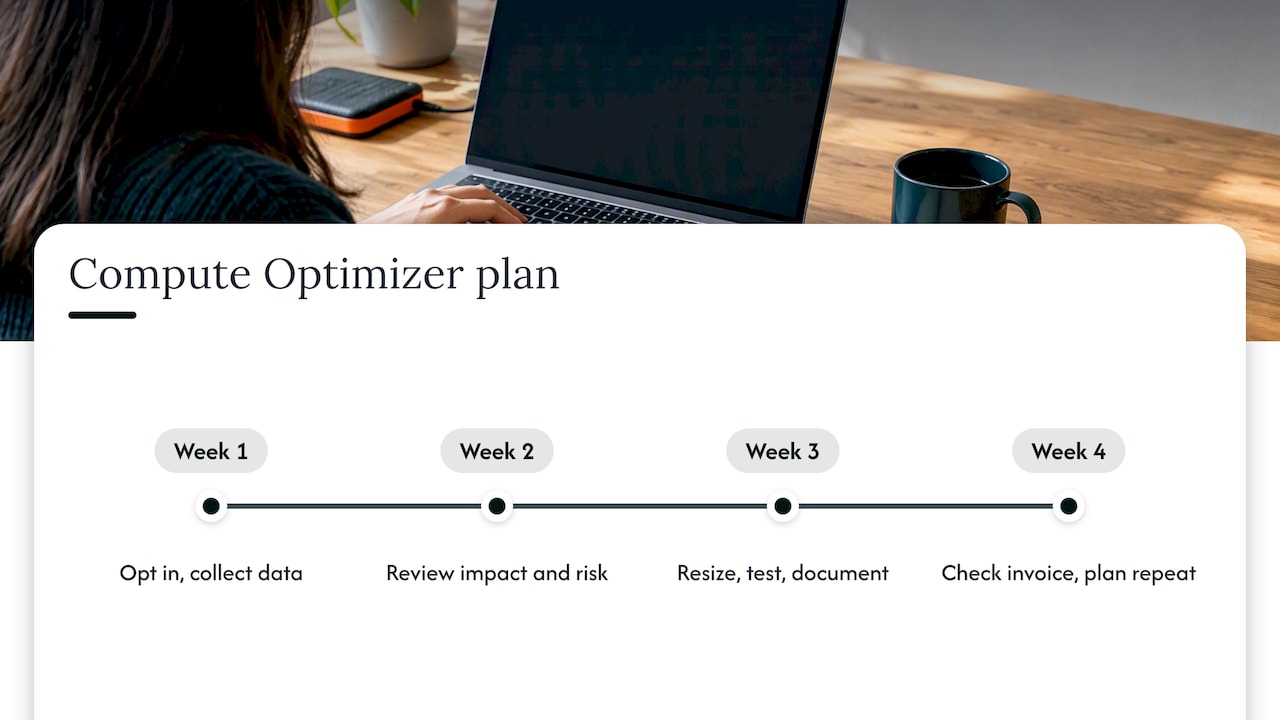
In week one, opt in at the organization level, confirm permissions, and let the service collect data. In week two, review the findings and sort them by estimated impact and risk. Pick the non-production resources first, since they are the safest to change.
In week three, resize a small batch, test it through a normal workload cycle, and document the before and after. In week four, check the next invoice or cost report for the effect, and decide which patterns can be repeated at scale. Then repeat the cycle. The point is not a one-time cleanup. Usage changes every month, so the review has to keep running.
If Kubernetes is part of your estate, the same logic applies to requests and limits, which we cover in our EKS cost optimization guide. If you run databases outside production hours, see how RDS cost optimization can cut nonproduction compute.
FAQ
How do I use AWS Compute Optimizer?
Opt in from the console, API, CLI, or an SDK with the required IAM permissions. AWS creates the service-linked role automatically. Once the service has analyzed your resources, open the recommendations, compare current and suggested configurations, and test any change before applying it to production.
Which resources does Compute Optimizer cover?
Per the user guide, it covers EC2 instances, EC2 Auto Scaling groups, EBS volumes, Lambda functions, ECS services on Fargate, and commercial software licenses for Microsoft SQL Server on EC2. Other services and other clouds are outside its scope.
How far back does it look at my usage?
By default it analyzes the previous 14 days of CloudWatch metrics. Enhanced infrastructure metrics, a paid feature, extends the lookback to 93 days. Use the longer window for workloads with monthly or seasonal peaks.
What do over-provisioned and under-provisioned mean?
Over-provisioned means the instance can be sized down while still meeting performance requirements. Under-provisioned means at least one metric does not meet requirements, which is a performance risk. Optimized means all metrics are met and the instance is not over-provisioned.
Is Compute Optimizer enough on its own?
For a small, single-account environment it is a useful start. For larger or multi-cloud estates, or for MSPs managing many customers, you also need ownership, automated execution, commitment planning, and invoice-level verification of savings.
Sources
- Amazon Compute Optimizer User Guide
- Getting started with Amazon Compute Optimizer
- Migrate the Well-Architected way: Compute Optimizer